If you want your MacBook battery to last as long as possible, keeping it between 20% and 80% is one of the most effective things you can do. Lithium-ion cells degrade fastest at high states of charge, especially when they sit near 100% for hours at a time.
macOS has something called "Optimized Battery Charging", but it is inconsistent and depends on your usage patterns. If you just want a simple, reliable alert when your MacBook hits 80% so you can unplug it, here is how.
Quick Answer
macOS's built-in Optimized Battery Charging is schedule-based and unreliable if your routine varies. The simplest way to get a guaranteed 80% alert on MacBook is to install Juicy, which fires a clean notification the moment your battery crosses 80% (or any percentage you pick). Unplug, protect your cells, extend your battery's lifespan.

Why 80% Matters
Lithium-ion battery chemistry has one inconvenient truth: the higher the state of charge, the faster the cell degrades. Sitting at 100% for long periods is genuinely bad for your battery. Sitting at 80% is dramatically better.
A rough comparison based on battery chemistry research:
Charging habit | Typical lifespan impact |
Always at 100%, plugged in all day | Fastest degradation |
Cycled 0 to 100% daily | Rated 1,000 cycles |
Kept between 20% and 80% | Significantly extended, sometimes 2x or more cycles |
"Significantly extended" is doing a lot of work in that table. The exact numbers depend on temperature, charging rate, and usage patterns. But the direction is well-established: avoiding the top 20% of charge is one of the single best things you can do for long-term battery health.
The catch is that it only works if you actually unplug at 80%. And that requires knowing when you hit 80%.
The Problem: macOS Makes This Hard
Apple added "Optimized Battery Charging" a few macOS versions ago, which delays charging past 80% based on your schedule. The idea is good. The execution has issues:
- It is schedule-based. macOS tries to learn when you typically unplug, then times the final 20% of charging accordingly. If your schedule is irregular (and whose is not), it often misses.
- It gives you no feedback. You cannot tell whether it is actively pausing charging or not.
- It does not send a notification when you hit 80%. You have to either check manually or trust the algorithm.
- It does not work when you genuinely need it. If you are traveling or working unusual hours, it often charges fully.
If you just want a simple, reliable alert when your battery hits 80%, Optimized Battery Charging is not it.
Some people also use AlDente, which physically stops charging at a set percentage. That works, but it requires trusting a third-party app with your hardware, and it removes your ability to charge to 100% quickly when you actually need it.
A middle-ground solution is a reliable notification at 80%, leaving you in charge of the unplug decision.
The Solution: Use Juicy for an 80% Charge Alert
Juicy is a native Mac app that lets you set alerts at any battery percentage, including 80%. Featured by Apple in "Apps We Love" on the Mac App Store, Juicy fires a clean, beautiful notification the moment your battery crosses the threshold you pick.
What Juicy Does:
- Alerts at any percentage you choose (80%, 85%, 90%, whatever)
- Custom sounds per alert, so you can tell at-a-glance which alert is firing
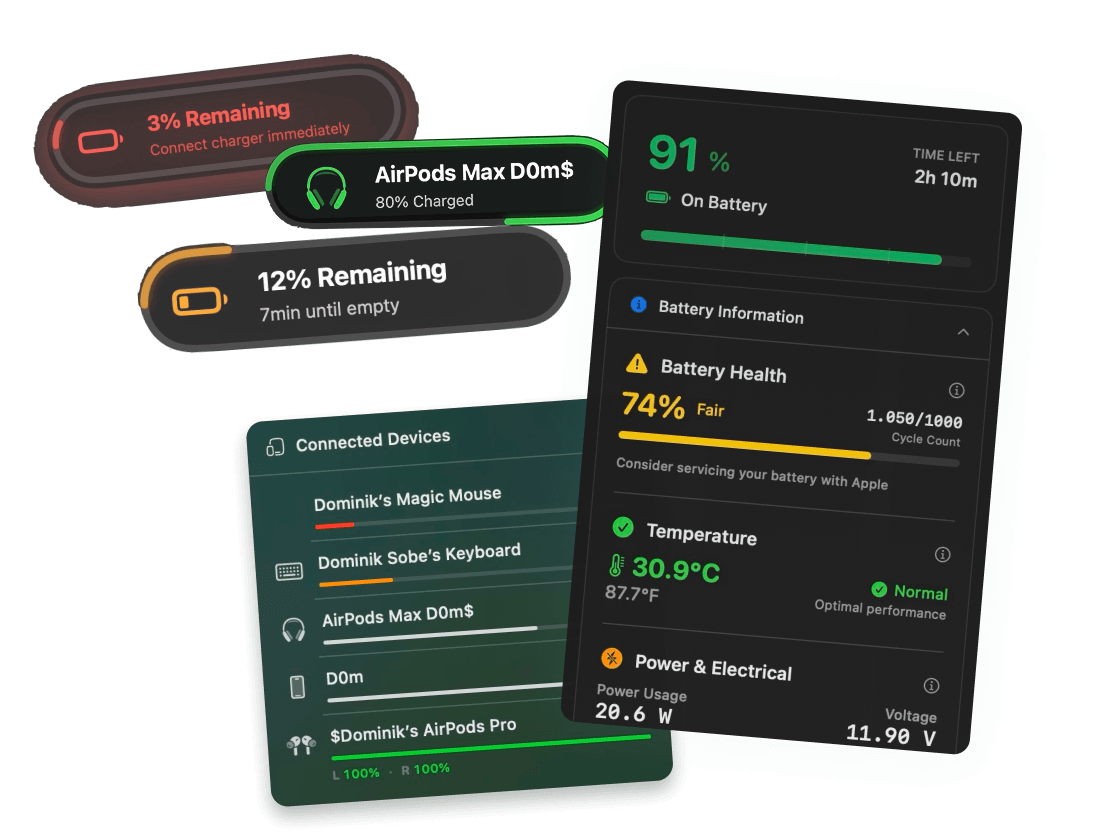
- Beautiful notification pills that look native to macOS
- Optional screen glow to make sure you do not miss it
- Works with both high and low thresholds (80% to protect lifespan, 20% to protect your work)
Juicy does not stop charging for you. It just reliably tells you when to unplug, which is often all you need.
How to Set an 80% Charge Alert with Juicy

Step 1: Download Juicy
Option A: Go to getjuicy.app and click "Download Juicy for Mac"
Option B: Open the Mac App Store, search for "Juicy", and download it directly.
💡 Tip: Juicy offers a 3 day free trial with full features. No credit card required.
Step 2: Open Juicy's Settings
Click the Juicy icon in your menu bar, then open Settings.
Step 3: Add an 80% Alert
In the alerts section, add a new alert:
- Percentage: 80%
- Trigger: "When charging and crossing this level"
- Sound: pick a built-in sound or upload your own
- Screen glow: optional, but highly effective if you tend to miss notifications
Save the alert. That is it.
Step 4: Plug In and Forget
Next time you plug in, Juicy will silently monitor your battery. When you hit 80%, you get a clean notification reminding you to unplug. Unplug, and your battery stays in the healthy zone.
What the Alert Looks Like
When your MacBook hits 80%, Juicy drops a notification pill from the top of your screen that says something like:
🔋 Charged to 80%, time to unplug
If you enabled the screen glow effect, your display will also pulse gently with a green tint for a second or two. It is impossible to miss, but not annoying.
You can also configure the alert to fire only once per charging session, so you do not get nagged if you plug and unplug multiple times in a row.
Why Not Use AlDente or a Hardware Solution?
AlDente is a popular third-party tool that actually stops charging at a set percentage. It works, but comes with tradeoffs:
- Hardware-level intervention. AlDente modifies charging behavior directly. Most people are fine with this, but some users are nervous about it.
- No flexibility on travel days. If you need a full charge before a long trip, you have to disable AlDente manually.
- Overlap with macOS. Apple's Optimized Battery Charging and AlDente can interact in confusing ways.
- More complex than necessary for most people. If you just want a reminder to unplug, an alert is simpler.
Juicy does not replace AlDente. They solve slightly different problems:
- AlDente: prevents charging past 80% automatically
- Juicy: reminds you when you cross 80% so you can unplug
Both are valid. Juicy is the lighter-touch option that keeps you in control.
Other Ways to Protect Your MacBook Battery
An 80% alert is one piece of the puzzle. Here are the other habits that make the biggest difference:
- Avoid deep discharges. Try not to let your battery drop below 20% regularly. Pair the 80% alert with a 20% alert for this.
- Keep it cool. Heat is the second biggest killer of lithium-ion cells. Do not use your MacBook on a bed or pillow that blocks airflow.
- Unplug during long idle periods. If your MacBook sits unused for days, unplug it instead of leaving it on the charger.
- Do a full cycle occasionally. Every few weeks, let it drain lower than usual and charge fully. This helps keep the battery's internal state of charge estimation accurate.
- Use quality chargers. Cheap or no-name chargers can deliver unstable power, which stresses the battery.
Juicy gives you the visibility to do all of this. Battery health, cycle count, temperature, and charge state are all in one panel.
FAQ
Does macOS have a built-in 80% charge limit?
Sort of. "Optimized Battery Charging" in System Settings, Battery delays charging past 80% based on your schedule, but it is not a hard limit and it does not send a notification.
Does stopping at 80% really extend battery life?
Yes. Lithium-ion cells degrade faster at high states of charge. Keeping your battery between 20% and 80% can significantly extend its usable lifespan, though the exact improvement depends on temperature and use patterns.
Can Juicy physically stop charging at 80%?
No. Juicy sends you a notification at 80% so you can unplug. If you want hardware-level charge limiting, look at AlDente. For most people, a reliable alert is enough.
What if I need to charge to 100% for a trip?
Just ignore the alert. Juicy does not prevent anything. It just tells you when you cross the threshold. For a full-charge day, no problem.
Will the 80% alert wake my MacBook from sleep?
No. Juicy is designed to respect sleep. The alert fires when your MacBook is awake and charging.
Stop Charging Your MacBook to 100% by Default
Small habit, huge long-term difference. With Juicy, you get:
- Custom 80% alert that fires the moment you cross the threshold
- Every other battery metric (health, cycles, voltage, wattage) in one panel
- Beautiful battery alerts
- 100% local, no cloud sync, no tracking