Your MacBook battery is slowly dying every single day. That is just how lithium-ion cells work. The question is not whether it is degrading, but how much life is left and whether you should be worried about it.
Apple knows this, but the tools they give you to check battery health on macOS are surprisingly limited. You get a single word like "Normal" or "Service Recommended" buried three clicks deep in System Settings. No percentage. No graph. No history.
Here is exactly how to check your MacBook battery health properly, and how to do it in one click from your menu bar.
Quick Answer
macOS only shows you a one-word status ("Normal" or "Service Recommended") buried in System Settings, Battery, Battery Health. To see your exact battery health percentage, cycle count, and temperature live from your menu bar, install Juicy. It surfaces every battery metric your Mac reports, all in one glanceable panel.

The Problem: macOS Hides Your Battery Health
Apple has progressively made it harder to check battery health over the last few macOS versions. Here is what you get out of the box:
- A single status word. Open System Settings, go to Battery, click Battery Health. You see "Normal" or "Service Recommended". That is it. No percentage.
- A buried maximum capacity number. On older macOS versions, clicking the info icon sometimes revealed a percentage. On the newest versions, that is gone entirely for most users.
- Zero history. Apple never shows you how your battery has degraded over time.
- No cycle count. To see cycle count, you have to hold Option, click the Apple menu, open System Information, click Power, and scroll. Nobody does this.
For such a critical piece of hardware, the default experience is genuinely bad. Most Mac users have no idea what their battery health actually is.
The Solution: Use Juicy to Check Battery Health in Real Time
Juicy is a native Mac app that surfaces every battery health metric from your menu bar, live. Featured by Apple in "Apps We Love" on the Mac App Store, Juicy gives you the numbers Apple hides.
What Juicy Shows You:
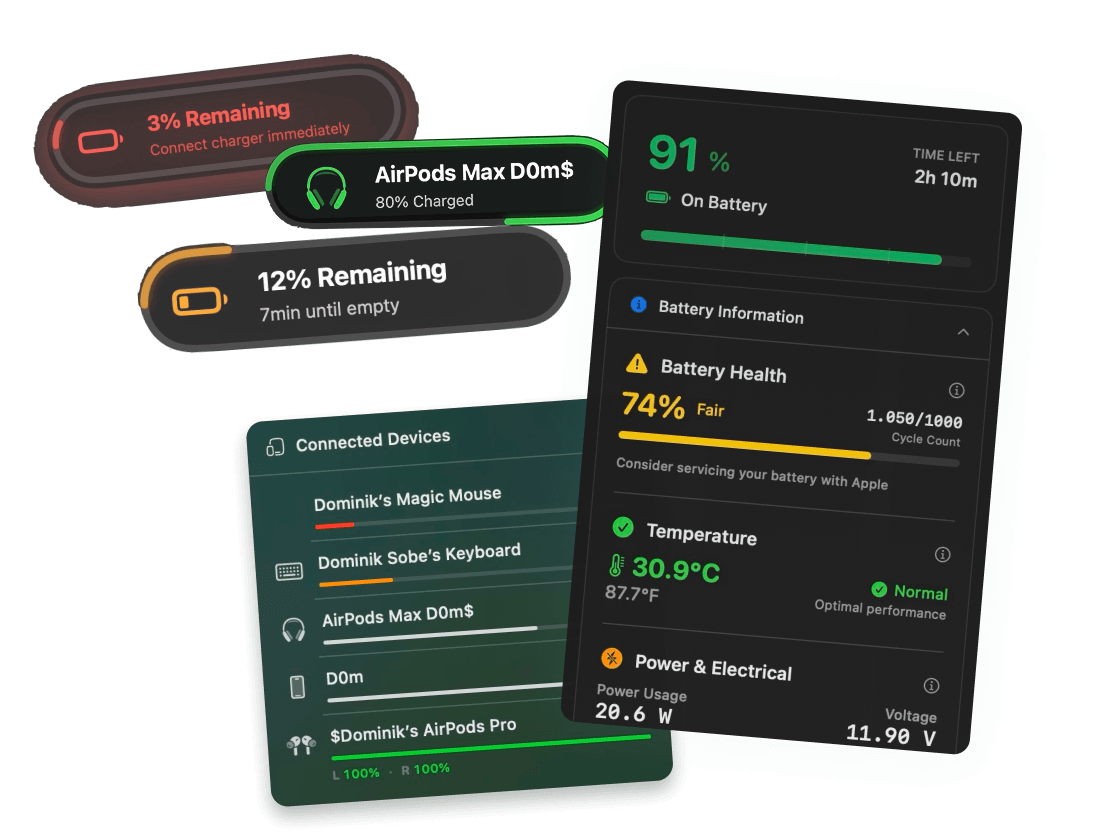
- Exact battery health percentage, updated live (for example, "74% of original capacity")
- Current maximum capacity in mAh, compared against the original design capacity
- Cycle count, versus Apple's rated maximum of 1,000
- Live temperature in Celsius or Fahrenheit
- Voltage, amperage, and power draw so you can see exactly how hard your battery is working
- Service recommendation status flagged prominently so you do not miss it
All of this is one click away from your menu bar. No System Settings. No Terminal commands.
How to Check Your MacBook Battery Health with Juicy
Step 1: Download Juicy
Option A: Go to getjuicy.app and click "Download Juicy for Mac"
Option B: Open the Mac App Store, search for "Juicy", and download it there.
💡 Tip: Juicy offers a 3 day free trial with full features. No credit card required.
Step 2: Click the Juicy Menu Bar Icon
Once installed, Juicy lives in your menu bar. Click the icon and you will see a panel with every battery metric.
Step 3: Check Your Battery Health
At the top of the panel, you will see your current battery health as a percentage. Below that, Juicy shows the raw numbers it is based on: current maximum capacity in mAh, original design capacity in mAh, and the difference between them.
For example, you might see something like:
That tells you your battery can now hold about 74% of the charge it could when your MacBook was new.
Step 4: Watch the Service Recommendation
If your battery health drops below Apple's service threshold (typically around 80%) or shows other faults, Juicy flags it prominently. You will see a "Service Recommended" badge in the menu bar panel, so you can book a Genius Bar appointment before your battery becomes unreliable.
What Is a "Normal" Battery Health Percentage?
Modern MacBooks (M1 and later) are rated for 1,000 charge cycles before dropping below 80% of their original capacity. Apple considers anything at or above 80% maximum capacity "Normal". Below that, you usually see "Service Recommended".
Here is a rough guide based on typical MacBook usage:
Battery health | Meaning |
100% to 90% | Healthy, brand new or lightly used |
89% to 80% | Normal wear after 1 to 3 years of use |
79% to 70% | Noticeable runtime loss, service recommended |
Below 70% | Significant degradation, consider replacement |
Juicy surfaces all of this automatically, so you do not need to guess.
Why Not Just Use System Settings?
You can technically see some battery info in System Settings, Battery, Battery Health. Here is why that is not enough:
- No precise percentage. Apple deliberately hides the exact health percentage on recent macOS versions. You get "Normal" or "Service Recommended", nothing more.
- No live updates. System Settings is a static view. Juicy updates in real time as your battery state changes.
- No cycle count in one place. You have to dig into System Information to see cycle count. Most people never do this.
- No temperature, voltage, or wattage. System Settings shows none of these, even though they all matter for battery longevity.
- No service warning from the menu bar. macOS will not tell you your battery is failing unless you check System Settings yourself.
Why Not Use Terminal Commands?
If you search around, you will find Terminal commands like system_profiler SPPowerDataType or ioreg -l -w0 | grep -i BatteryData. These do work, but:
- The output is a wall of text. You have to parse through dozens of fields to find the numbers you want.
- The format changes between macOS versions. Commands that worked on Monterey may output different keys on Sonoma or Sequoia.
- No notifications. You only see data when you run the command. If your battery health suddenly changes, you have no way to know.
- Nothing to share with Apple Support. A formatted Juicy panel is easy to screenshot and send. A wall of Terminal text is not.
A purpose-built app like Juicy gives you the same underlying data, formatted and updated live from your menu bar.
How Often Should You Check Battery Health?
You do not have to obsess over it, but checking in every week or two is sensible. Watch for:
- Sudden drops in maximum capacity (more than 1 or 2 percent in a short time)
- Temperature consistently above 35 Celsius or 95 Fahrenheit during normal use
- Cycle count accumulating faster than expected
- A "Service Recommended" warning appearing
Juicy makes this trivial. The menu bar icon is always there, and if anything important changes, you will notice it the next time you glance up.
FAQ
How do I check battery health on MacBook without Juicy?
Open System Settings, click Battery, then click Battery Health. You will see a one-word status like "Normal" or "Service Recommended". For cycle count, hold Option, click the Apple menu, open System Information, and click Power. You will not see the exact percentage on most recent macOS versions.
Is 85% battery health good for a MacBook?
Yes. Apple considers any MacBook battery above 80% maximum capacity to be in the "Normal" range. 85% means your battery is healthy, just naturally worn from use.
When should I replace my MacBook battery?
Apple recommends service when maximum capacity drops below 80% or when your battery shows other faults. In practice, many people replace around 70% to 75% when they start noticing significantly shorter runtime.
Does checking battery health use any battery?
No. Reading battery metrics uses essentially zero power. Juicy itself runs at less than 0.1% CPU usage.
Does Juicy work on Intel MacBooks?
Yes. Juicy supports both Apple Silicon (M1, M2, M3, M4) and Intel MacBooks running macOS 15 Sequoia or later.
Stop Guessing About Your Battery Health
Your MacBook is one of the most expensive tools you own. Knowing exactly how its battery is doing takes about two seconds with the right app. With Juicy, you get:
- Live battery health percentage, right in your menu bar
- Every other battery metric (health, cycles, voltage, wattage) in one panel
- Beautiful battery alerts
- 100% local, no cloud sync, no tracking