Ever wonder how many watts your MacBook actually uses? Maybe you are shopping for a travel charger and want to know if a 30W brick is enough. Maybe you noticed your battery draining faster than usual and want to find the culprit. Maybe you just want to see what your M-series chip is really doing under load.
Whatever the reason, macOS makes this embarrassingly hard to find. There is no built-in live wattage display. Here is how to see your Mac's power draw in real time, in one click.
Quick Answer
macOS does not show live wattage anywhere in the default UI. To see your Mac's live power draw in watts, install Juicy. It reads the battery's power output and displays it right in your menu bar, updated continuously so you can spot battery-hungry apps immediately.

Why Live Power Draw Matters
Wattage is the single most practical metric for understanding your MacBook's real energy use. It answers questions like:
- "Is this travel charger enough?" A 30W brick is fine if your MacBook typically draws 15 to 25W during work. If you regularly hit 60W under load, you need a bigger charger.
- "Why is my battery dying so fast?" Sudden jumps in wattage usually mean a rogue app or background process is eating power.
- "How efficient is my M4 really?" Apple Silicon MacBooks can be shockingly efficient. Seeing your live wattage under real workloads puts numbers on that.
- "How much does rendering / compiling / training cost me in runtime?" Multiply wattage by hours to estimate battery drain precisely.
None of this is visible in macOS out of the box. You can see battery percentage and time remaining, but not the actual power draw behind those numbers.
The Problem: macOS Does Not Show Live Wattage
If you want live wattage on macOS, your options are limited:
- Activity Monitor shows "Energy Impact", which is a made-up score, not actual watts.
- System Information, Power shows current amperage in mA, but not wattage directly.
- The battery menu bar icon shows a percentage and nothing else.
- Terminal with
ioregorpmset -g battcan give you raw values, but you have to parse them yourself and do the math (voltage times amperage) to get watts.
Apple reads all of this internally to make thermal and power management decisions. They just do not put it in front of you.
The Solution: Use Juicy to See Live Power Draw
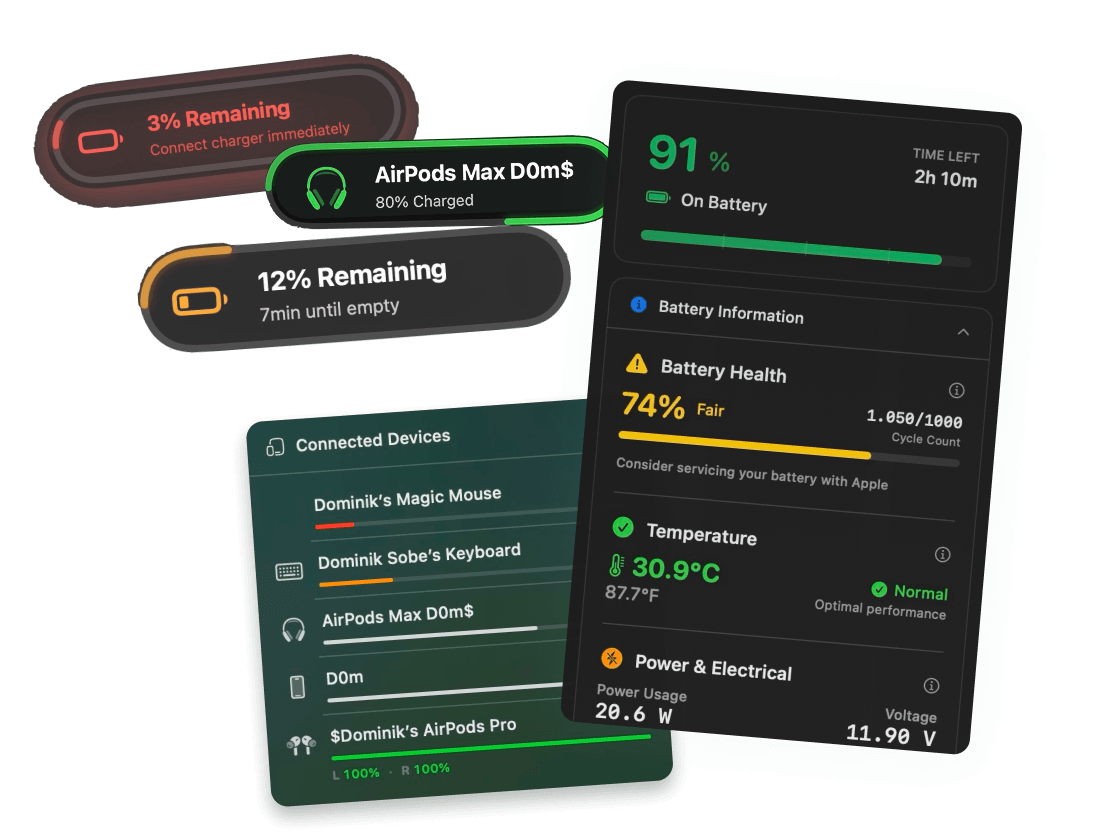
Juicy is a native Mac app that shows your MacBook's live power draw in watts, right from your menu bar. Featured by Apple in "Apps We Love" on the Mac App Store, Juicy reads the battery hardware directly and does the math for you.
What Juicy Shows You:
- Live power draw in watts, updated continuously
- Direction of flow: charging (power in) or discharging (power out)
- Companion readings: voltage (V) and amperage (mA) so you can see the full electrical picture
- Battery health, cycles, and temperature in the same panel
How to Check Live Power Draw with Juicy
Step 1: Download Juicy
Option A: Go to getjuicy.app and click "Download Juicy for Mac"
Option B: Open the Mac App Store, search for "Juicy", and download it directly.
💡 Tip: Juicy offers a 3 day free trial with full features. No credit card required.
Step 2: Click the Juicy Menu Bar Icon
Once installed, Juicy lives in your menu bar. One click opens the full battery info panel.
Step 3: Read Your Live Power Draw
Look for the wattage reading. You will see something like:
Or, while plugged in:
The number updates continuously. Run a heavy workload and you will see wattage climb in real time. Close the app, and it drops.
What Is a Typical MacBook Power Draw?
Actual wattage depends heavily on your MacBook model and workload. Here is a rough guide for modern Apple Silicon MacBooks:
Activity | Typical draw |
Idle, screen dim | 3 to 5 W |
Reading, light browsing | 5 to 10 W |
Writing, editing documents | 8 to 15 W |
Video calls (Zoom, Meet) | 10 to 20 W |
Video playback (YouTube, Netflix) | 6 to 12 W |
Normal coding and compilation | 12 to 25 W |
Heavy coding, large builds | 20 to 35 W |
4K video export (Final Cut) | 25 to 50 W |
3D rendering, ML training | 35 to 70 W+ |
Intel MacBooks typically run 30 to 50% higher across the board. An Intel 16 inch MacBook Pro might pull 80 to 90 W under heavy load where an M4 Max pulls 40 to 50 W for the same work.
Juicy shows you the real number for your specific machine, under your specific workload, right now.
Using Power Draw to Find Battery-Hungry Apps
If your MacBook is draining faster than usual, live wattage is the fastest way to find the culprit:
- Open Juicy and note your baseline wattage with only essential apps running.
- Open Activity Monitor in parallel.
- Quit suspicious apps one at a time and watch the Juicy wattage readout.
- When wattage drops significantly after quitting a specific app, you found the battery eater.
Activity Monitor's "Energy Impact" column is a blunt instrument. Live wattage tells you the real story.
Using Power Draw to Pick the Right Travel Charger
If you travel a lot, you probably want the smallest possible charger. The question is: how small can you go without losing ground while you work?
Here is the practical rule:
- Check your average working wattage in Juicy over a normal hour of work.
- Add a buffer of about 10 W to cover peaks.
- Pick a charger that delivers at least that wattage.
For example, if you average 18 W during normal coding, a 30 W GaN charger is plenty. If you average 40 W during video editing, you want a 65 W or higher charger to keep charging while you work.
Juicy gives you the numbers to make this decision instead of guessing.
Why Not Use Activity Monitor's Energy Impact?
Activity Monitor's "Energy Impact" column is Apple's attempt to make energy use approachable. It is useful for ranking apps relative to each other, but it has problems:
- It is not in watts. It is a unitless score.
- It is averaged over time. Short bursts do not show up clearly.
- It mixes CPU, GPU, and network into one number. You cannot see what is actually consuming power.
- It does not show total system power. It only shows per-app contributions.
Live wattage from the battery is the ground truth. Juicy shows you that, and you can still use Activity Monitor alongside it to identify which specific app is responsible for the draw.
FAQ
How many watts does a MacBook use on average?
Apple Silicon MacBooks typically use 5 to 25 W during normal daily use (browsing, writing, video calls). Under heavy load (video export, 3D, ML), they can peak at 40 to 70 W. Intel MacBooks run 30 to 50% higher for equivalent workloads.
How do I check MacBook wattage without any app?
You cannot see it directly. You can get raw voltage and amperage from ioreg in Terminal and multiply them, but there is no built-in live wattage display in macOS.
Does a higher-wattage charger damage my MacBook?
No. Your MacBook draws only as much power as it needs. A 96 W charger will not push more than 30 W to a MacBook Air that only asks for 30 W.
Why is my MacBook pulling more power than I expected?
Usually a background process or runaway app. Live wattage plus Activity Monitor will help you find the culprit fast.
Does Juicy show power draw in real time?
Yes. Juicy reads the battery hardware continuously and updates the wattage display in the menu bar panel live.
See Exactly How Much Power Your Mac Is Using
Stop guessing how many watts your MacBook is pulling. With Juicy, you get:
- Live power draw in watts, right in your menu bar
- Every other battery metric (health, cycles, voltage, wattage) in one panel
- Beautiful battery alerts
- 100% local, no cloud sync, no tracking