You know that sleek, compact battery icon on your iPhone? The one with the percentage neatly tucked inside? Yeah, that one. Now look at your MacBook's menu bar. See that clunky battery icon taking up way too much space?
If you enable percentage display on macOS (which, let's be honest, you probably should), it gets even worse. The percentage sits outside the battery, making the whole thing unnecessarily wide. Meanwhile, your iPhone solved this problem years ago with a beautiful, compact design.
Why can't your MacBook have the same thing? Well, Apple won't give it to you. But I will show you exactly how to get that clean iPhone battery icon on your MacBook in about 2 minutes.
Quick Answer
The default MacBook battery icon is wide and clunky. To get the compact iPhone style battery icon on your MacBook (with percentage inside the battery), download Juicy from the Mac App Store. It replaces the default icon with a clean, compact battery indicator that looks just like your iPhone.
The Problem: MacBook's Default Battery Icon Is Ugly and Takes Up Too Much Space
Let me be blunt. The default macOS battery icon is borderline criminal. Here is why MacBook users hate it:
- No percentage inside the battery. You have to enable a separate percentage display, which makes it even wider.
- Takes up way too much space. With percentage enabled, it eats up valuable menu bar real estate.
- Looks dated. The iPhone has had a beautiful compact battery icon for years. Why can't MacBook?
- White and boring. No visual indication of charge level until you click it.
Meanwhile, your iPhone has a perfectly good solution. A compact battery icon with the percentage right inside it. Clean. Simple. Beautiful.
The question is: why doesn't macOS have this?

The Solution: Get the iPhone Battery Icon on Your MacBook with Juicy
Juicy is a native macOS app that replaces your default battery icon with a much better one. You get the same compact, iPhone style battery indicator, complete with percentage inside.

What You Get:
- Compact iPhone style battery icon with percentage inside
- Much smaller footprint in your menu bar
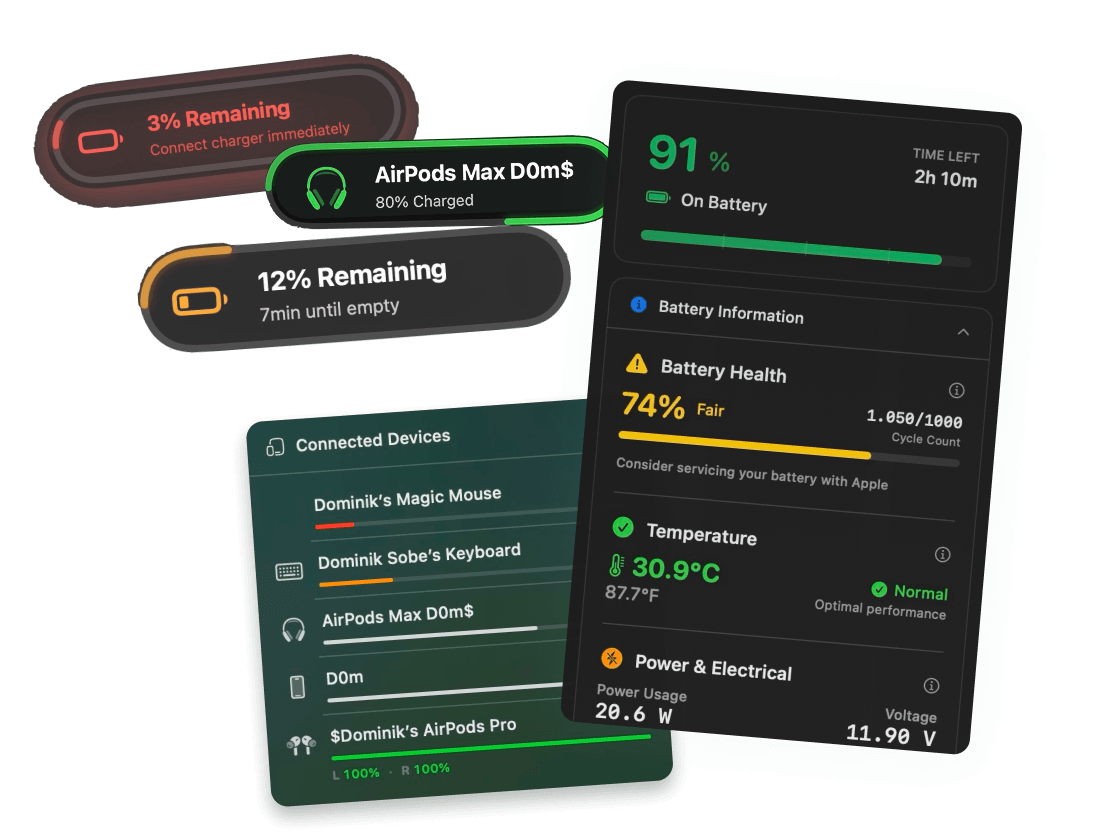
- Color coded battery level (green when high, yellow when medium, red when low)
- Option for Juicy default icon (more colorful and vibrant)
- Battery health info accessible with one click
- Custom battery alerts at any percentage (bonus feature)
The best part? It takes 2 minutes to set up and actually makes your menu bar look cleaner.
How to Replace Your MacBook's Battery Icon with iPhone Style (Step by Step)
Setting up Juicy takes less than 2 minutes. Prefer video over text? Check out this quick 3 min video tutorial for you. Here is how to set up a better battery icon for your Mac:
Step 1: Download Juicy
Option A: Go to getjuicy.app and click "Download Juicy for Mac"
Option B: Open the Mac App Store and search for "Juicy"
💡 Free Trial: Juicy offers a 3 day free trial. No credit card required.

Step 2: Install and Open Juicy
After downloading, open Juicy. You will see a quick 3 step onboarding process.
- Battery Alerts Screen: This is where you can set custom battery notifications (we will skip this for now by clicking Next)
- Choose Your Battery Icon Style: This is what we came for. You will see two options:
- Minimal: The iPhone style compact battery with percentage inside
- Juicy Default: A more colorful, vibrant battery icon
Select Minimal to get the iPhone look.
- Finish Setup: Click Finish. Done.

Step 3: Remove the Default MacBook Battery Icon
Now you will have two battery icons in your menu bar (the default MacBook one and the new Juicy one). Let me show you how to remove the default one:
- Hold down the Command (⌘) key on your keyboard
- While holding Command, click and drag the default battery icon out of the menu bar
- Keep dragging until you see an X appear
- Release your mouse. The default icon is gone.
That is it. You now have the clean, compact iPhone battery icon on your MacBook.

What If the Juicy Icon Does Not Appear?
If you installed Juicy but do not see the icon in your menu bar, it is probably because macOS hides icons when the menu bar is too crowded. Here’s a great quick video tutorial showing you a great trick how to make the icon appear.
Solution 1: Remove Other Menu Bar Icons
You can free up space by removing menu bar icons you do not need:
- Hold Command (⌘)
- Drag unwanted icons out of the menu bar
- Release when you see the X
Solution 2: Use a Menu Bar Manager
If you have many menu bar apps, use Ice (it is free and open source):
- Google "Ice menu bar app" or go to github.com/jordanbaird/Ice
- Download and install Ice
- Use Ice to prioritize which icons show all the time (like Juicy)
- Hide less important icons that you can access by hovering
This way, Juicy's battery icon stays visible while other apps hide until you need them.
Before and After: Default vs iPhone Style Battery Icon
Default MacBook Battery Icon (With Percentage):
- Wide and bulky
- Percentage sits outside the battery
- Takes up ~60 pixels of menu bar space
- Boring white color
iPhone Style Battery Icon (Juicy Minimal):
- Compact and clean
- Percentage sits inside the battery
- Takes up ~30 pixels of menu bar space
- Color coded (green/yellow/red based on charge)
The difference is night and day. Your menu bar instantly looks cleaner and more organized.
Bonus: What Else Can Juicy Do?
While you are here for the iPhone battery icon, Juicy does way more than just look pretty:
Custom Battery Alerts
Set battery notifications at any percentage (3%, 15%, 20%, 80%). No more relying on macOS's limited 10% and 5% warnings.
Battery Health Tracking
See your battery health percentage, cycle count, temperature, and voltage with one click on the menu bar icon.
Lifecycle Alerts
Get notified when you plug in or unplug your charger. Set alerts when your battery reaches 80% to protect long term health.
Custom Sounds
Choose from built in sounds or upload your own for each battery event.
All of this in a native Swift app that uses less than 0.1% CPU.
FAQ
Does this replace the default MacBook battery icon?
Yes, but you have to manually remove the default icon. Juicy adds a new icon, then you drag the old one out while holding Command.
Will the iPhone style icon show percentage?
Yes. The percentage is displayed inside the battery, just like on iPhone.
Does this work on all MacBooks?
Juicy works on any MacBook running macOS 15.0 (Sequoia) or later. This includes all MacBook Air and MacBook Pro models with Apple Silicon or Intel chips. Note that only MacBooks have batteries, so this feature is specifically for portable Mac laptops.
Does it drain battery?
No. Juicy uses less than 0.1% CPU. It is built with Swift and optimized for Apple Silicon.
Can I switch back to the default icon?
Yes. Just quit Juicy and the default MacBook battery icon will return automatically.
Is there a free trial?
Yes. Juicy offers a 3 day free trial with all features. No credit card required.