Why is your Mac battery
draining so fast?
Check your symptoms below and get a ranked list of the most likely culprits, with the exact fix for each. No generic listicles, just your situation.
Check everything that applies to your Mac:
Runs in your browser. Nothing is uploaded.
The usual suspects
Every common Mac battery drain, explained.
A runaway app or process
One misbehaving app (a stuck tab, a syncing client, a background indexer) can quietly burn more power than everything else combined. Warmth and fan noise while 'idle' are the giveaway.
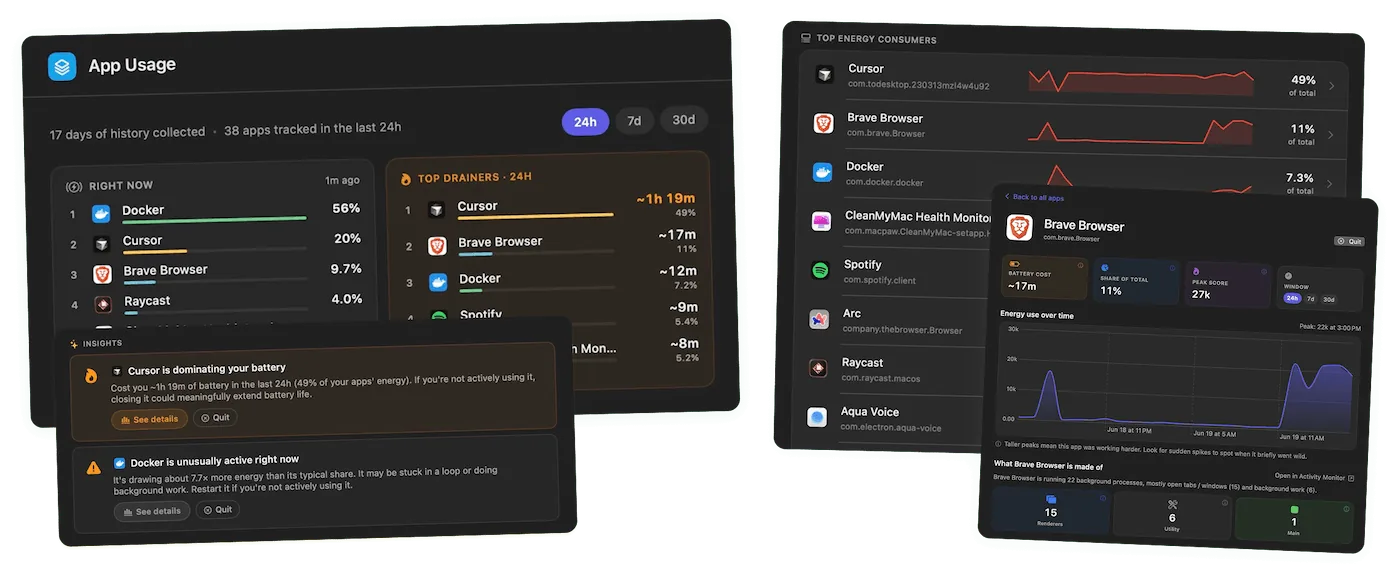
The fix: Open Activity Monitor, sort the Energy tab by Energy Impact, and quit the top offender. Or let Juicy's App Insights rank drainers live and over the last 30 days, so repeat offenders can't hide.
A worn-out battery
If capacity has dropped to 80% or below, the same workload simply drains a smaller tank. Sudden percentage jumps and early shutdowns point the same way.
The fix: Check your real numbers with our free battery health checker. Below 80% health, no software tweak will fix the runtime: it's service time.
Your Mac isn't really sleeping
Overnight and lid-closed drain means something keeps waking the machine: Power Nap, 'Wake for network access', Find My pings, Bluetooth accessories, or an app that blocks sleep entirely.
The fix: In System Settings > Battery > Options, turn off 'Wake for network access' and Power Nap. Then check Activity Monitor's CPU tab for apps with 'Preventing Sleep' set to Yes (the column is under View > Columns).
Chrome and Electron apps
Chrome plus a few Electron apps (Slack, Discord, Teams, Notion) is the single most common drain pattern on modern Macs. Each one runs its own browser engine, and tabs you forgot about keep working in the background.
The fix: Try Safari on battery days (it routinely buys 1 to 2 extra hours), prune extensions, and actually quit (Cmd + Q) heavy apps you're not using instead of leaving them in the Dock.
Post-update reindexing
After a macOS update, Spotlight rebuilds its index and Photos re-scans your library. Both are battery-hungry and both are temporary, but 'temporary' can mean a day or two.
The fix: Leave the Mac plugged in overnight once or twice and let it finish. If the drain persists more than 2 to 3 days after an update, something else is going on: check Activity Monitor.
Powered peripherals
USB hubs, external SSDs, webcams and even some USB-C cables draw power constantly, whether you're using them or not. A hub with a spinning drive can cost 5 to 10% per hour on its own.
The fix: Unplug hubs and drives when you're on battery. If you need them, prefer powered hubs (they use their own supply) over bus-powered ones.
Display settings
The display is often the single biggest legitimate consumer. Max brightness can use several times the power of a comfortable mid-level setting.
The fix: Enable auto-brightness, drop 2 to 3 notches from max, and set the screen to dim slightly on battery (System Settings > Battery). Small change, hours of difference.
Stop guessing
See the exact app eating your battery.
Juicy ranks every app by energy use, live and over the last 24 hours, 7 days or 30 days, and calls out misbehaving apps before they cost you an afternoon of battery.
Want the full story? See the Battery App Insights feature.
Battery drain,
answered.
Why is my Mac battery draining so fast all of a sudden?
Sudden drain almost always has a specific cause: a runaway app or stuck browser tab, post-update reindexing, something preventing sleep, or a newly connected accessory. Run through the diagnostic above, then confirm with Activity Monitor's Energy tab, sudden drains show up clearly there.
Why does my MacBook lose battery overnight with the lid closed?
Because it isn't actually sleeping. Power Nap, 'Wake for network access', Find My, and Bluetooth devices can all wake a closed Mac hundreds of times a night. Turn those off in System Settings > Battery > Options and overnight drain usually drops to 1 or 2%.
Does Chrome really drain Mac batteries faster than Safari?
Yes, consistently. Safari is deeply optimized for Apple Silicon, while Chrome and Electron-based apps (Slack, Discord, Teams) each run their own browser engine. Switching to Safari on battery days commonly adds 1 to 2 hours of runtime.
How do I see which apps are draining my Mac's battery?
Two ways: Activity Monitor's Energy tab shows a live Energy Impact ranking (but no useful history), or Juicy's App Insights which tracks it continuously and shows 24-hour, 7-day and 30-day rankings, so the app that ate your battery yesterday can't hide.
Is battery drain normal after a macOS update?
For the first day or two, yes. Spotlight reindexes your drive and Photos re-scans your library, both power-hungry, both temporary. Keep the Mac plugged in overnight and judge the battery only after 2 to 3 days. Persistent drain after that deserves a proper look.
When is fast drain a sign the battery itself is worn out?
When the percentage jumps around, the Mac dies before reaching 0%, or every workload drains faster than it used to. Check your capacity with our free battery health checker: below 80% health, the battery is the drain.
Don't run out of juice.
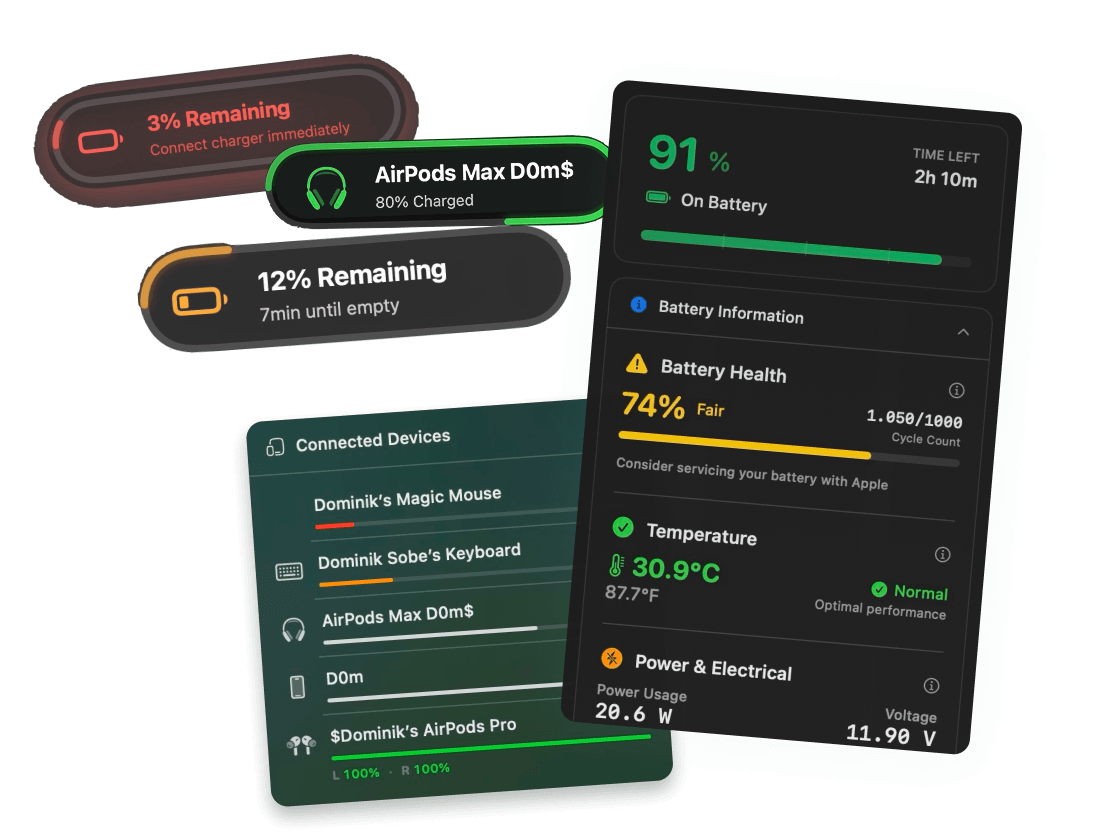
Smart battery alerts, health insights, and beautiful design: everything you need for your Mac's battery. Use 3 days for free.
Juicy is available for your macOS
Get a download link reminder sent to your email when you are back in front of your computer:
We'll send you the download link. No spam.
 •No credit card required