Beautiful battery widgets
for your Mac.
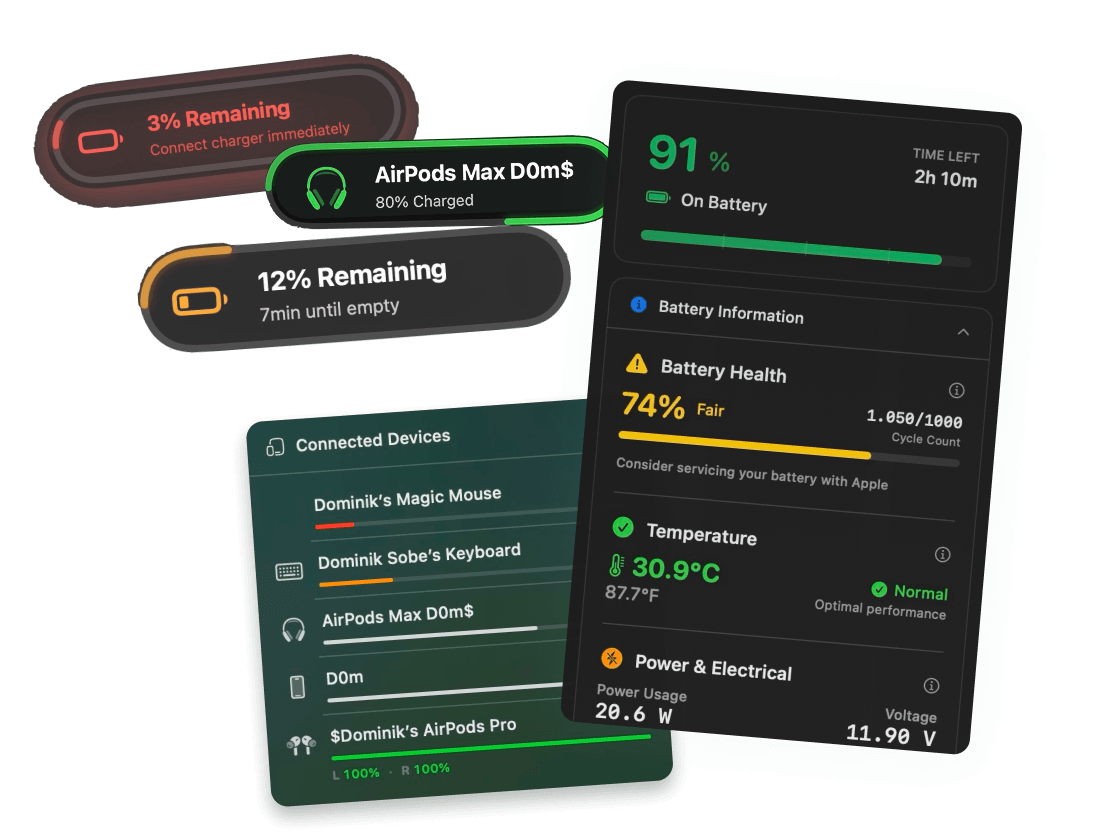
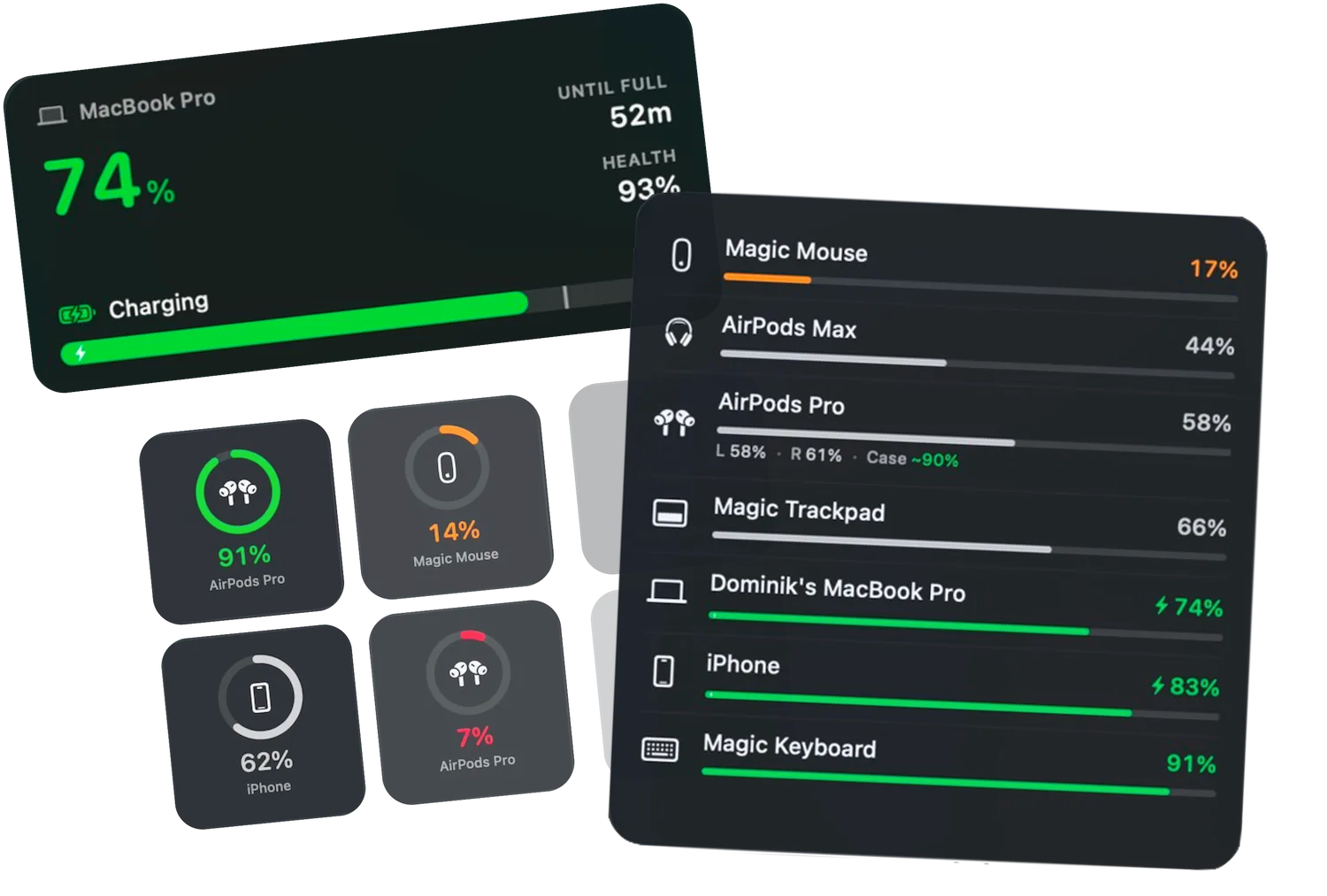
Your Mac, iPhone, iPad and AirPods batteries on the desktop or in Notification Center, in any style you want. Rings, list or bars, any size, full color or quiet monochrome, and the lowest battery is always on top.
Free 3-day trial • No credit card required
Free 3-day trial • No credit card required
Juicy is available for your macOS
Get a download link reminder sent to your email when you are back in front of your computer:
We'll send you the download link. No spam.
Apple's Batteries widget shows
half the picture
The built-in widget is fine for the Mac itself. It only lists Bluetooth accessories that are connected right now, in whatever order macOS picks, in one style, and it stops at a percentage.
Apple's Batteries widget
- Shows the Mac plus Bluetooth accessories connected at that moment. Your iPhone and iPad never appear.
- Devices land in whatever order macOS picks, so the one about to die can sit at the bottom.
- One look. No rings, no bars, no names under the icons in the compact sizes, nothing about time remaining.
- Keeps showing the last number when a device drops off instead of telling you.
Juicy's widgets
- Every device Juicy tracks: Mac, iPhone, iPad, AirPods (left, right and case), Magic Mouse, Keyboard and Trackpad.
- Lowest battery first, by default. The device that needs attention is always at the top.
- Rings with the device name underneath, an Apple-style list with an optional progress bar, or bars like Juicy's dropdown. Any size, chosen per widget.
- Looks like it belongs on your Mac: Juicy's colors or quiet monochrome, and the clear and tinted looks on macOS 27.
Mix and match
Every device at a glance, or just the one you worry about
Small to extra large
All Batteries
Your Mac and every device at a glance. The bigger the size, the more devices fit. Sort them yourself or let Automatic float the lowest battery to the top.
The big-number view
Mac Battery
Your Mac with the big-number treatment: percentage, charging state and time remaining, readable from across the room.
One device, front and center
Device Battery
The single device you care about most. AirPods show left, right and case separately, so you know which earbud is about to quit.
Your desktop, your style
Rings, list or bars
Every widget has its own settings. Right-click it, choose Edit Widget, and pick the look. Switch one widget to quiet monochrome while the rest of your desktop stays colorful.
Rings
A ring per device with its glyph in the middle and the device name underneath, so there is no guessing which AirPods are which. The most glanceable of the three.
List
An Apple-style list with name and percentage, plus an optional progress bar so you can read levels without reading numbers. Familiar if you use the built-in Batteries widget, just with all your devices in it and the lowest first.
Bars
The color-coded bars from Juicy's own dropdown, ranked by battery level. Green, yellow, red. You know the drill.
Monochrome mode turns any single widget quiet. The clear and tinted looks on macOS 27 work out of the box.
Care for the small things
Same job as every battery widget. Done properly.
Most battery widgets, Apple's included, list devices in an arbitrary order and leave you guessing which ring is which. Juicy sweats the details.
Lowest battery first
Devices are sorted by charge, lowest at the top, by default. You never scan the whole widget to find the one that is about to die.
Names under every ring
Each ring carries the device name, so two pairs of AirPods or a mouse and a trackpad are never a guessing game.
Optional progress bar
The list view can show a slim bar next to each percentage. Levels read at a glance, from across the desk.
AirPods, in three parts
Left, right and case each get their own number, so you know which earbud is about to quit, not just that one is.
Your order, if you prefer
Automatic keeps the lowest battery on top. Or right-click the widget and pin exactly which devices appear and in what order.
Quiet when you want it
Switch any single widget to monochrome while the rest of your desktop stays colorful. Clear and tinted looks on macOS 27 work out of the box.
Three steps
Add your first battery widget
in under a minute
Juicy's Settings has a Widgets page with live previews of every widget and size, filled with your real devices. Here is the short version.
Install Juicy
Get Juicy from getjuicy.app, the Mac App Store or Setapp, and open it once so macOS registers the widgets.
Open the widget gallery
Right-click an empty spot on your desktop and choose Edit Widgets. For Notification Center, click the date in the menu bar and choose Edit Widgets at the bottom.
Search Juicy and drag it out
Type Juicy in the gallery search, pick a widget and size, and drag it onto the desktop. Right-click it to choose devices and style.
Prefer a tour first? Open Settings, then Widgets in Juicy for live previews of every widget and size with your real devices.
Great App
"Low price, helps keep on top of battery control and is super clean. Would recommend."
Widgets included in
every version.
Widgets are in the direct download, the Setapp version and the Mac App Store version. No add-on, no extra tier.
Free Trial
3 days, full features
- Custom battery alerts at any %
- Battery health monitoring
- Lifecycle alerts & notifications
- No credit card required
Pro License
One-time payment
- Pay once, use forever
- One year of free updates
- Use on up to 2 Macs
- All Pro features unlocked
Optional renewal for another year of updates at $9.99 via the license manager once period ends
Juicy is available for your macOS
Get a download link reminder sent to your email when you are back in front of your computer:
We'll send you the download link. No spam.
Lifetime License
One-time payment
- Lifetime updates, never renew
- Use on up to 2 Macs
- All Pro features unlocked
- Support indie development
Juicy is available for your macOS
Get a download link reminder sent to your email when you are back in front of your computer:
We'll send you the download link. No spam.
14-day money-back guarantee.
If Juicy doesn't work for you, get a full refund.
Battery widget
questions
Everything about putting your batteries on the Mac desktop.
Is there a battery widget for Mac, and what makes Juicy's different?
Yes. macOS ships a Batteries widget (right-click the desktop, Edit Widgets, search Batteries) that shows your Mac and the Bluetooth accessories connected at that moment. Juicy's widgets do the same job with a lot more care:
• Every device. Mac, iPhone, iPad, AirPods (left, right and case), Magic Mouse, Keyboard and Trackpad. Apple's never shows an iPhone or iPad.
• Your style. Rings, an Apple-style list or Juicy's bars, in any size, in full color or quiet monochrome, and built for the clear and tinted looks on macOS 27.
• Lowest battery first. Sorted by charge by default, so the device about to die is always at the top. Apple's widget lists devices in whatever order macOS picks.
• The small things. Device names under every ring, an optional progress bar in the list view, and your own device order if you prefer one.
How do I add a battery widget to my Mac desktop?
Right-click an empty area of the desktop and choose Edit Widgets. Search for Juicy (or Batteries for Apple's widget), pick a size, and drag the widget onto the desktop or click the plus button. Click Done. The same gallery opens from Notification Center when you click the date in the menu bar.
Why doesn't the Mac battery widget show my iPhone?
Apple's Batteries widget only lists devices connected to the Mac over Bluetooth, and an iPhone is not a Bluetooth accessory of your Mac, so it never appears. Juicy tracks your iPhone and iPad as devices, so they show up in Juicy's All Batteries widget next to your Mac and AirPods.
Does the widget show Apple Watch?
Not yet, but we are working on it. Apple Watch pairs with your iPhone rather than your Mac, which is also why Apple's own Mac widget usually cannot show it. Until then, Juicy's widgets cover your Mac, iPhone, iPad, AirPods, Magic Mouse, Magic Keyboard and Magic Trackpad.
Can I choose which devices appear and in what order?
Yes. Right-click the widget and choose Edit Widget. Pick exactly which devices appear and put them in the order you want, or leave the widget on Automatic so the lowest battery is always in view.
Does the widget work with the clear and tinted looks on macOS 27?
Yes. All three widgets follow the system appearance, including the clear and tinted widget styles on macOS 27. You can also switch any single widget to a quiet monochrome look while the rest of your desktop stays colorful.
Why does my widget say Juicy isn't running?
Widgets read their numbers from the Juicy app. If Juicy is quit, the widget says so instead of showing a stale percentage. Open Juicy again, and turn on launch at login in Juicy's settings so the widget is always live.
Are widgets in the Mac App Store version?
Yes. Widgets are in all three versions of Juicy: the direct download, Setapp and the Mac App Store. Juicy needs macOS 15 or later, and desktop widgets have been part of macOS since Sonoma, so every supported Mac has them.
In what order does the widget show devices?
Lowest battery first, by default, so the device closest to dying is always at the top. Apple's Batteries widget and most other battery widgets show devices in an arbitrary order. If you prefer a fixed order, right-click the widget, choose Edit Widget and arrange the devices yourself.
Don't run out of juice.
Smart battery alerts, health insights, and beautiful design: everything you need for your Mac's battery. Use 3 days for free.
Juicy is available for your macOS
Get a download link reminder sent to your email when you are back in front of your computer:
We'll send you the download link. No spam.
 •No credit card required