Mac battery
health checker.
Paste one command's output and get an instant report: true battery health, cycle count, wear, and how much life your battery has left. Runs 100% in your browser, nothing is uploaded.
Copy this command, then run it in Terminal (press Cmd + Space, type "Terminal", hit Return)
system_profiler SPPowerDataType SPHardwareDataType | pbcopy && pbpasteDon't worry, it's totally safe 🙂 It's Apple's built-in system report command: it only reads your battery info and changes nothing. The extra bit at the end just copies the result to your clipboard for you.
Paste below with Cmd + V (the command already put it in your clipboard)
100% private. Your data never leaves this page.
Understand your report
What these numbers actually mean.
Maximum capacity
How much charge your battery can hold today compared to when it was new. 100% means like-new. Apple considers anything below 80% worn enough to service. Most Macs lose roughly 3 to 6 points per year with average habits.
Cycle count
One cycle equals using 100% of your battery's capacity, in any combination of partial charges. Every modern Mac notebook is rated for 1,000 cycles while keeping 80% capacity. 200 cycles a year is typical for daily portable use.
Condition
macOS's own verdict, based on internal sensors. "Normal" means all good. "Service Recommended" means capacity or reliability has dropped enough that Apple suggests a battery service. Don't panic, but don't ignore it either.
The manual way
How to check battery health on any Mac.
1 System Settings
Open System Settings, click Battery, then Battery Health. macOS shows your maximum capacity and condition. Click the info (i) button for the exact percentage. What it hides: your cycle count, temperature, and any history.
2 System Information
Hold Option and click the Apple menu, choose System Information, then select Power in the sidebar. This adds the cycle count, but it's buried four clicks deep and still just a snapshot.
3 Terminal (what this tool reads)
Run system_profiler SPPowerDataType to print everything at once: capacity, cycles, condition and charge state. Paste it above and this page turns the wall of text into a readable report.
Checking once isn't a strategy
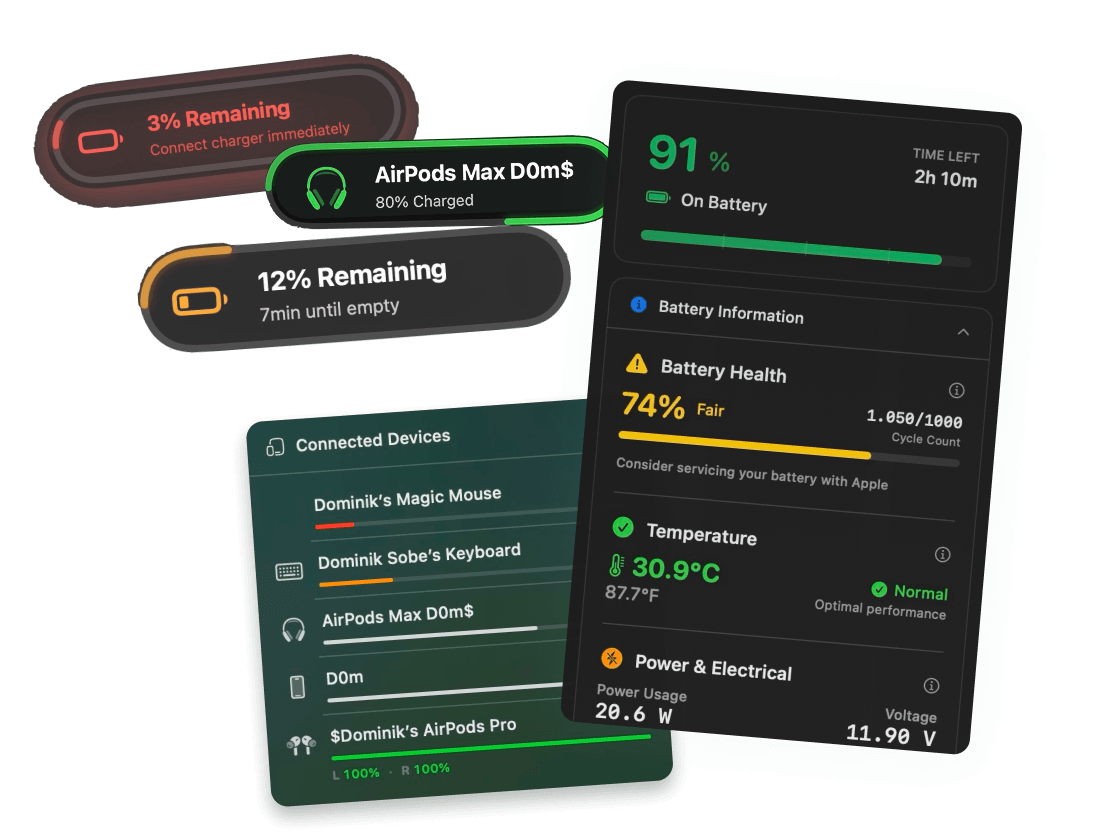
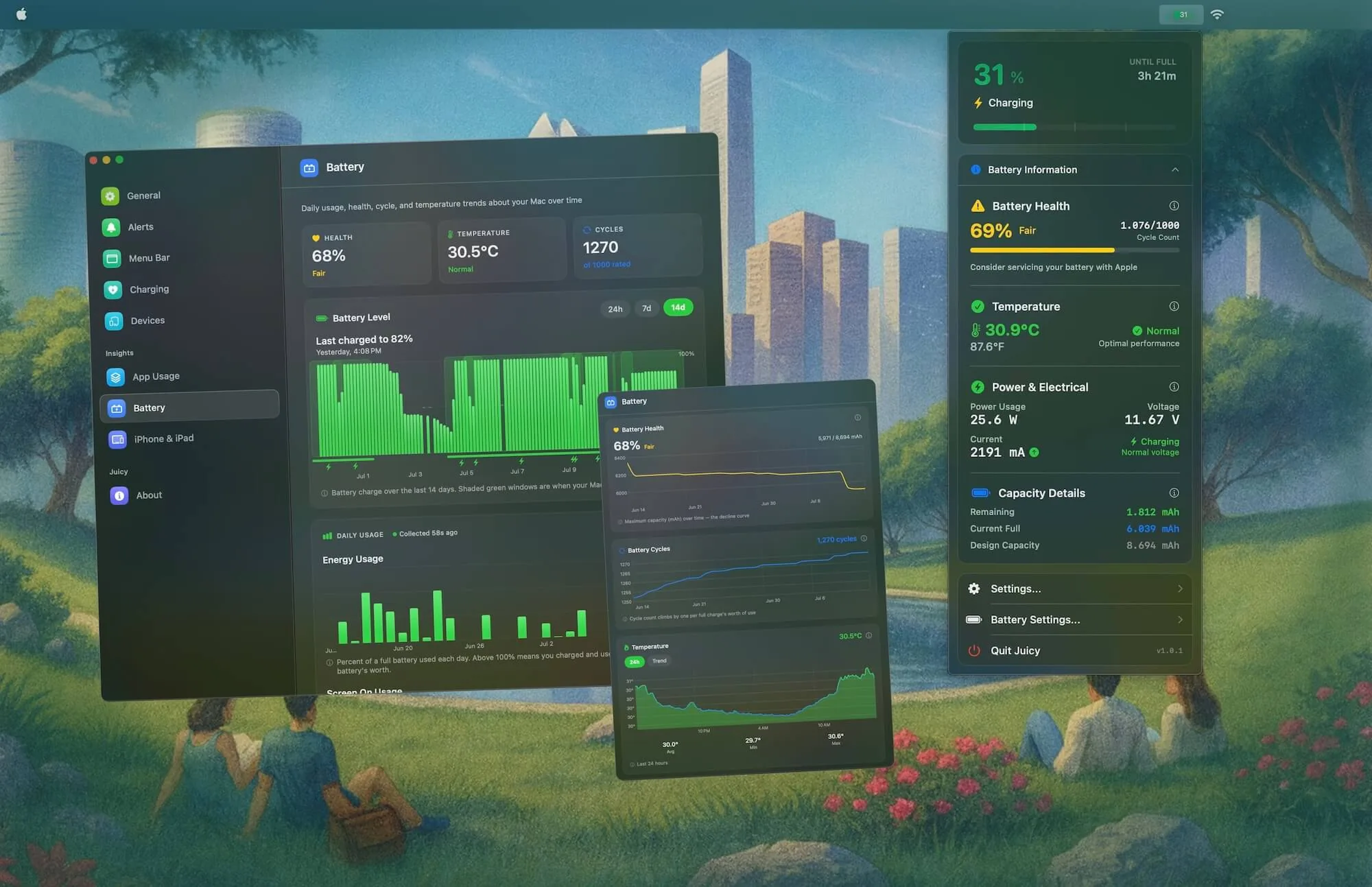
Battery health degrades slowly, then suddenly. Juicy watches it for you: live health, cycles, temperature and wattage in your menu bar, 90 days of history, and alerts at any percentage you choose.
Pay once. Own forever.
No subscription. Keep your battery healthy for the life of your Mac, for less than a single battery replacement costs.
Free Trial
3 days, full features
- Custom battery alerts at any %
- Battery health monitoring
- Lifecycle alerts & notifications
- No credit card required
Pro License
One-time payment
- Pay once, use forever
- One year of free updates
- Use on up to 2 Macs
- All Pro features unlocked
Optional renewal for another year of updates at $9.99 via the license manager once period ends
Juicy is available for your macOS
Get a download link reminder sent to your email when you are back in front of your computer:
We'll send you the download link. No spam.
Lifetime License
One-time payment
- Lifetime updates, never renew
- Use on up to 2 Macs
- All Pro features unlocked
- Support indie development
Juicy is available for your macOS
Get a download link reminder sent to your email when you are back in front of your computer:
We'll send you the download link. No spam.
14-day money-back guarantee.
If Juicy doesn't work for you, get a full refund.
Mac battery health,
answered.
How do I check my MacBook's battery health?
Three ways: System Settings > Battery > Battery Health (capacity and condition), System Information > Power (adds cycle count), or run system_profiler SPPowerDataType in Terminal to see everything at once. This free checker turns that Terminal output into a readable report.
What is a good battery health percentage for a MacBook?
Anything above 90% is great, 85 to 90% is normal wear, and 80 to 85% is fine but worth protecting. Apple's own service threshold is 80%: below that, macOS reports "Service Recommended" and you'll feel the shorter runtime day to day.
What is a good cycle count for a MacBook?
Every Mac notebook since about 2010 is rated for 1,000 cycles while keeping 80% of its original capacity. Typical daily-portable use adds around 150 to 250 cycles a year, so a 3-year-old Mac at 400 to 600 cycles is perfectly normal.
Is 85% battery health good?
It's decent, and completely normal for a Mac that's 2 to 3 years old. You've used about three quarters of the wear budget Apple designed the battery for (100% down to 80%), so it's exactly the right moment to adopt gentler charging habits.
When should I replace my MacBook battery?
When capacity drops below 80%, when macOS says "Service Recommended", or when the runtime no longer covers your real day. Apple charges roughly $159 to $299 for an out-of-warranty battery service depending on the model.
How do I keep my Mac's battery healthy?
Heat and time spent at 100% are the two big killers. Keep everyday charging around 80% (a charge limiter automates this), avoid hot cars and pillows, and don't stress about partial charges: lithium batteries prefer them. Juicy's charge limit handles the 80% rule automatically.
Does this checker work for iPhone or iPad batteries?
Not in the browser: iOS doesn't expose battery data to web pages. But Juicy reads your iPhone and iPad battery health (real percentage, exact cycle count, temperature) when you plug them into your Mac.
Is this tool really free and private?
Yes. It's free, with no signup and no upload: the parsing runs entirely in your browser and your data never leaves this page. We built it because we make Juicy, a Mac battery app, and figured the check itself should cost nothing.
Don't run out of juice.
Smart battery alerts, health insights, and beautiful design: everything you need for your Mac's battery. Use 3 days for free.
Juicy is available for your macOS
Get a download link reminder sent to your email when you are back in front of your computer:
We'll send you the download link. No spam.
 •No credit card required