A better battery icon
for your menu bar.
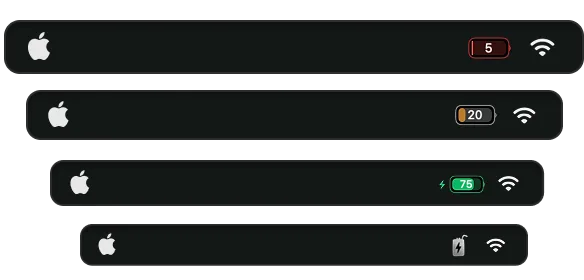
A sleek iPhone-style battery with the percentage inside the icon. Compact, themeable, color-coded — replacing Apple's default icon with something that actually looks right.
Free 3-day trial • No credit card required
Free 3-day trial • No credit card required
Juicy is available for your macOS
Get a download link reminder sent to your email when you are back in front of your computer:
We'll send you the download link. No spam.
Apple's default battery icon is
wasting space
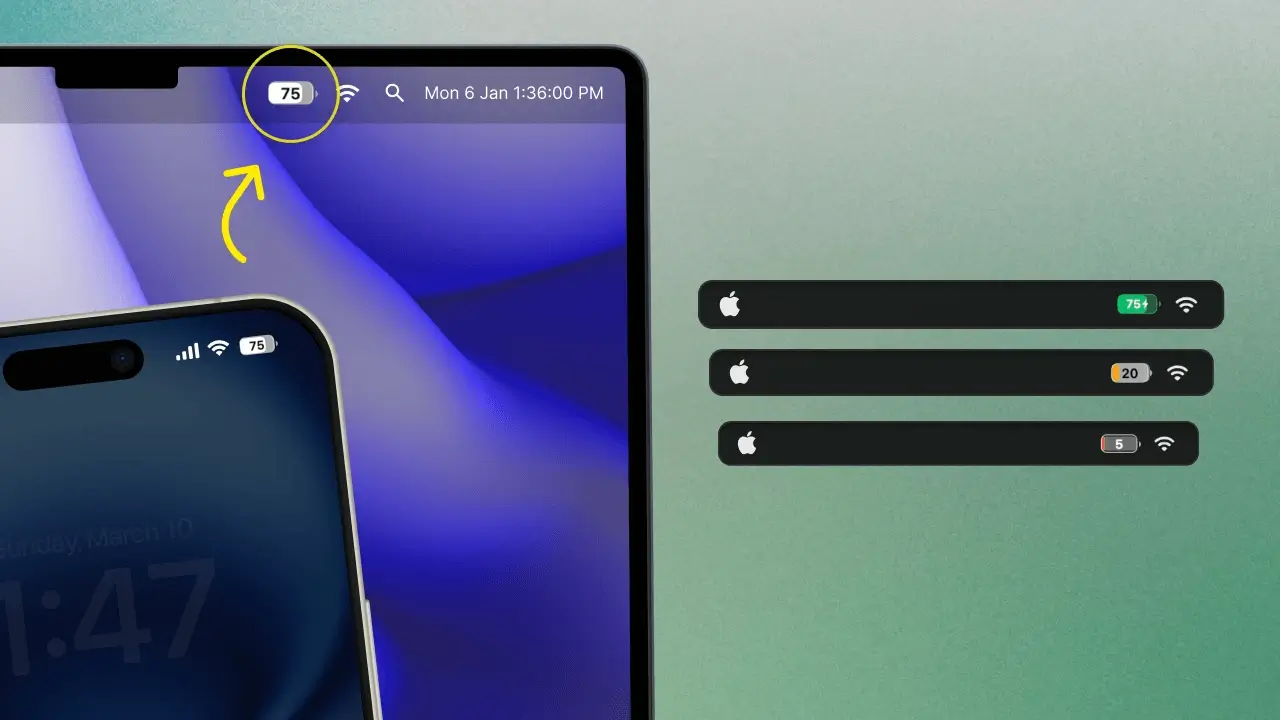
It's wide, the percentage sits outside the icon, and the colors are flat. Juicy replaces it with a compact iPhone-style battery that frees up your menu bar.
Default macOS icon
- Percentage sits outside the icon, eating menu bar real estate.
- Wide horizontal shape that clashes with notch-screen MacBooks.
- No color coding — same gray whether you're at 100% or 8%.
- Not themeable, not customizable, not iPhone-style.
Juicy's icon
- Percentage sits inside the battery — compact and elegant.
- iPhone-style shape that feels native on any Mac, notch or not.
- Smart color coding: green when full, yellow mid, red critical.
- Fully themeable — pick a style that matches your vibe.
Customize to your taste
A battery icon that feels like yours
iPhone-style battery shape
The same compact rectangular battery you know from iOS — now sitting happily in your Mac's menu bar. Familiar, recognizable, beautiful.
Percentage inside the icon
No more external '87%' text cluttering your menu bar. The percentage sits inside the icon where it belongs, saving horizontal space.
Smart color coding
Green when you're full, yellow when it's time to watch, red when it's critical. Glance-able status without reading any numbers.
Two icon styles
Pick the Minimal monochrome style for a clean iPhone look, or the Juicy Default with vibrant colors. Swap anytime from settings.
Compact = more space
Juicy's icon is significantly narrower than Apple's default, freeing up room for the apps and menu bar extras you actually use.
Charging state shown live
When you plug in, a subtle charging indicator animates inside the icon — so you know at a glance whether you're topping up or draining.
Two styles, one tap to switch
Minimal or Juicy Default —
you choose
Juicy ships with two menu bar battery icon styles. One channels the iPhone's clean, compact battery look. The other goes full color — vibrant, playful, and unmissable.
Style 01
Minimal
The pure iPhone-style monochrome battery. Percentage inside, clean rectangular shape, and a single flat color that blends seamlessly into any menu bar. The closest thing to having iOS on your Mac.
- Monochrome, iOS-identical silhouette
- Compact — fits any wallpaper or theme
- Feels completely native on macOS
Style 02
Juicy Default
The colorful, vibrant version that Juicy ships with by default. Smart color coding paints the battery green, yellow, or red based on your charge level — so you know exactly where you stand with just a glance.
- Green → Yellow → Red color coding
- Vibrant and unmistakable
- Glance-able status without reading numbers
Switch between the two styles any time from Juicy's settings.
2-minute setup
Get the iPhone battery icon
on your MacBook
Replace Apple's clunky default battery icon with the compact, iPhone-style indicator you already know and love — in under two minutes.
Download Juicy
Grab Juicy from getjuicy.app or the Mac App Store. It's free to try for 3 days — no credit card required.
Pick the Minimal style
During onboarding, choose the Minimal style to get the monochrome iPhone-style battery. You can switch to Juicy Default any time.
Remove Apple's icon
Hold ⌘ Command and drag the default macOS battery icon out of the menu bar. That's it — your Mac now looks like iOS.
Prefer watching? Here's the 3-minute walkthrough
See exactly how to swap your MacBook battery icon for the iPhone style in a quick video.
Beautiful app, really useful
"I swaped my standard Mac battery icon immediately with Juicy's one after installing the app. Love the craft and usefulness of the app"
A menu bar
you'll love.
Pay once, use forever. No subscription, no hidden fees.
Free Trial
3 days, full features
- Custom battery alerts at any %
- Battery health monitoring
- Lifecycle alerts & notifications
- No credit card required
Pro License
One-time payment
- Pay once, use forever
- One year of free updates
- Use on up to 2 Macs
- All Pro features unlocked
Optional renewal for another year of updates at $9.99 via the license manager once period ends
Juicy is available for your macOS
Get a download link reminder sent to your email when you are back in front of your computer:
We'll send you the download link. No spam.
Lifetime License
One-time payment
- Lifetime updates, never renew
- Use on up to 2 Macs
- All Pro features unlocked
- Support indie development
Juicy is available for your macOS
Get a download link reminder sent to your email when you are back in front of your computer:
We'll send you the download link. No spam.
14-day money-back guarantee.
If Juicy doesn't work for you, get a full refund.
Menu bar icon
questions
Everything about replacing the default macOS battery icon with Juicy's.
How do I get the iPhone battery icon on my MacBook menu bar?
Install Juicy, pick the Minimal style during onboarding, and then hold ⌘ Command and drag Apple's default battery icon out of the menu bar. You'll be left with a clean, compact iPhone-style battery — percentage inside and all. It takes about 2 minutes.
Does Juicy have two battery icon styles?
Yes. Juicy ships with two distinct menu bar battery icon styles: Minimal (a clean monochrome iPhone-style battery) and Juicy Default (a vibrant, color-coded battery that turns green/yellow/red based on charge level). You can switch between them at any time from settings.
Can I replace the default macOS battery icon with Juicy?
You can't literally remove Apple's icon from the menu bar on macOS, but you can hide it from System Settings → Control Center → Battery, or hold ⌘ and drag it out — then let Juicy's menu bar icon take over. That's exactly what most Juicy users do.
Will Juicy's battery icon show the percentage inside like iPhone?
Yes. Juicy's icon displays your battery percentage inside the icon itself, iPhone-style. No external text, no wasted menu bar space.
Can I change the battery icon theme?
Yes. Juicy ships with two core styles (Minimal and Juicy Default) that you can pick from in settings — monochrome iPhone-style or vibrant color-coded. Switch anytime.
Does the icon change color based on battery level?
Yes. By default, the icon shows green when above 50%, yellow between 20–50%, and red below 20%. You get instant visual feedback without reading numbers.
Does Juicy use a lot of CPU to render the menu bar icon?
No — Juicy uses less than 0.1% CPU and is written natively in Swift for Apple Silicon. The menu bar icon updates efficiently without any performance impact.
Does the menu bar icon work on MacBooks with a notch?
Yes, perfectly. Juicy's compact icon is especially helpful on notched MacBooks where menu bar space is at a premium — you get a cleaner look and more room for other menu bar apps.
Don't run out of juice.
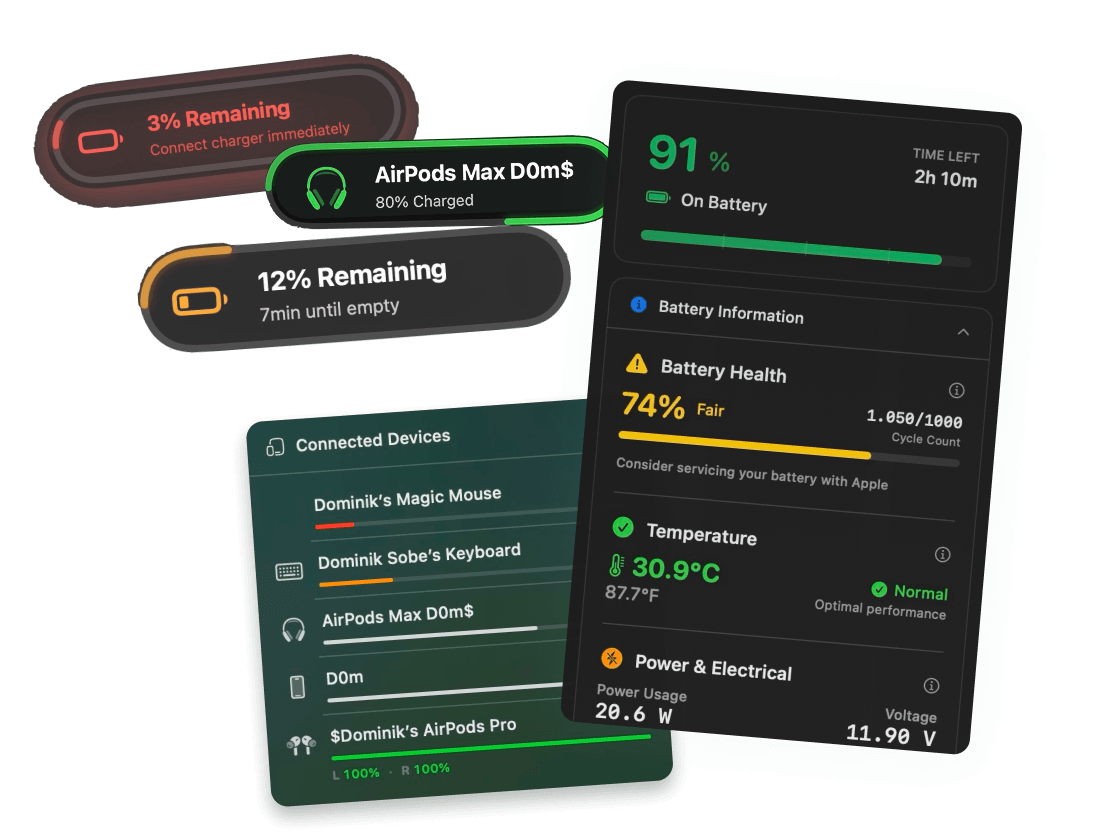
Smart battery alerts, health insights, and beautiful design: everything you need for your Mac's battery. Use 3 days for free.
Juicy is available for your macOS
Get a download link reminder sent to your email when you are back in front of your computer:
We'll send you the download link. No spam.
 •No credit card required