How to Add a Battery Widget on Mac (Desktop + Every Device)
Sep 16, 2026 • 10 min read By Dominik, maker of JuicyTo add a battery widget on a Mac, right-click an empty spot on the desktop, choose Edit Widgets, search for Batteries, pick a size and drag the widget onto the desktop, then click Done. Apple's widget shows your Mac plus connected Bluetooth accessories only. For iPhone, iPad and every AirPods part, use a third-party widget such as Juicy's.
Verified on macOS 26 Tahoe and macOS 27 in September 2026. Desktop widgets have worked the same way since macOS 14 Sonoma.
Below: the built-in Batteries widget in six clicks, the devices it will never show you, and Juicy's widgets, which show all of them and look a lot better doing it.
How to add Apple's Batteries widget to the Mac desktop
macOS ships a widget called Batteries. Adding it takes six clicks:
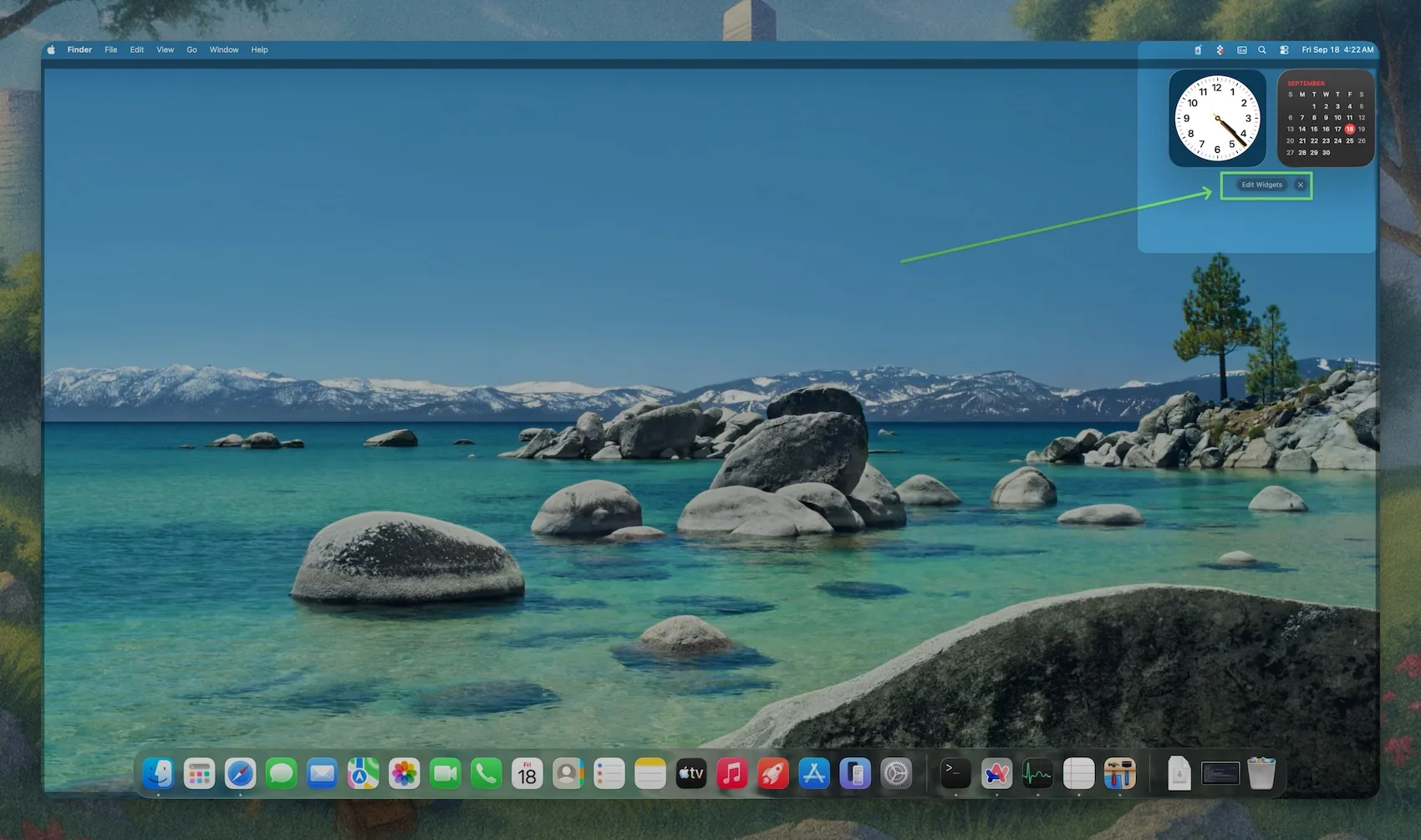
- Right-click (or Control-click) an empty area of your desktop.
- Choose Edit Widgets from the menu. The widget gallery slides up from the bottom of the screen.
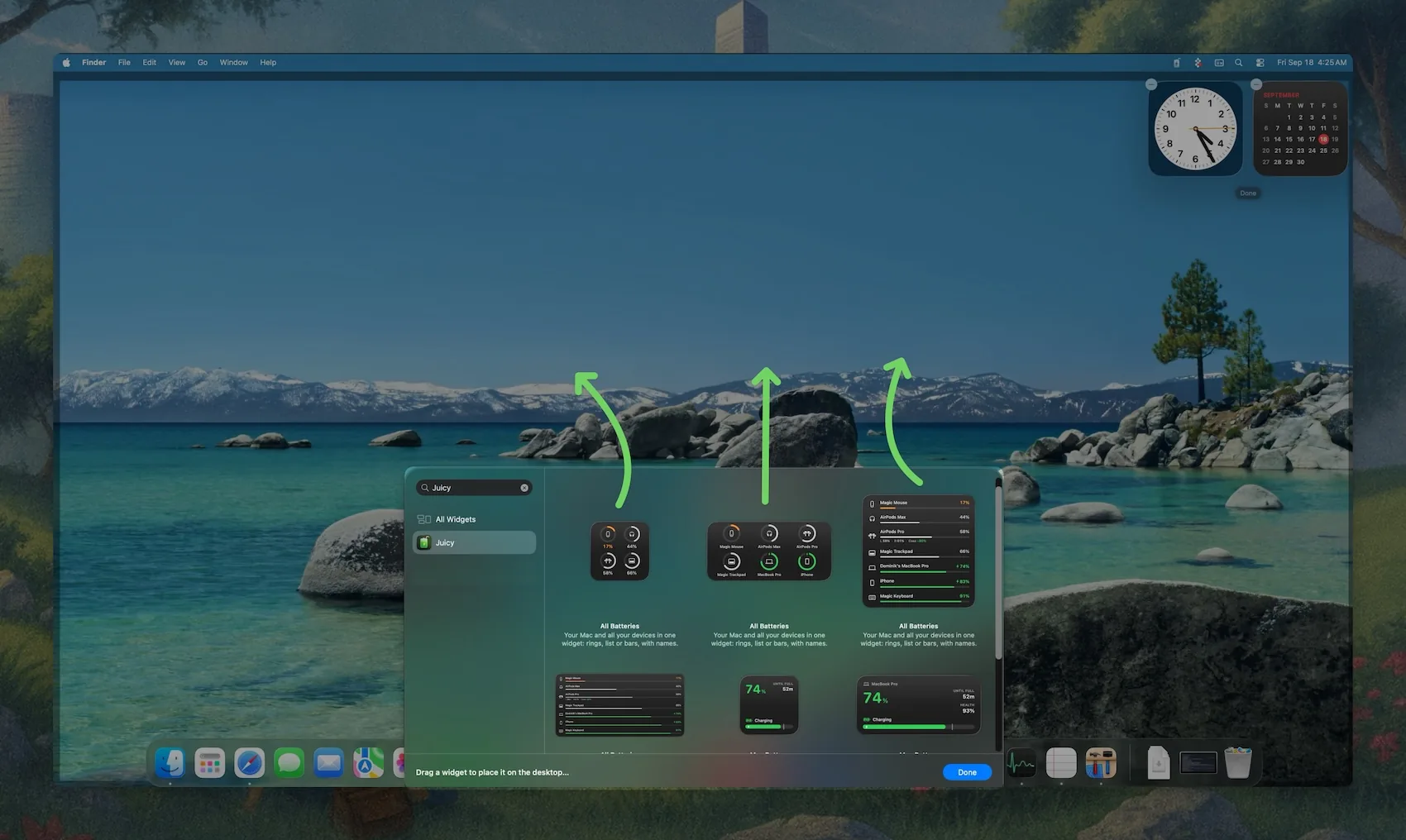
- Type Batteries into the search field at the top left of the gallery. Alternatively you can also give Juicy's optimized battery widgets a try (more on that below).
- Choose a size. Small shows a couple of devices, medium and large show more.
- Drag the widget onto your desktop, or click the green plus button to drop it in the next free spot.
- Click Done in the bottom-right corner.
The widget now sits on your desktop. Click the wallpaper to bring the desktop forward (or turn on Click wallpaper to reveal desktop under System Settings, then Desktop & Dock) and it is right there.
Adding it to Notification Center instead
Prefer to keep the desktop clean? The same widget works in Notification Center:
- Click the date and time in the top-right corner of the menu bar.
- Scroll to the bottom of Notification Center and click Edit Widgets.
- Search Batteries, pick a size, and click the plus button or drag it into the column on the right.
- Click Done.
Removing or resizing a widget
Right-click any widget on the desktop to change its size or choose Remove Widget. You can also drag it around while the gallery is open.
What Apple's Batteries widget shows, and what it hides
Here is the part nobody explains in the Settings app. The built-in widget lists your Mac and the Bluetooth accessories connected to it at that moment. In practice that means:
| Device | Shows in Apple's Batteries widget? |
|---|---|
| Your Mac | Yes |
| AirPods (while connected to the Mac) | Yes, as one number |
| Magic Mouse, Keyboard, Trackpad | Yes, while connected |
| iPhone | No |
| iPad | No |
| Apple Watch | No, it pairs with your iPhone, not your Mac |
| A device that just disconnected | Drops off the list without a word |
| Order of devices | Whatever macOS picks; the lowest battery can sit at the bottom |
| Device names under the rings | Not in the compact sizes, so you guess which ring is which |
That is why "why doesn't my Mac battery widget show my iPhone" is one of the most common questions on Apple's own forums. The widget is not broken. It was never designed to show devices that are not Bluetooth-connected to the Mac.
The other limits are smaller but add up: one visual style, an arbitrary device order (most third-party battery widgets share this habit), no time remaining, nothing about battery health or cycle count, and no alerts. It is a snapshot, not a monitor.
A battery widget for Mac that shows every device: Juicy
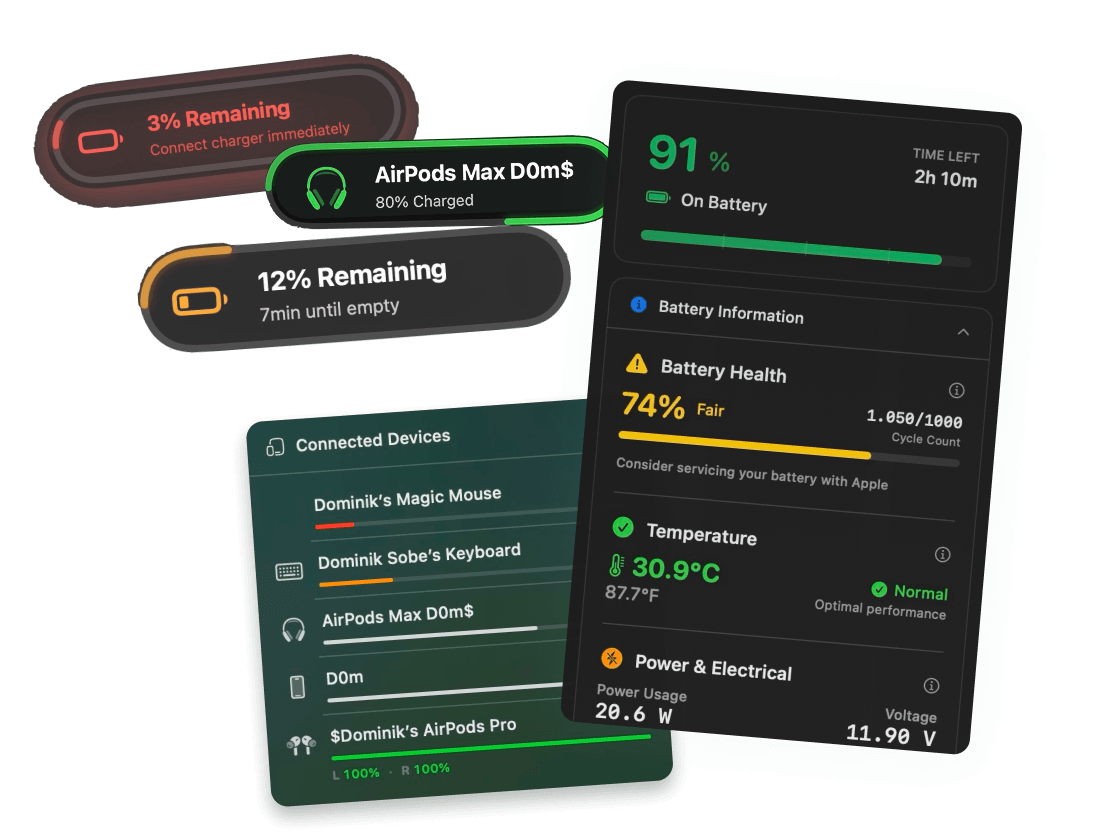
Juicy's battery widgets show your Mac, iPhone, iPad, AirPods (left, right and case) and Magic accessories in one desktop or Notification Center widget, as rings, a list or bars, in any size from small to extra large. Juicy is the Mac battery app that already tracks every Apple device near your Mac and alerts you before any of them dies; the widgets put that on your desktop.
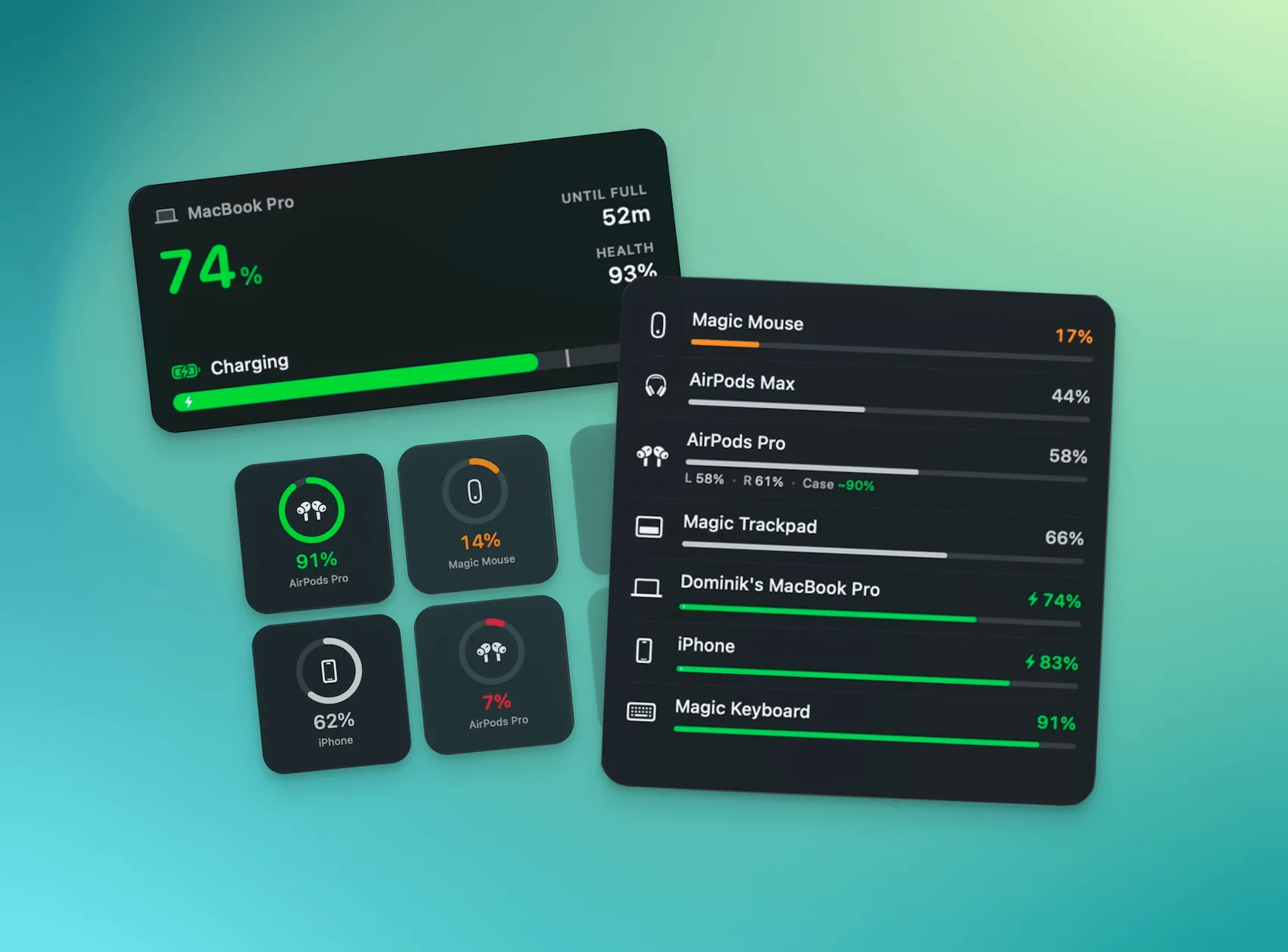
Pick the widget that fits: every device at a glance, your Mac with the big-number treatment (percentage, charging state, time remaining), or the single device you worry about most. The small things are where it pulls ahead of Apple's widget:
- Lowest battery first, by default. Devices are sorted by charge, so the one about to die is always at the top. Apple's widget, and most other battery widgets, list them in an arbitrary order.
- Names under every ring. Two pairs of AirPods, or a mouse and a trackpad, are never a guessing game.
- An optional progress bar in the list view, so you can read levels at a glance without reading numbers.
- AirPods in three parts: left, right and case each get their own number.
Right-click any widget and choose Edit Widget to pick exactly which devices appear and in what order, or leave it on Automatic and the lowest battery stays on top. Choose a style: rings with the device glyph inside and the name underneath, an Apple-style list, or bars like Juicy's own dropdown. On macOS 27 the widgets follow the clear and tinted looks, and you can switch a single widget to a quiet monochrome appearance while the rest of your desktop stays colorful.
Step by step
- Install Juicy from getjuicy.app, the Mac App Store or Setapp, and open it once so macOS registers the widgets. Widgets are in all three versions.
- Right-click an empty spot on the desktop and choose Edit Widgets. (Or open Notification Center and click Edit Widgets at the bottom.)
- Search Juicy in the gallery.
- Pick the widget and size you want and drag it onto the desktop.
- Right-click the widget, choose Edit Widget, and pick your devices and style. Click Done.
Juicy's Settings also has a Widgets page with live previews of every widget and size, filled with your real devices, if you want to see the options before you commit.
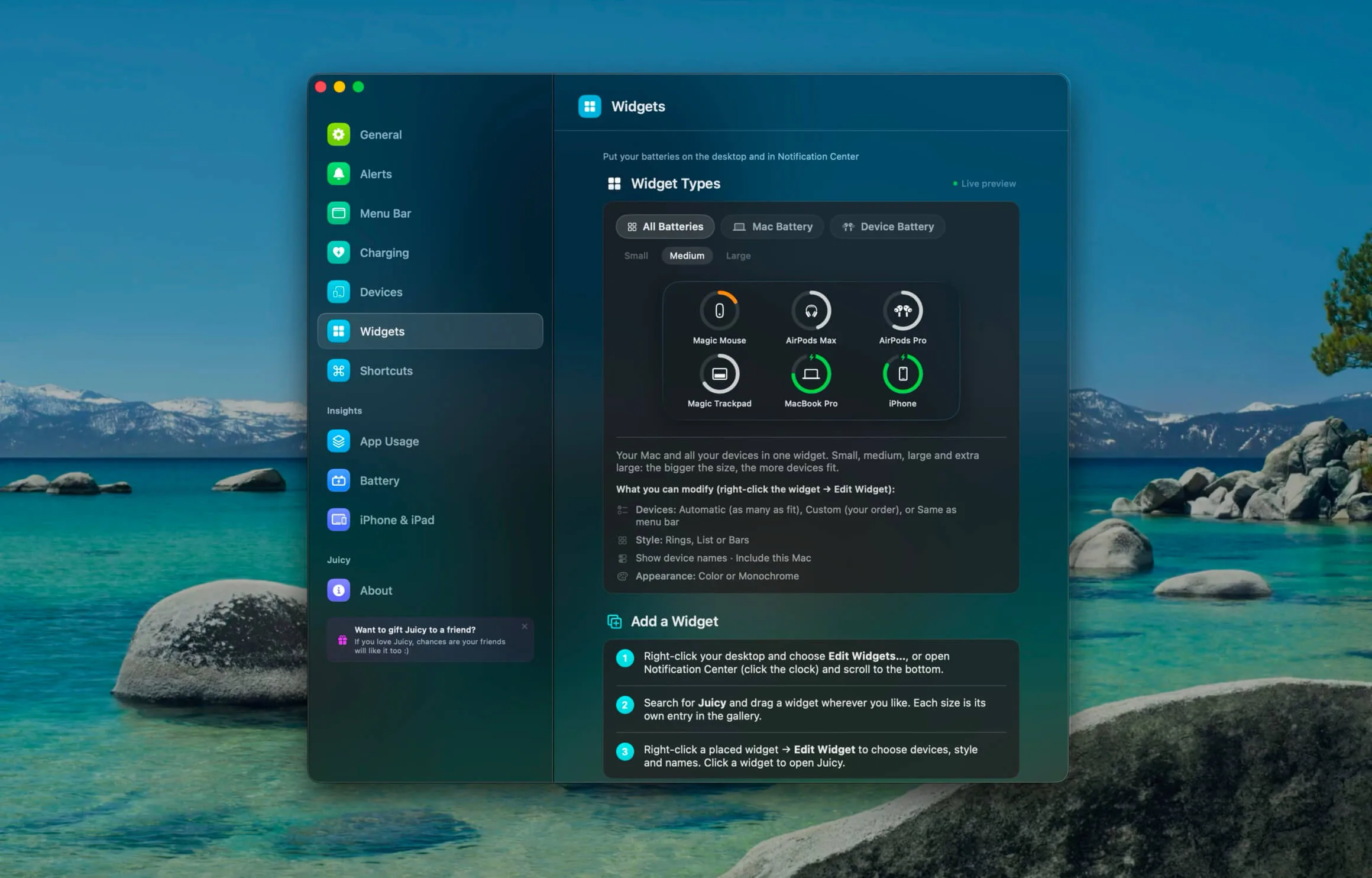
Juicy needs macOS 15 or later. It is not a separate widget app: the same app does custom battery alerts, battery health tracking and every device's battery in the menu bar, so the widget is one more place to see numbers Juicy already knows.
Widget not showing or not updating? Check these
- The app has to be opened once. macOS only lists an app's widgets in the gallery after the app has launched at least once. Open Juicy, then reopen the gallery.
- Bluetooth accessories only. For Apple's widget, a missing device almost always means it is not connected over Bluetooth right now. iPhone, iPad and Apple Watch will not appear, whatever you do.
- Widgets refresh on macOS's schedule. The menu bar icon is live to the second; widgets update when macOS lets them, so a number can lag by a little. That is a WidgetKit rule, not an app setting.
- "Juicy isn't running". Juicy's widgets say this when the app is quit, instead of showing an old number. Open Juicy and turn on launch at login in its settings.
- Gallery search finds nothing. Scroll the app list on the left of the gallery instead; on some macOS versions the search only matches the app name, not the widget name.
Frequently asked questions
Is there a battery widget for Mac?
Yes. macOS has a built-in Batteries widget: right-click the desktop, choose Edit Widgets, search Batteries, pick a size and drag it out. It shows your Mac and Bluetooth accessories connected at that moment. Third-party apps such as Juicy add widgets that also show your iPhone, iPad and every AirPods part, in rings, a list or bars.
Why isn't my iPhone showing in the Mac battery widget?
Apple's Batteries widget only lists devices connected to the Mac over Bluetooth. An iPhone is not a Bluetooth accessory of your Mac, so it never appears, and the same goes for iPad and Apple Watch. To see your iPhone or iPad battery on the Mac desktop you need a third-party widget; Juicy's All Batteries widget shows both.
How do I add the battery widget to Notification Center on Mac?
Click the date and time in the top-right corner of the menu bar to open Notification Center, scroll to the bottom and click Edit Widgets. Search for Batteries (or Juicy), choose a size, and click the green plus button or drag the widget into the Notification Center column. Click Done.
Why is my Mac battery widget not showing or not updating?
For Apple's widget, make sure the accessory is actually connected over Bluetooth right now. For any app widget, the app has to be installed and opened at least once so macOS registers its widgets, and it usually has to be running to supply fresh numbers. Juicy's widget says Juicy isn't running instead of showing a stale percentage.
Can the Mac battery widget show the lowest battery first?
Apple's Batteries widget cannot; it lists devices in whatever order macOS picks. Juicy's widgets sort by charge with the lowest battery at the top by default, and you can pin your own order per widget by right-clicking it and choosing Edit Widget.
Can I show the battery percentage on the Mac desktop without a widget?
Not on the desktop itself, but you can show it in the menu bar: open System Settings, click Control Center, scroll to Battery and turn on Show Percentage. Juicy's menu bar icon puts the percentage inside a compact iPhone-style battery instead, and its widgets add the number to the desktop.
Related guides
- Mac battery menu bar symbols explained, for when the icon next to the widget is the confusing part.
- How to get the iPhone battery icon on your Mac, the menu bar counterpart to the desktop widget.
- Every device battery, one glance, the feature the widgets are built on.
- The best Mac battery apps, ranked, if you are choosing an app rather than a widget.
Frequently asked questions
Is there a battery widget for Mac?
Yes. macOS has a built-in Batteries widget: right-click the desktop, choose Edit Widgets, search Batteries, pick a size and drag it out. It shows your Mac and Bluetooth accessories connected at that moment. Third-party apps such as Juicy add widgets that also show your iPhone, iPad and every AirPods part, in rings, a list or bars.
Why isn't my iPhone showing in the Mac battery widget?
Apple's Batteries widget only lists devices connected to the Mac over Bluetooth. An iPhone is not a Bluetooth accessory of your Mac, so it never appears, and the same goes for iPad and Apple Watch. To see your iPhone or iPad battery on the Mac desktop you need a third-party widget; Juicy's All Batteries widget shows both.
How do I add the battery widget to Notification Center on Mac?
Click the date and time in the top-right corner of the menu bar to open Notification Center, scroll to the bottom and click Edit Widgets. Search for Batteries (or Juicy), choose a size, and click the green plus button or drag the widget into the Notification Center column. Click Done.
Why is my Mac battery widget not showing or not updating?
For Apple's widget, make sure the accessory is actually connected over Bluetooth right now. For any app widget, the app has to be installed and opened at least once so macOS registers its widgets, and it usually has to be running to supply fresh numbers. Juicy's widget says Juicy isn't running instead of showing a stale percentage.
Can the Mac battery widget show the lowest battery first?
Apple's Batteries widget cannot; it lists devices in whatever order macOS picks. Juicy's widgets sort by charge with the lowest battery at the top by default, and you can pin your own order per widget by right-clicking it and choosing Edit Widget.
Can I show the battery percentage on the Mac desktop without a widget?
Not on the desktop itself, but you can show it in the menu bar: open System Settings, click Control Center, scroll to Battery and turn on Show Percentage. Juicy's menu bar icon puts the percentage inside a compact iPhone-style battery instead, and its widgets add the number to the desktop.