Mac Battery Menu Bar Symbols Explained (Every Icon)
Jul 20, 2026 • 6 min read By Dominik, maker of JuicyA lightning bolt means the battery is charging; a plug with no bolt means it is plugged in and topped off or paused; a low or empty outline means you are on battery; an X or a battery with a line means macOS cannot detect the battery; and "on hold" means charging is paused, usually by Optimized Battery Charging.
Verified on macOS Tahoe in July 2026. The icons are consistent back to macOS Big Sur.
Apple's menu bar battery icon is tiny and says a lot in very little space, which is exactly why it confuses people. Here is every state decoded, then the two symbols that actually worry people.
Every Mac battery menu bar symbol, decoded
| What you see | What it means |
|---|---|
| Battery outline, partially filled | On battery power, the fill shows roughly how much charge is left |
| Battery outline turning red | Low battery, usually under about 20 percent, plug in soon |
| Lightning bolt in the icon | Plugged in and actively charging |
| Plain plug symbol (no bolt) | Plugged in but not adding charge, either full or paused |
| "Charging on hold" in the dropdown | Charging paused on purpose (Optimized Charging or heat) |
| Battery with an X or a line through it | macOS cannot detect the battery (see below) |
| "No batteries available" in the dropdown | No battery detected at all, same underlying issue as the X |
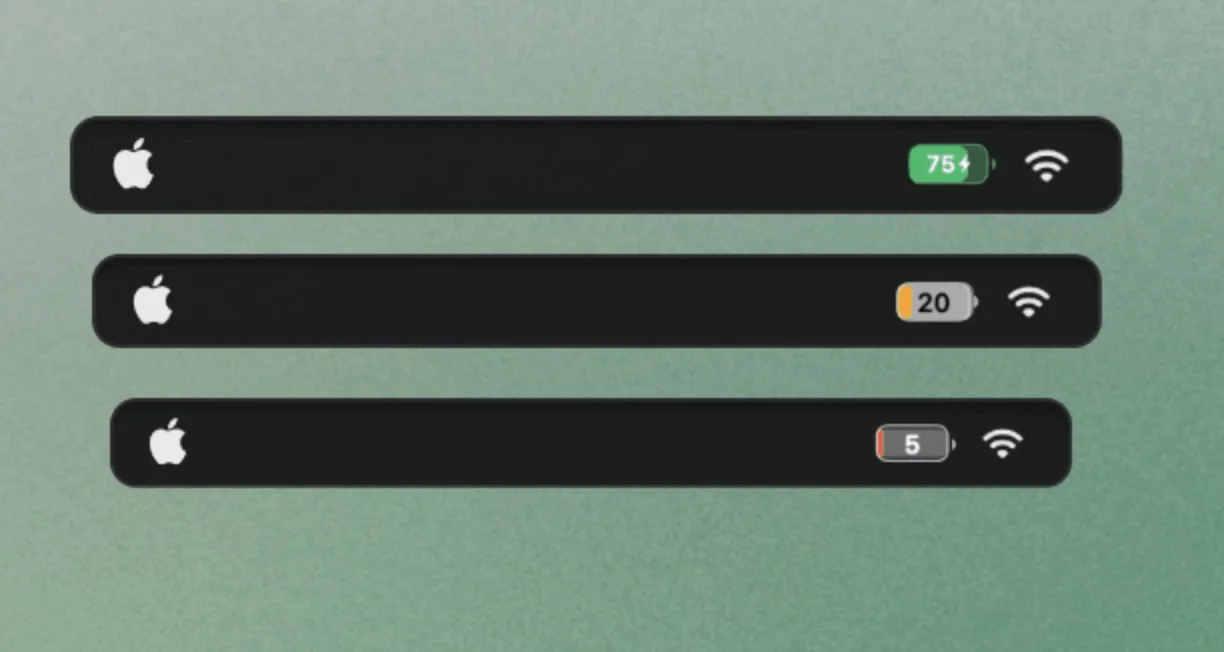
Two quick things about the icon in general. It only ever shows an approximation of charge in that little shape, so the actual number lives in the dropdown or in the percentage display. And the exact rendering shifts slightly between macOS versions, but the meanings above hold.
Charging, charged, "not charging" and "on hold"
These four states get mixed up constantly, so here is the difference:
- Charging (lightning bolt). Power is flowing from the adapter into the battery. The percentage climbs.
- Charged (plain plug). Plugged in, battery effectively full, so no more current goes in. Normal.
- Plugged in, not charging. Plugged in, but the battery is holding rather than filling. On a modern Mac this is usually deliberate, not a fault.
- Charging on hold. The explicit version of the above. macOS paused charging, almost always because Optimized Battery Charging is parking near 80 percent, or because the battery is warm and cooling down.
If you see "on hold" or "not charging" and want a full battery right now, click the battery icon and choose Charge to Full Now. If it never resumes over hours, then it is worth checking the hardware. Our guide on a Mac that says plugged in but not charging walks through the cable, port and thermal causes in order.
The X (or "no batteries available") and what to do
This is the one symbol that signals a real problem. A battery icon with an X, or the words No batteries available in the dropdown, means macOS has lost contact with the battery entirely.
Work through it in this order:
- Restart the Mac. A clean reboot clears the most common cause, a temporary detection glitch after an update.
- Reset power management. On an Intel Mac, reset the SMC; on Apple Silicon, a full shutdown for about 30 seconds does the same job.
- Check for a macOS update, since some detection bugs get patched.
- If the X persists, treat it as hardware. A loose or failed battery connector needs a service center. Back up your data now, just in case.
An X that comes and goes, versus one that stays after a restart, is the tell: intermittent usually means a connection, permanent usually means the battery or its cable.
How to show the battery percentage in the menu bar
macOS hides the exact number by default. To bring it back:
- Open System Settings (Apple menu > System Settings).
- Click Control Center in the sidebar.
- Scroll to the Battery section.
- Turn on Show Percentage.
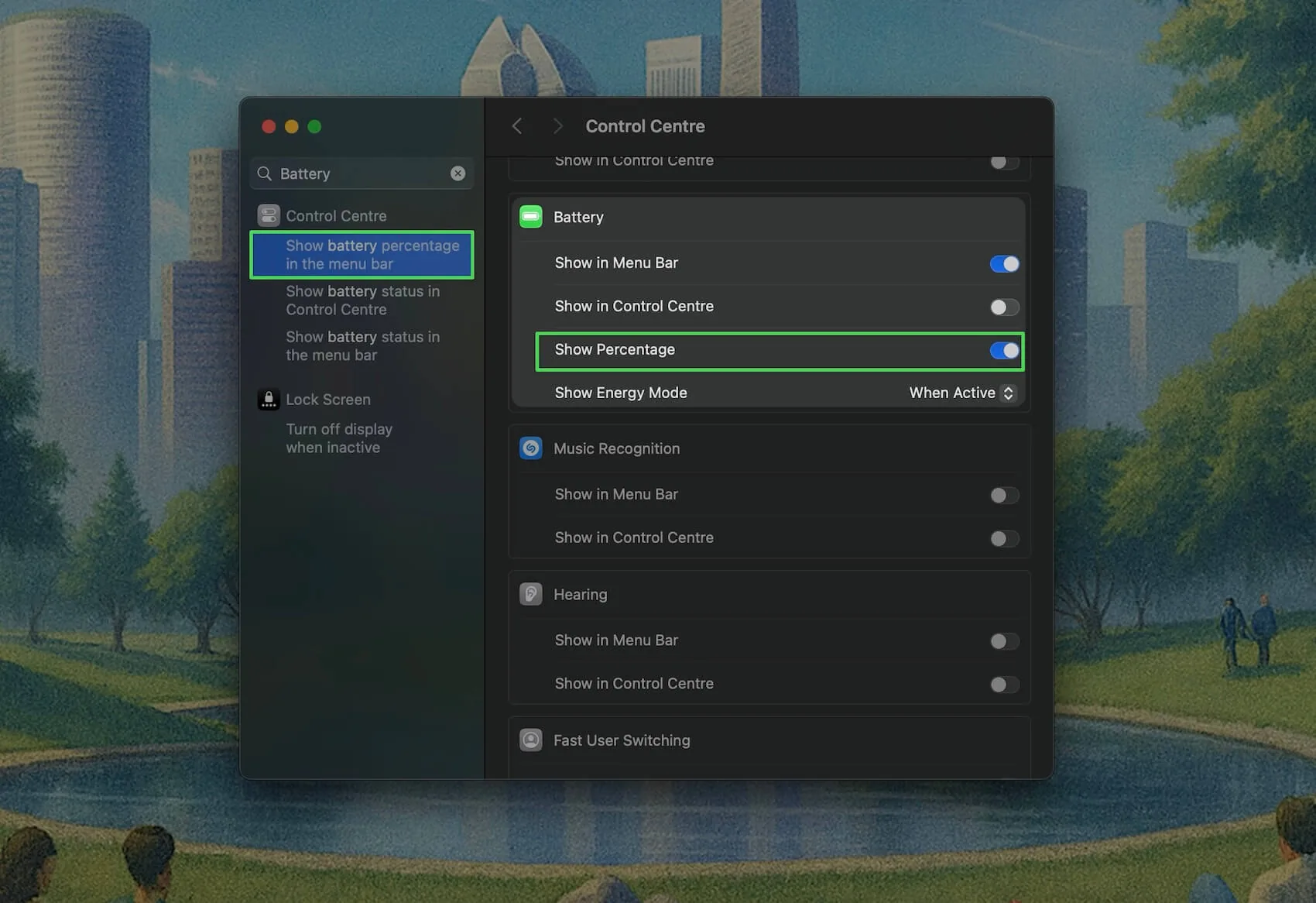
The number now sits inside or beside the battery icon. On macOS versions before Ventura, the toggle lived in the battery icon's own dropdown menu instead of System Settings.
A clearer menu bar icon with Juicy
Even with the percentage on, Apple's icon is cramped and vague. It gives you a rough shape and a single number, and nothing about the state underneath.
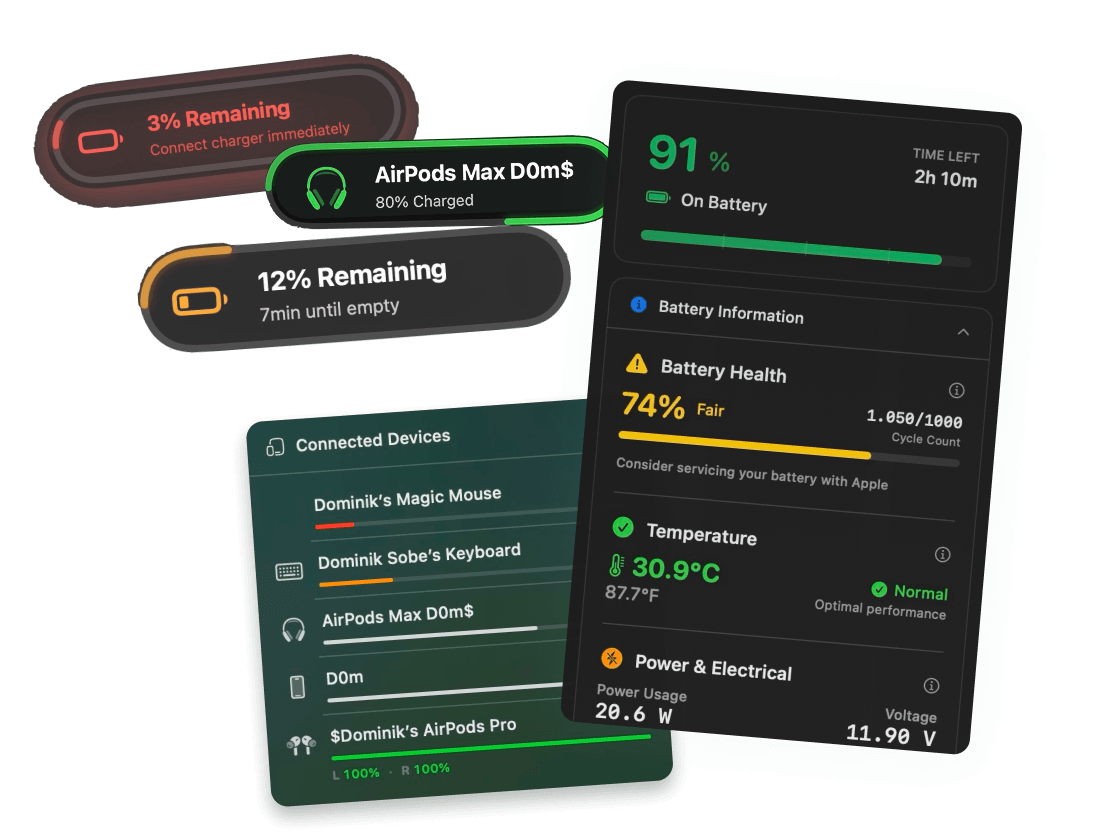
Juicy replaces it with a themeable menu bar icon that shows the exact percentage cleanly, color-coded by level, with an unambiguous charging state so you never have to decode a symbol again. You can pick a compact iPhone-style battery, a horizontal bar or a plain number, and match it to your setup rather than squinting at a five-pixel bolt.
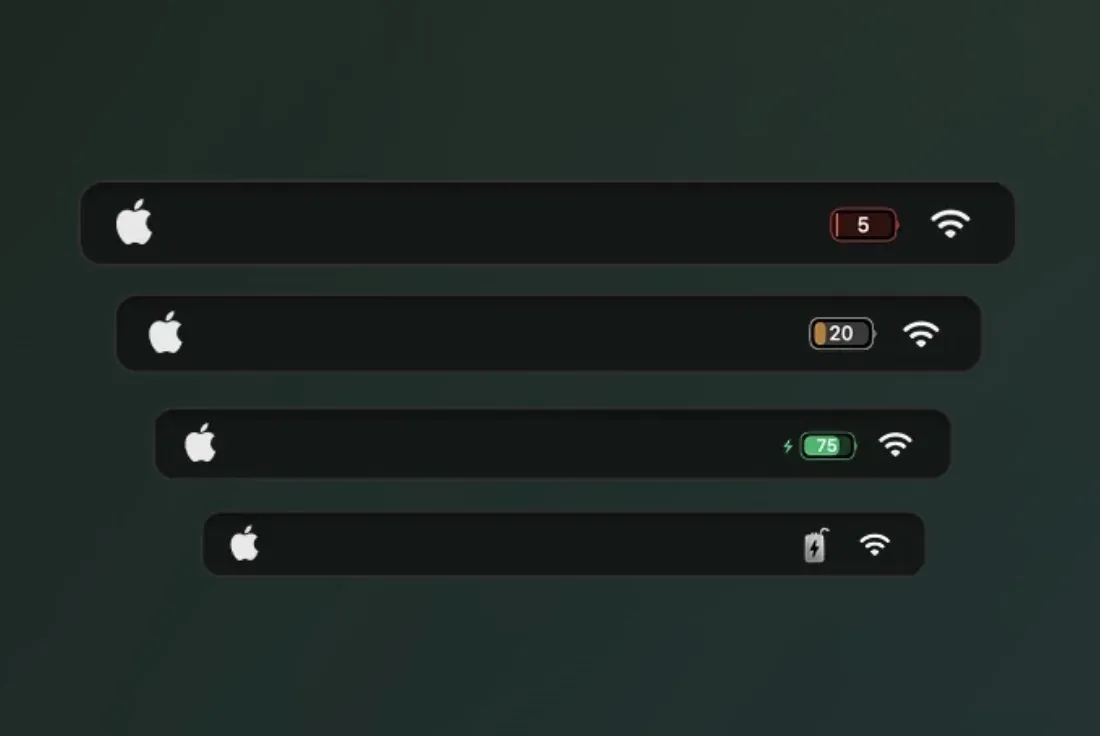
Because it is a native battery health app, the same icon can also surface health, cycle count and temperature on hover, so "on hold" and "not charging" stop being mysteries. Juicy is featured by Apple, rated 4.85 stars across 100+ reviews, with a 3-day free trial and no credit card. If the deeper worry is runtime, why a Mac battery drains so fast is the guide to read next.
Frequently asked questions
What does the lightning bolt mean on Mac battery?
A lightning bolt inside or beside the battery icon means your Mac is actively charging, drawing power from the adapter into the battery. When the bolt turns into a plain plug symbol, the battery is full or charging is paused. On battery power with no adapter, you see just the battery outline, no bolt.
Why is there an X on my Mac battery icon?
A battery icon with an X (or a battery outline with a line through it) means macOS cannot detect the battery. It usually points to a loose or failed battery connection, a hardware fault, or after certain updates a temporary glitch. Restart first; if the X stays, book a hardware check.
What does battery on hold mean on Mac?
'Charging on hold' means macOS has paused charging on purpose. The two common reasons are Optimized Battery Charging holding near 80 percent to reduce wear, and a thermal pause while the battery cools. It is not a fault. To finish charging now, click the battery icon and choose Charge to Full Now.
How do I show battery percentage on the Mac menu bar?
Open System Settings, click Control Center in the sidebar, scroll to the Battery section, and turn on Show Percentage. The number then appears inside or next to the menu bar battery icon. On older macOS versions the toggle lived under the battery icon's own menu instead.