Mac Battery Not Charging? 6 Causes and How to Fix It
Jul 20, 2026 • 7 min read By Dominik, maker of JuicyA Mac that won't charge is usually not broken. The top causes are Optimized Battery Charging pausing on purpose near 80 percent, a heat pause, a failing cable or adapter, a dirty or damaged port, or on Intel Macs an SMC glitch. Check those in that order before assuming the battery is dead.
Verified on macOS Tahoe in July 2026. The steps are identical back to macOS Ventura.
The single most useful thing you can do is figure out whether your Mac is faulty or just charging smart, because the fix is completely different. Let's rule out the innocent explanations first.
Is it actually broken, or "plugged in, not charging"?
The phrase "plugged in, not charging" panics people, but on a modern Mac it is usually normal behavior. macOS deliberately pauses charging in two everyday situations:
- Optimized Battery Charging parks the charge near 80 percent when it predicts a long plugged-in stretch, then finishes the top-up before you normally unplug. This protects the battery from the wear of sitting full.
- A thermal pause. If the battery is warm (a heavy workload, a hot room, direct sun), macOS holds charging until it cools. This is protection, not a defect.
So before you troubleshoot hardware, ask whether the number is simply parked. If it sits at 80 percent and says "charging on hold", that is a feature doing its job. You can force a full charge: click the battery icon in the menu bar and choose Charge to Full Now.
If the icon shows an outright error, or the percentage falls while plugged in, then move through the checks below.
The 6 reasons a Mac won't charge (and the fix for each)
1. Optimized Charging is holding at 80 percent. Covered above. This is the most common false alarm. Fix: nothing, or Charge to Full Now for a one-time top-up.
2. A thermal pause. The Mac is too warm to charge safely. Fix: move it off the duvet or out of the sun, close the heavy app, and give it a few minutes on a hard surface. Charging resumes on its own.
3. The cable or adapter is failing. USB-C cables fail silently, and a weak charger may only slow the drain instead of reversing it. Fix: swap in a known-good cable and a charger rated for your Mac (a 30W brick will not keep up with a 16-inch MacBook Pro under load).
4. The port is dirty or damaged. Lint and pocket debris pack into USB-C ports and block a solid connection. Fix: power down, look inside with a light, and clear it gently with a wooden toothpick or a burst of compressed air. Try a different port too, since one dead port is common.
5. An SMC or software glitch (Intel Macs). On Intel Macs, the System Management Controller handles charging, and it occasionally hangs. Fix: reset the SMC (steps below). On Apple Silicon Macs there is no SMC to reset, so a full shutdown does the equivalent.
6. The battery is genuinely worn or Service Recommended. If it charges slowly, drains under load while plugged in, or macOS flags Service Recommended, the battery itself may be at fault. Fix: confirm with a real battery health check before spending money.

Cable, adapter, port and outlet checks (do these first)
Ninety seconds of swapping rules out most charging failures:
- Try a different outlet. Skip power strips and surge protectors for the test and plug straight into the wall.
- Swap the cable. Use a different USB-C or MagSafe cable if you have one. This is the single most common fix.
- Swap the charger. Confirm the brick matches your Mac's wattage. Underpowered chargers can show "not charging" under heavy use.
- Change the port. On a MacBook with several USB-C ports, move the cable to another one.
- Inspect the port. Power off and check for lint or damage in the port on the Mac and in the charging cable's connector.
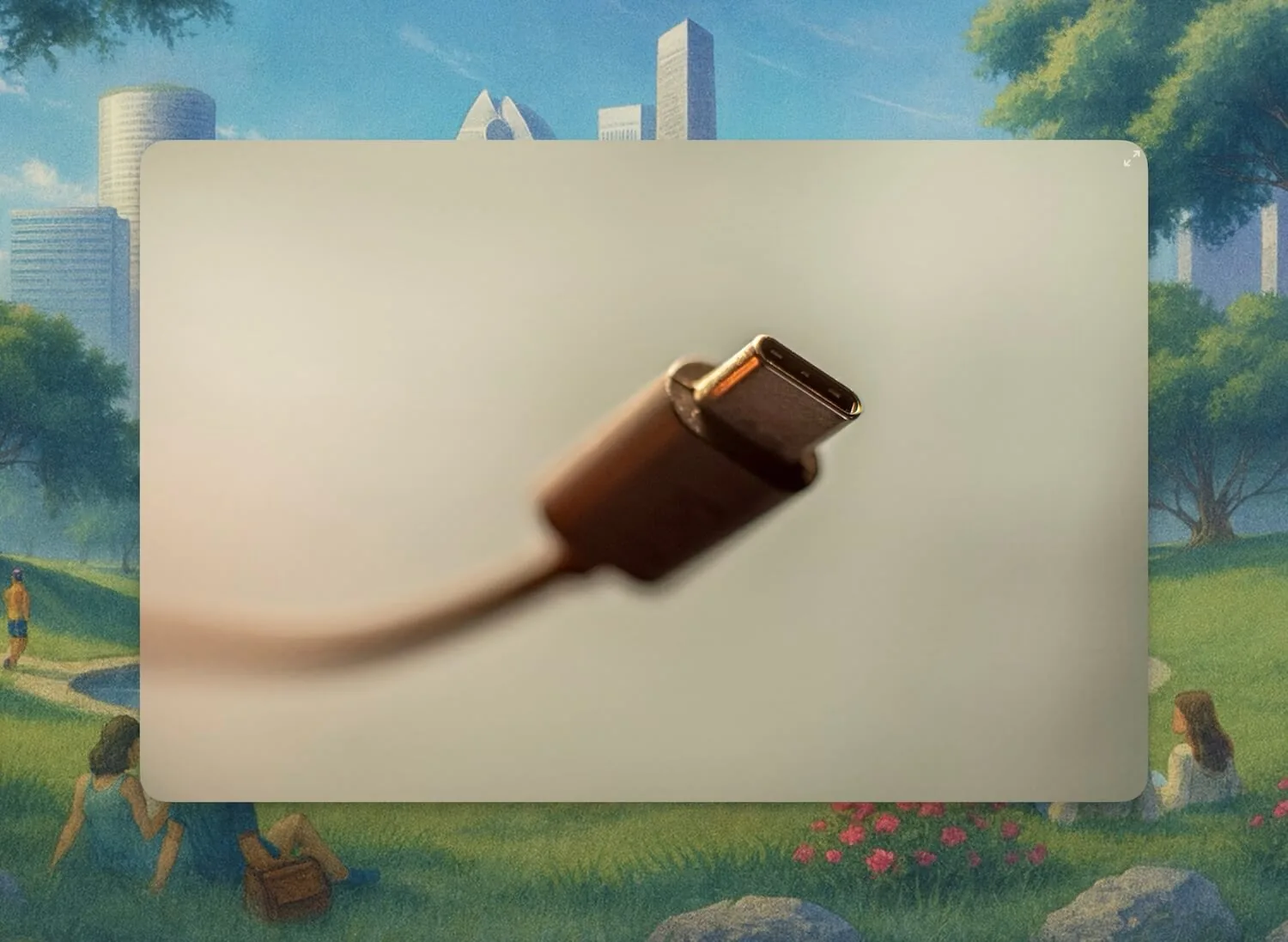
If a swap fixes it, you found your culprit. If nothing changes, keep going.
Restart, then reset the SMC (Intel only)
A plain restart clears a surprising number of charging hiccups, so try that first.
On Apple Silicon Macs (M1, M2, M3, M4): there is no SMC to reset. Shut down fully from the Apple menu, wait about 30 seconds, and power back on. That performs the same reset an Intel SMC combo would.
On Intel Macs with a T2 chip (2018 and later):
- Choose Apple menu > Shut Down and wait for the Mac to power off.
- Hold the right Shift, left Option, and left Control keys for 7 seconds.
- Still holding them, also hold the power button for another 7 seconds, then release all four.
- Wait a few seconds and turn the Mac on.
On older Intel MacBooks (non-removable battery, pre-2018): shut down, then hold Shift + Control + Option on the left side plus the power button together for 10 seconds. Release, then power on.
An SMC reset is safe and changes none of your data. If it fixes the charging, great. If not, the problem is more likely the battery or the charging hardware. Our full SMC and calibration guide walks through when a reset actually helps and when it is a placebo.
See what's really happening with Power Flow
Every check above answers one question indirectly: is power actually flowing into the battery, or not? You can watch that directly instead of guessing.
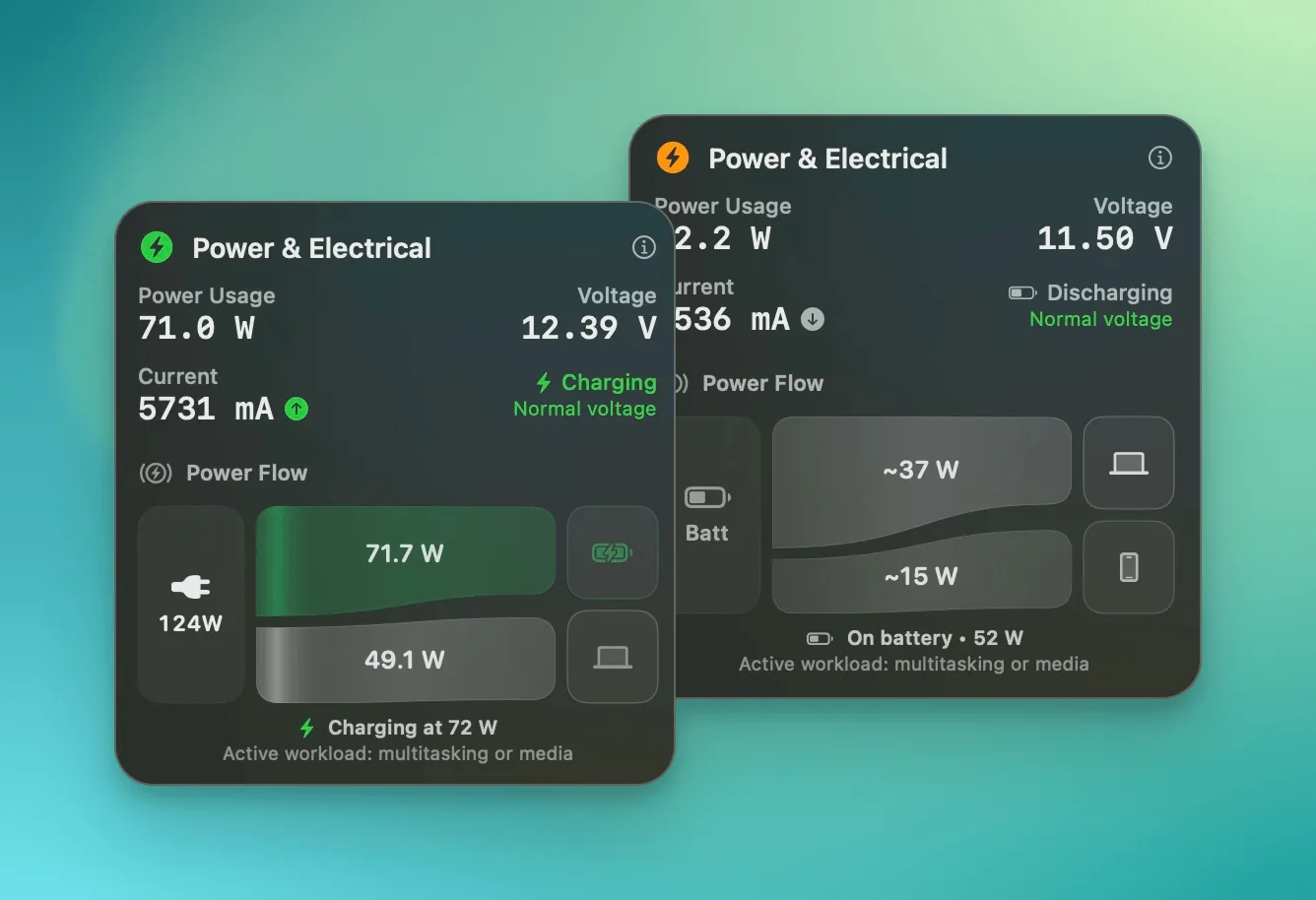
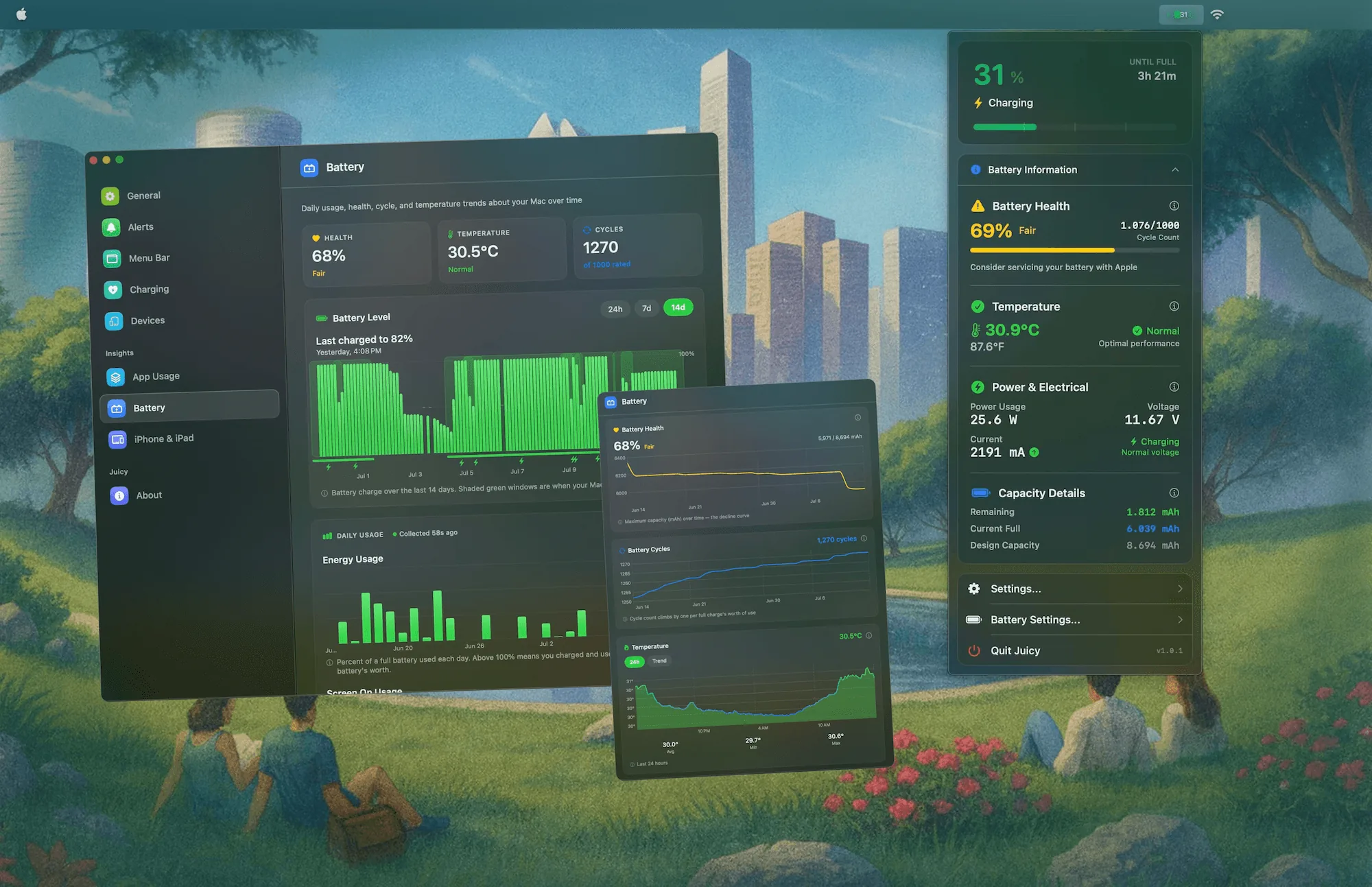
Juicy's Power Flow visualization shows the live wattage moving in or out of your Mac in real time. A genuine charge reads as a positive number climbing the battery up. A thermal or Optimized Charging pause reads as zero flow with the battery holding steady. A fault reads as the battery draining while plugged in. One glance tells you which of the six causes you are dealing with, without opening System Information or swapping a single cable.
Juicy also surfaces the Service Recommended flag the moment it appears and, in the direct download and Setapp versions, lets you override the charge limit and top up to 100 percent in one tap when you genuinely need it. It is a native menu-bar app, featured by Apple, rated 4.85 stars. The 3-day free trial is enough to catch a "not charging" scare in the act. And if the real issue turns out to be runtime rather than charging, our guide on why a Mac battery drains so fast picks up from there.
Frequently asked questions
Why does my Mac say plugged in not charging?
Most often it is working as designed. Optimized Battery Charging holds the charge near 80 percent to reduce wear, and macOS pauses charging when the battery is warm. Both show 'plugged in, not charging' or 'charging on hold'. If it never resumes over hours, then check the cable, port and adapter.
Why is my Mac stuck at 80 percent?
That is almost always Optimized Battery Charging, a feature that deliberately parks the charge near 80 percent when it predicts you will be plugged in for a while. It finishes to 100 percent before you usually unplug. To top up now, click the battery icon and choose Charge to Full Now.
Does resetting the SMC fix charging?
On Intel Macs, sometimes yes: an SMC reset clears power and charging glitches. Apple Silicon Macs (M1 and later) have no user-resettable SMC, so a full shutdown for about 30 seconds does the same job. Reset only after you have ruled out the cable, port and adapter.
Why is my MacBook not charging with USB-C?
Try a different USB-C port first, since a single failed port is common. Then swap the cable and the charger, because USB-C cables fail silently and a low-wattage charger may only slow the drain, not reverse it. Inspect the port for lint or debris and clear it gently.