Why Is My Mac Battery Draining So Fast? 7 Causes and Fixes
Jul 20, 2026 • 5 min read By Dominik, maker of JuicyA fast-draining Mac battery is almost always one of seven things: a hungry browser (usually Chrome), a runaway app or background process, Spotlight indexing, high screen brightness, misconfigured sleep settings, heat, or a battery that is simply worn out. Activity Monitor's Energy tab tells you which one you have in about 20 seconds.
Verified on macOS Tahoe in July 2026. The steps are identical back to macOS Ventura.
This guide walks the diagnosis in order: find the culprit first, then apply the fix that matches, instead of trying all ten generic tips from the internet at once.
Find the culprit in 20 seconds
- Open Activity Monitor (press Command-Space, type "Activity Monitor", press Return).
- Click the Energy tab.
- Click the Energy Impact column header to sort worst-first.
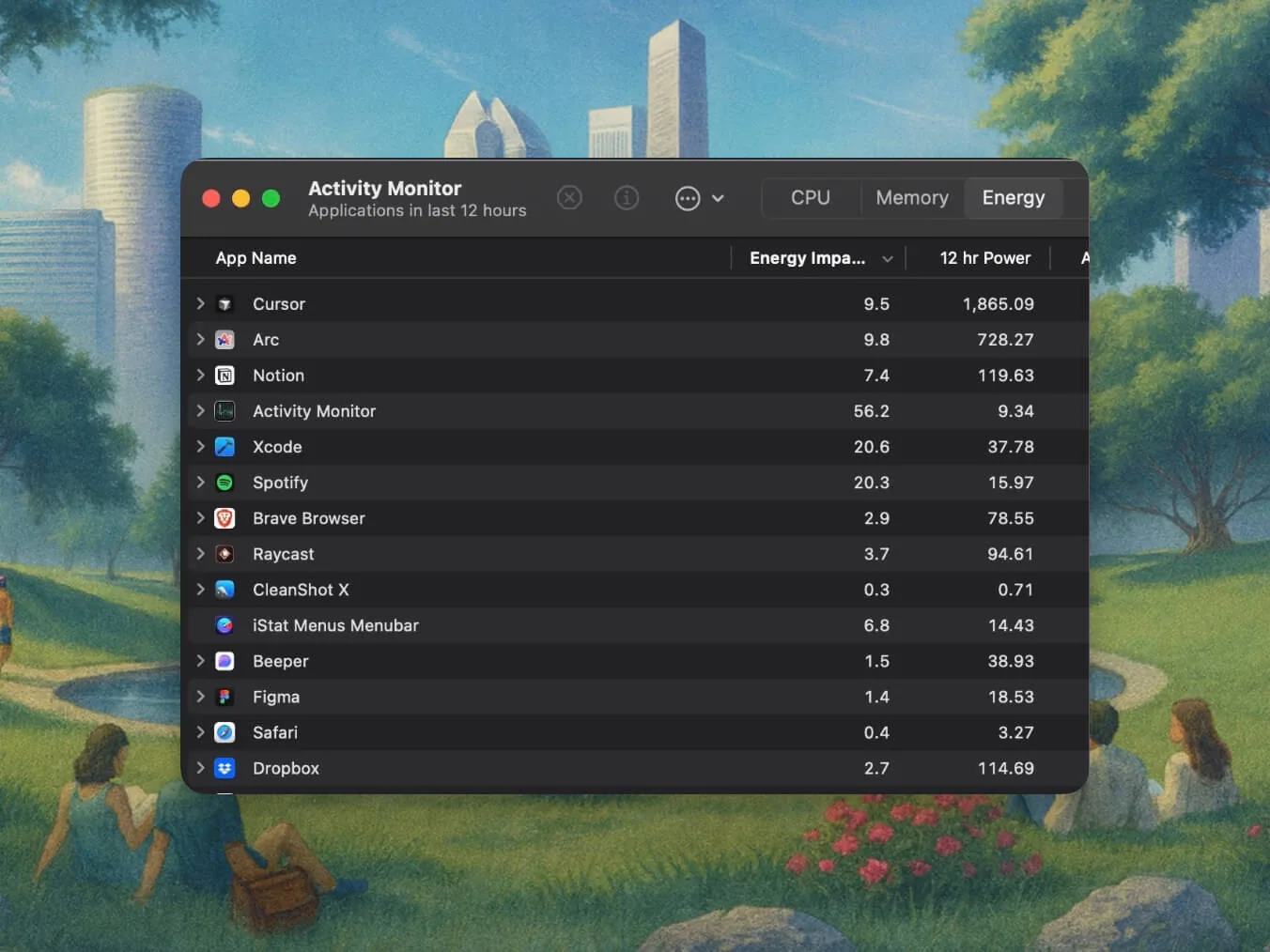
The "12 hr Power" column is the more honest one: it shows the average over the last 12 hours, so a brief spike does not mislead you. Whatever sits at the top of both columns is your drain.
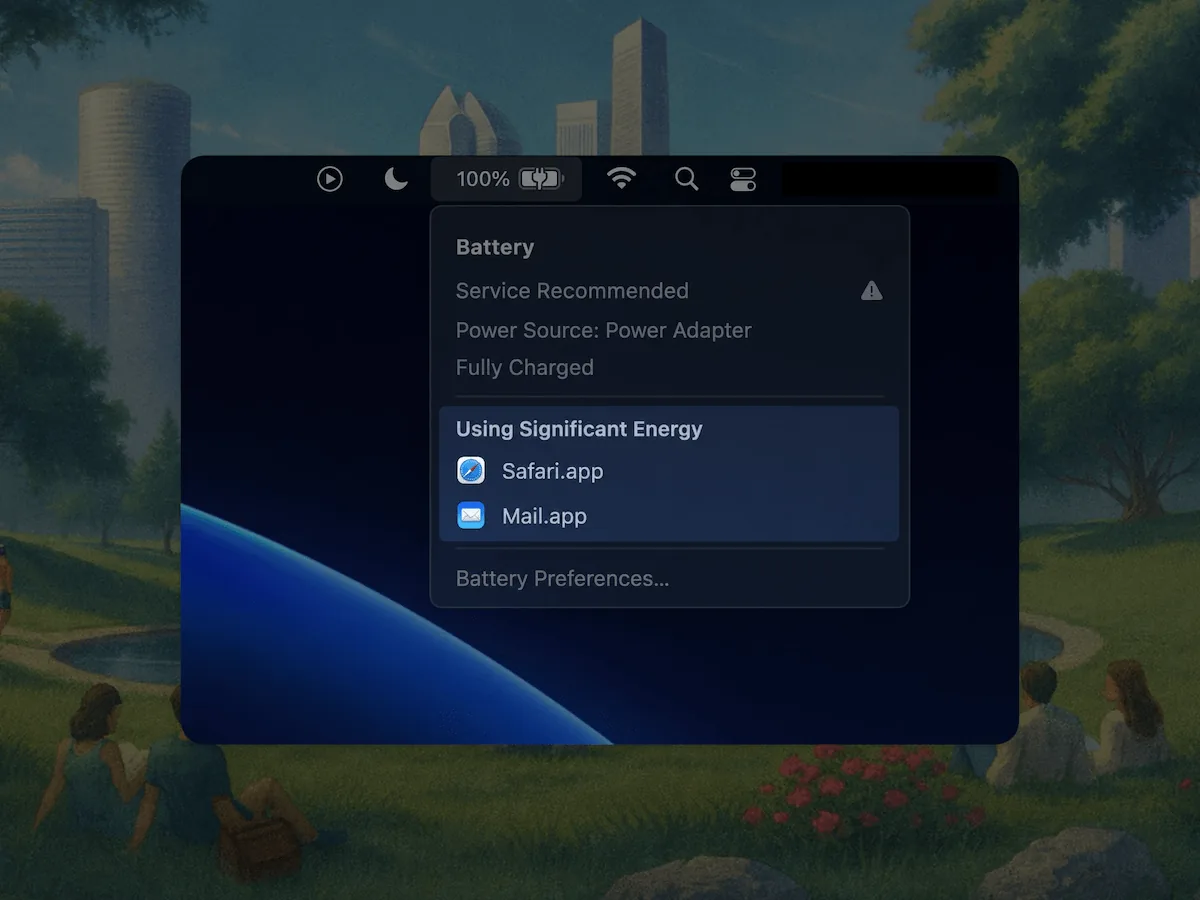
For the even faster check, click the battery icon in the menu bar. If macOS lists anything under Using Significant Energy, that is your answer without opening anything.
The 7 usual suspects (and the fix for each)
1. Chrome, or too many browser tabs. Chrome consistently uses more energy than Safari for the same workload, and every tab is a separate process. Fix: move day-to-day browsing to Safari, or at minimum install a tab suspender and close the 40-tab research session you finished last week.
2. A runaway app or background process. One misbehaving app can pin a CPU core at 100 percent forever. Anything showing triple-digit Energy Impact while supposedly idle qualifies. Fix: quit it from Activity Monitor, then check for an update; chronic offenders get uninstalled. Also prune System Settings > General > Login Items while you are at it.
3. Spotlight indexing. For a day or two after a macOS update or a big file dump, the mds_stores process reads your whole disk. Fix: none needed, it finishes on its own. Plug in, let it run overnight, and it is gone.
4. Screen brightness and external displays. The display is the single biggest constant consumer in a laptop. Driving an external monitor from battery can double total draw. Fix: knock brightness down two notches (it is nearly linear in savings) and treat external displays as a plugged-in activity.
5. Sleep that is not really sleep. See the next section, this one deserves its own.
6. Heat. A Mac on a duvet or in the sun runs its fans, throttles, and burns extra power just existing, and sustained heat above roughly 35 degrees Celsius permanently ages the battery on top. Fix: hard surfaces, shade, clear vents.
7. The battery itself is worn. If nothing is misbehaving but runtime keeps shrinking, the battery may just be old. Check the health percentage and cycle count: our guides on checking battery health and checking cycle count take two minutes, or paste your battery report into the free drain diagnosis tool for a verdict in the browser.
Does your Mac drain in sleep? Fix these three settings
Losing 1 to 3 percent overnight is normal. Losing 10 percent or more means the Mac keeps half-waking. Three usual causes:
- Power Nap / background updates on battery. In System Settings > Battery > Options, set "Wake for network access" to Only on Power Adapter (or Never) and turn off Power Nap on battery where offered.
- Bluetooth accessories. A mouse or controller with a chattering connection can wake the Mac repeatedly. Turn off Bluetooth accessories you are not using, or toggle Bluetooth off before closing the lid.
- An app preventing sleep. Activity Monitor's Energy tab has a Preventing Sleep column. Anything saying Yes at bedtime is your overnight thief.
Draining fast and running hot?
That combination is one symptom, not two: something is working the CPU hard, and the battery drain plus the heat are both downstream of it. Sort Activity Monitor's CPU tab by "% CPU" and look for the process pinned near the top even when you are doing nothing. Fix the process and both symptoms go away together. If the fans spin with nothing over a few percent CPU, then it is environmental heat, see suspect 6.
The part Activity Monitor can't do: history
Here is the limitation of everything above: Activity Monitor only shows right now. Close the window and the evidence is gone. The app that quietly ate 30 percent of your battery on Tuesday looks completely innocent on Wednesday.
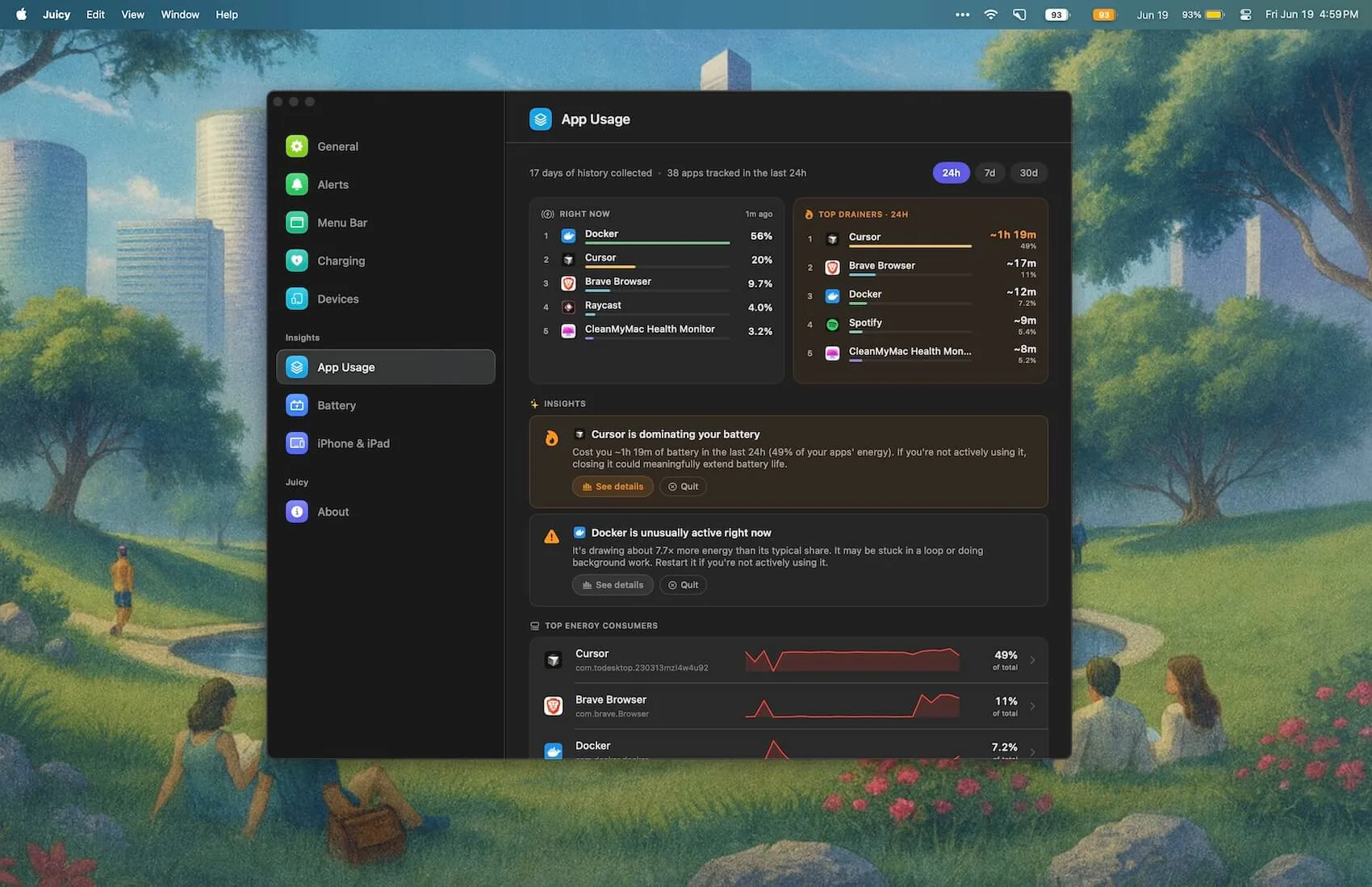
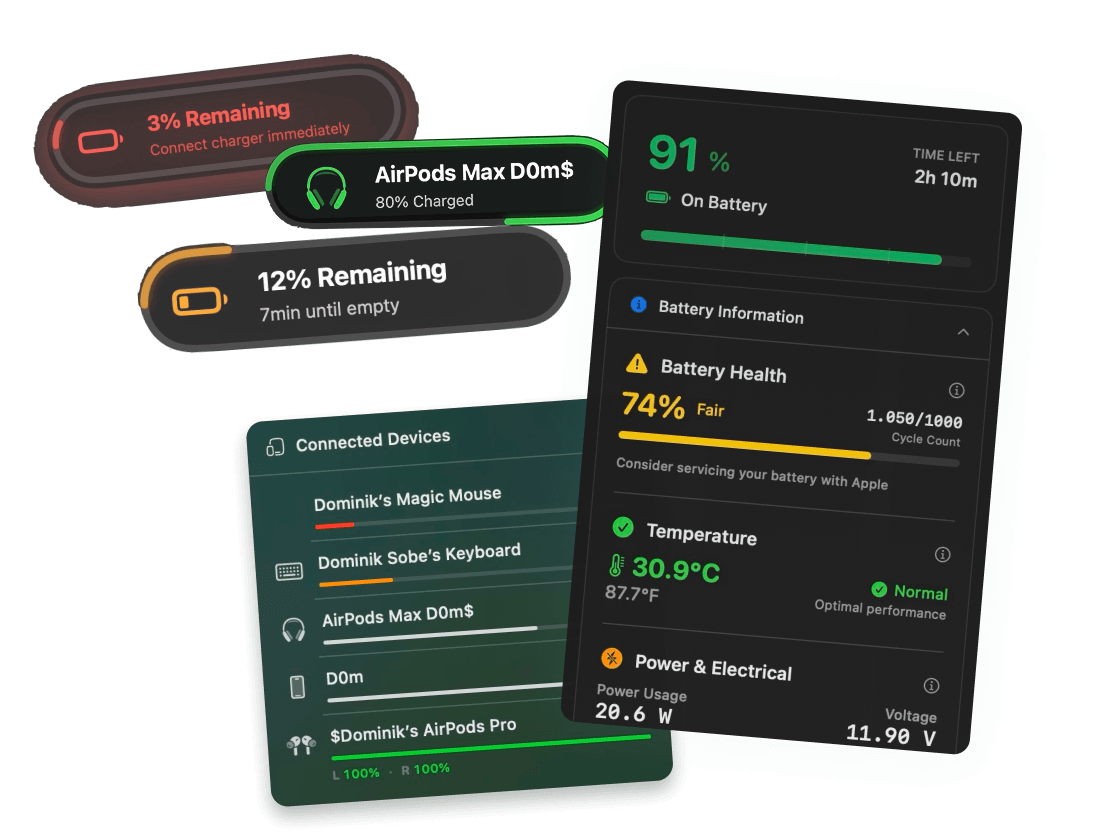
That memory is exactly what Juicy's per-app energy insights add (direct download and Setapp versions): a ranked list of which apps actually drained your battery over the last 24 hours, 7 days, and 30 days, with misbehaving apps flagged automatically. Repeat offenders have nowhere to hide, and you stop re-diagnosing the same mystery every week. Add a custom low-battery alert at whatever percentage you like and the 2pm dead-Mac surprise stops happening entirely. Free 3-day trial, and your future 4pm self says thanks.
Frequently asked questions
Does Chrome drain the Mac battery?
Yes, and it is the single most common culprit we see. Chrome typically uses noticeably more energy than Safari for the same tabs, and each tab is its own process, so twenty tabs can quietly out-drain a video export. Moving everyday browsing to Safari often buys 1 to 2 extra hours.
Does a Mac battery drain in sleep mode?
A little is normal: roughly 1 to 3 percent overnight. Faster than that usually means Power Nap or 'Wake for network access' is doing background work, a Bluetooth accessory keeps waking the machine, or an app is preventing deep sleep. Losing 10 percent or more overnight is worth fixing, not tolerating.
What is draining my Mac battery?
Open Activity Monitor, select the Energy tab, and sort by Energy Impact. The top entries are your answer right now. Also click the battery icon in the menu bar: macOS lists apps 'Using Significant Energy' there. The usual suspects are Chrome, video calls, Spotlight indexing after an update, and runaway background apps.
Why is my Mac battery draining fast and overheating?
Heat plus drain means something is working the CPU hard, not a battery defect: a runaway process, Spotlight reindexing, or heavy browser tabs. Check Activity Monitor's CPU and Energy tabs for the process pinned near the top. Fix the process and both symptoms disappear together. Chronic heat also permanently ages the battery.