Every time your MacBook charges from near empty to full, that is one charge cycle. Apple rates modern MacBook batteries for about 1,000 cycles before capacity drops below 80%. So knowing your current cycle count tells you, roughly, how much life your battery has left.
The problem is that Apple buries cycle count about six clicks deep in System Information. Nobody checks it because nobody can find it. Here is how to see your MacBook cycle count in one click, live from your menu bar.
Quick Answer
macOS hides charge cycle count inside System Information, under Power. To see it live from your menu bar alongside battery health, temperature, and voltage, install Juicy. One click and you see how many cycles you have used versus Apple's rated maximum of 1,000.

What Is a Charge Cycle, Exactly?
A charge cycle is one full discharge and recharge of your battery. But it does not have to happen in one sitting.
If you drain your MacBook from 100% to 50%, charge it back to 100%, then drain it to 50% again, that is also one cycle. Apple counts the cumulative discharge.
So if you plug and unplug constantly during the day, you are probably doing about one cycle per day of heavy use. Over a year, that is roughly 300 to 400 cycles for most people.
The Problem: macOS Hides Cycle Count
You would think something as important as charge cycles would be easy to find. It is not. Here is how Apple makes you dig for it:
- Hold the Option key.
- Click the Apple menu.
- Click "System Information" (it only appears when Option is held).
- In the sidebar, scroll down and click "Power".
- Scroll down the main panel to "Health Information".
- Find "Cycle Count" in the list.
That is six steps for a number that should be one tap away. Worse, the reading is static. You have to reopen System Information every time to check again.
The Solution: Use Juicy to Check Cycle Count from Your Menu Bar
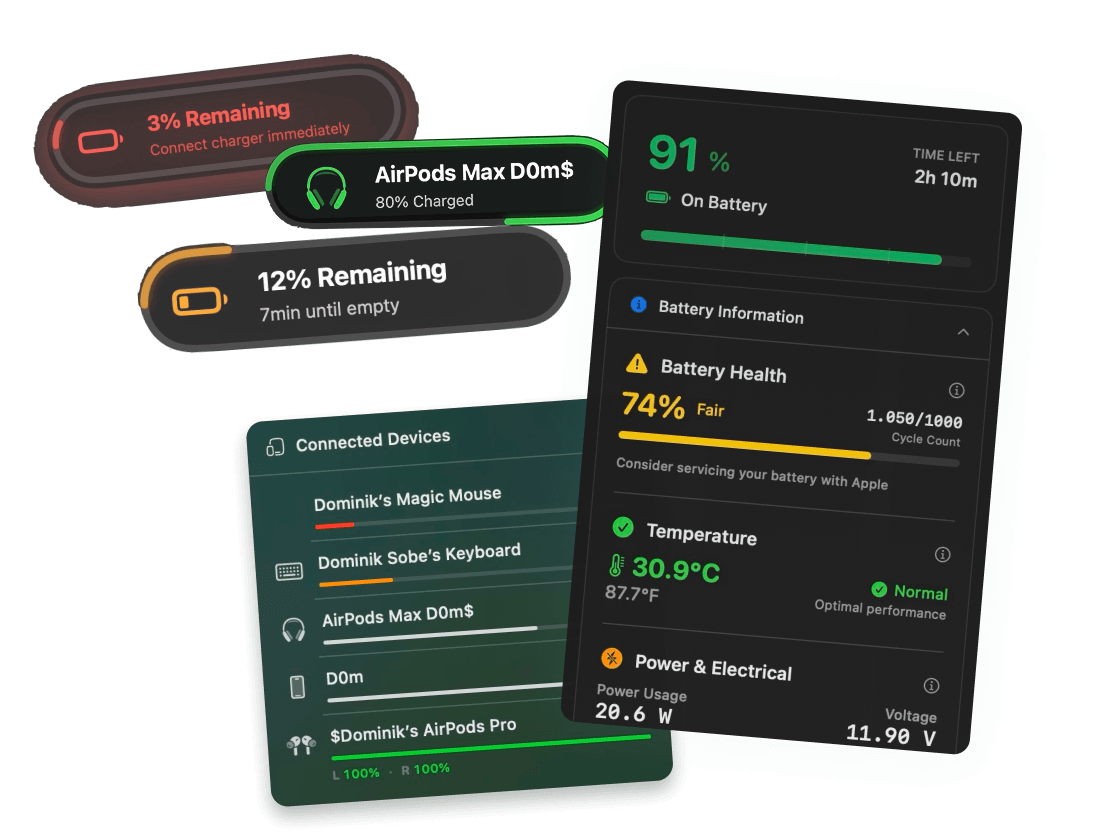
Juicy is a native Mac app that puts every battery metric in your menu bar, including live cycle count. Featured by Apple in "Apps We Love" on the Mac App Store, Juicy replaces the six-step System Information dance with a single click.
What Juicy Shows You:
- Live cycle count versus Apple's rated maximum (for example, "1,050 / 1,000 rated")
- Visual warning when you exceed Apple's rating
- Battery health percentage alongside the cycle count
- Temperature, voltage, and wattage so you can see why cycles might be accumulating faster than expected
- Service recommendation if the cycle count combined with capacity loss crosses Apple's threshold
How to Check Cycle Count with Juicy (In 10 Seconds)
Step 1: Download Juicy
Option A: Go to getjuicy.app and click "Download Juicy for Mac"
Option B: Open the Mac App Store, search for "Juicy", and download it directly.
💡 Tip: Juicy offers a full-featured 3 day free trial. No credit card required.
Step 2: Click the Juicy Menu Bar Icon
Once Juicy is installed, it lives in your menu bar. One click opens the full battery info panel.
Step 3: Read the Cycle Count
Look for "Cycle Count" in the battery panel. You will see something like:
Or, for a healthier battery:
If your cycle count is near or over Apple's rated maximum, Juicy highlights it so you know it is worth paying attention to.
What Is a "Normal" Cycle Count for a MacBook?
Apple rates most modern MacBook batteries for 1,000 charge cycles before they drop below 80% of their original capacity. Here is a rough guide:
Cycle count | Age (typical) | What it means |
Under 100 | A few months old | Brand new or barely used |
100 to 300 | Around 1 year | Normal wear |
300 to 600 | 1 to 2 years | Healthy daily-use MacBook |
600 to 1,000 | 2 to 4 years | Approaching Apple's rated maximum |
Over 1,000 | 3+ years | Past rated lifespan, watch for degradation |
A high cycle count alone is not a crisis. What matters is whether your battery still holds a reasonable charge (above 80%). That is where checking cycle count together with battery health makes sense, and why Juicy shows them side by side.
Cycle Count on Intel vs. Apple Silicon MacBooks
Older MacBooks used to have lower cycle ratings (300 to 500 cycles on the original MacBook Air, 1,000 on most Intel-era Pros). Apple Silicon MacBooks (M1, M2, M3, M4) are universally rated for 1,000 cycles across the lineup.
Juicy detects your MacBook model and compares your cycle count against the correct rating automatically. You do not need to look up what your particular machine is rated for.
Why Not Use Terminal?
You can technically pull cycle count from the Terminal:
That will output something like:
It works, but:
- It is a one-time reading. You have to rerun the command every time.
- No context. Terminal just tells you "423". It does not tell you what Apple's rating is for your model, or whether that is good or bad.
- No notifications. If your cycle count crosses an important threshold, you get nothing.
- No history. Terminal cannot show you how cycles have accumulated over time.
Juicy gives you the same raw number, plus context, plus live updates, plus all the other metrics that make cycle count meaningful.
How to Slow Down Cycle Accumulation
Every cycle is inevitable, but you can slow down how fast they pile up:
- Keep your MacBook between 20% and 80% charge when possible. Sitting at 100% or drained to 0% accelerates wear.
- Unplug at 80% if you know you will be using it soon. An 80% charge alert (which Juicy provides) makes this easy.
- Avoid heat. Keeping your battery below 35 Celsius (95 Fahrenheit) during heavy use significantly extends its life. Juicy shows you the live temperature.
- Run at native resolution when you can. Rendering scaled resolutions eats more power, which means more partial cycles per day.
- Do not use cheap chargers. Off-brand chargers can deliver unstable voltage, which degrades battery cells faster.
Juicy cannot stop cycles from happening, but it gives you the visibility to make better choices.
FAQ
What is a healthy cycle count for a MacBook?
Anything below 1,000 on a modern MacBook is within Apple's rated lifespan. A 2 to 3 year old daily-use MacBook typically sits between 300 and 800 cycles.
My cycle count is over 1,000. Is my battery dead?
Not necessarily. Apple's 1,000 cycle rating is when capacity is expected to drop to 80%. Some batteries last well past that. Check your current battery health percentage alongside the cycle count. If your health is still above 80%, you are fine.
Can you reset the cycle count?
No. Cycle count is stored in the battery's firmware and accumulates over the life of the battery. Replacing the battery is the only way to reset it.
Does Juicy count cycles or does it read Apple's count?
Juicy reads Apple's built-in cycle counter directly from the battery hardware. It is the same number Apple's System Information shows, just displayed more conveniently.
Does checking cycle count require special permissions?
No. Cycle count is read through the same system APIs Apple uses internally. Juicy does not need any special permissions or kernel extensions.
See Your Cycle Count in One Click
Stop digging through System Information every time you want to check your MacBook's cycle count. With Juicy, you get:
- Live cycle count, compared to Apple's rated maximum for your MacBook model
- Every other battery metric (health, cycles, voltage, wattage) in one panel
- Beautiful battery alerts
- 100% local, no cloud sync, no tracking