Ever had your MacBook die on you right in the middle of important work? You are not the only one. The default macOS battery alerts only warn you at 10% and sometimes 5%, which often is not enough time to save your work and find a charger. Worse, you cannot change these levels or add custom alerts at 3%, 20%, or 80%.
Many Mac users want more control over when they get battery warnings, whether you love living on the edge and need that 3% low battery notification, getting an earlier heads up at 20% or protecting battery health with an 80% charge notification. Here is exactly how to set custom battery alerts at any percentage you want.
Quick Answer
To set custom battery alerts at any percentage (like 3%, 15%, 20%, or 80%), you need a third-party app. Juicy is the best option: download it from the Mac App Store, set your preferred alert levels, and get beautiful notifications that actually make you grab your charger.

The Problem: macOS Battery Alerts Are Limited (And Annoying)
If you have ever had your MacBook die unexpectedly while working from a coffee shop, you are not alone. Here is the frustrating reality:
- macOS only alerts you at 10% and 5%. That is it. No 20% warning to give you time to find a charger. No 3% alert for those of us who like to squeeze every last drop of battery.
- You cannot customize these levels. Apple removed the 20% low battery option after macOS Big Sur 11.6. and setting alerts at custom percentages? Forget it.
- For some users on macOS Tahoe, it nags you every minute once you hit low battery. This is incredibly annoying when you are in the middle of something.
- The default alerts are easy to miss. They blend into the background, especially if you are in full screen mode.
Reddit and Apple forums are full of users asking the same question: "How do I set a custom battery alert on my Mac?"
The good news? There is a solution.


The Solution: Use Juicy for Custom Battery Alerts
Juicy is a native Mac app that gives you complete control over your battery alerts. Featured by Apple in "Apps We Love" on the Mac App Store, it is designed to replace macOS's basic battery warnings with beautiful, customizable notifications you can not ignore.
What Juicy Does:
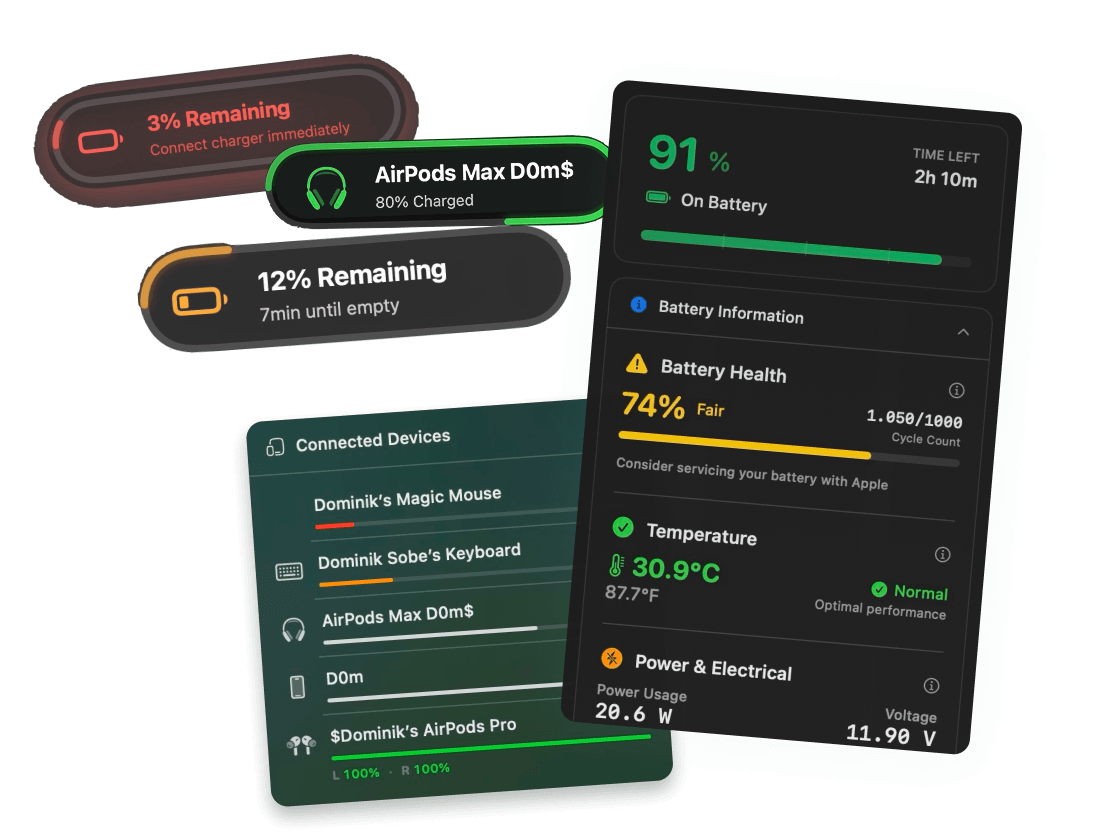
- Set battery alerts at any percentage (3%, 5%, 10%, 15%, 20%, 80% or whatever you choose)
- Get beautiful notification pills that look native to macOS
- Optional screen glow effect to grab your attention
- Custom sounds for each alert (or upload your own)
- Alerts when you plug in or unplug your charger
- Battery health tracking (cycle count, temperature, health %)
- Compact iPhone style battery icon for your menu bar
Unlike the default macOS alerts, Juicy's notifications are designed to actually make you get up and find your charger or wrap up your work before your MacBook dies.

How to Set Up Custom Battery Alerts on Mac with Juicy
Setting up Juicy takes less than 2 minutes. Prefer video over text? Check out this quick 3 min video tutorial for you. Here is how to set custom battery alerts on your MacBook:
Step 1: Download Juicy
Option A: Go to getjuicy.app and click "Download Juicy for Mac"
Option B: Open the Mac App Store, search for "Juicy," and download it directly.
💡 Tip: Juicy offers a free 3 day trial with full features. No credit card required.

Step 2: Complete the Quick Setup
When you first open Juicy, you will see a simple 3 step onboarding:
- Set your battery alerts Select which percentages trigger notifications. For example:
- 3% (critical, last chance to save your work)
- 15% (time to start looking for a charger)
- 80% (stop charging to protect battery health)
- Choose your menu bar icon style Pick between:
- Minimal: iPhone style compact battery with percentage inside
- Juicy Default: More colorful and vibrant
- Finish That is it. Juicy runs in your menu bar and monitors your battery.

Step 3: Customize Your Alerts (Optional)
Click the Juicy icon in your menu bar, then go to Settings to fine tune:
- Alert bubble size: Make it bigger or smaller
- Screen edge glow: Subtle, medium, or bold (very attention grabbing)
- Custom sounds: Choose from built in sounds or upload your own
- Power source alerts: Get notified when you plug in or unplug your charger

What Juicy's Battery Alerts Look Like
Unlike the boring default macOS notifications, Juicy's alerts are designed to be beautiful and impossible to ignore:
Low battery alert (3%): The notification pill drops down from the top of your screen with a red glow effect around your screen edges. You will notice it.
High battery alert (80%): A green notification reminds you to unplug and protect your battery's long term health.
Charger connected or disconnected: Quick, elegant notifications so you always know your power status.
The screen glow effect is optional but highly effective. You can adjust the intensity from subtle to bold.

Why Not Use the Default macOS Alerts?
Feature | macOS Default | Juicy |
Custom alert percentages | ❌ Only 10% and 5% | ✅ Any percentage |
Beautiful notifications | ❌ Basic system alert | ✅ Native-like pills with glow |
High battery alerts (80%) | ❌ No | ✅ Yes |
Plug/unplug notifications | ❌ No | ✅ Yes |
Custom sounds | ❌ No | ✅ Yes (including custom uploads) |
Battery health tracking | ❌ Limited | ✅ Full (health %, cycles, temp) |
Compact menu bar icon | ❌ Bulky | ✅ iPhone-style |
What About Using Scripts or Automator?
You might find Reddit posts or Medium articles suggesting you can build your own battery alerts using shell scripts, AppleScript, or macOS Automator. Technically, this is possible. Here's an example of what people try:
Why we don't recommend this approach:
- Scripts break with every macOS update. Apple changes system commands and permissions regularly. Your script that worked on Monterey might fail completely on Sonoma or Sequoia.
- No visual notifications. At best, you get a system sound or a basic terminal notification. Nothing like the beautiful, attention-grabbing alerts you actually need.
- Requires constant maintenance. You need to set up cron jobs or LaunchAgents, troubleshoot permission errors, and fix things when they break.
- Limited functionality. Scripts can't give you screen glow effects, custom notification styles, battery health tracking, or a better menu bar icon.
- Time consuming. By the time you've debugged your script and set up automation, you could have downloaded Juicy and been done in 2 minutes.
If you're a developer who enjoys tinkering, scripting can be a fun learning exercise. But if you just want reliable battery alerts that work, a native app like Juicy is the practical choice.
Alternatives to Juicy
There are other battery apps for Mac, but here's how they compare:
Battery Monitor (Free)
- Free
- Basic low and high battery alerts
- Less polished and outdated interface
- No screen glow or custom sounds
- Limited customization
Battery Minder (Free)
- Free
- Less polished and outdated interface
- Only low battery alerts (no high battery)
- Very basic features
AlDente (Free/Paid)
- Limits charging to specific percentage
- Does not notify you. It actually stops charging
- Different use case (charging limiter, not alert app)
Juicy ($4.99 lifetime)
- Best notifications (beautiful, customizable)
- Both low and high battery alerts
- Screen glow, custom sounds, plug and unplug alerts
- Battery health tracking
- One time payment, no subscription (it costs less than a Starbucks coffee 😊)
- Featured by Apple as “Apps We Love”
Bottom line: If you just want basic alerts, free apps work. If you want beautiful, effective alerts that actually make you act and enjoy using your Mac, Juicy is worth the $4.99.
FAQ
Can I set a battery alert at 20% on Mac?
Not with macOS alone. It only alerts at 10% and 5%. Use Juicy to set alerts at 20% or any other percentage.
Can I set a battery alert at 3% on Mac?
Not with macOS alone. It only alerts at 10% and 5%. Use Juicy to set alerts at 3% or any other percentage.
How do I get notified when my Mac is fully charged?
macOS does not offer this. Juicy lets you set an alert at 80%, 90%, 100%, or any level you choose.
Does Juicy drain my battery?
No. Juicy uses less than 0.1% CPU. It is built with Swift and optimized for Apple Silicon. You will not notice it running.
Does this work on all MacBooks?
Juicy works on any Mac running macOS 15.0 (Sequoia) or later, including all MacBook Air, MacBook Pro, and iMac models with Apple Silicon or Intel processors.
Is there a free trial?
Yes. Juicy offers a full featured 3 day free trial. No credit card required.