Voltage is one of the earliest warning signs when a battery starts to fail. Cells that are degrading or damaged often show voltage drops or spikes before anything else. The problem is that macOS does not put battery voltage anywhere you can see it.
Here is why voltage matters, what a normal reading looks like, and how to monitor your MacBook battery voltage live in one click.
Quick Answer
macOS hides battery voltage inside System Information, Power, where it only shows a static reading. To monitor live voltage in your menu bar (along with capacity, amperage, and wattage), install Juicy. It surfaces live readings that let you catch chemistry problems early.

Why Battery Voltage Matters
A healthy MacBook battery holds a very consistent voltage curve as it discharges. Unusual readings often mean something is going wrong under the hood:
- Voltage drops under load that are too steep can indicate aging cells.
- Low voltage even at full charge can be a sign of capacity loss or cell imbalance.
- Voltage spikes while charging can point to charger issues or a failing battery management unit.
None of these show up as a red warning in macOS. Apple's UI just tells you "Normal" until the battery is so far gone that it says "Service Recommended". By then, the underlying chemistry has been drifting for months.
Watching voltage gives you an earlier signal. It does not replace checking battery health, but it is a useful complementary metric.
The Problem: macOS Hides Voltage
You can see voltage in macOS, but only if you know where to look:
- Hold the Option key.
- Click the Apple menu.
- Open System Information.
- Click "Power" in the sidebar.
- Scroll down to "Battery Information".
- Find "Voltage (mV)" in the list.
You get a single reading in millivolts, static, with no context. No history. No comparison to expected values. No notifications if something changes. And you cannot easily watch it update live while you work.
The Solution: Use Juicy to Monitor Live Voltage
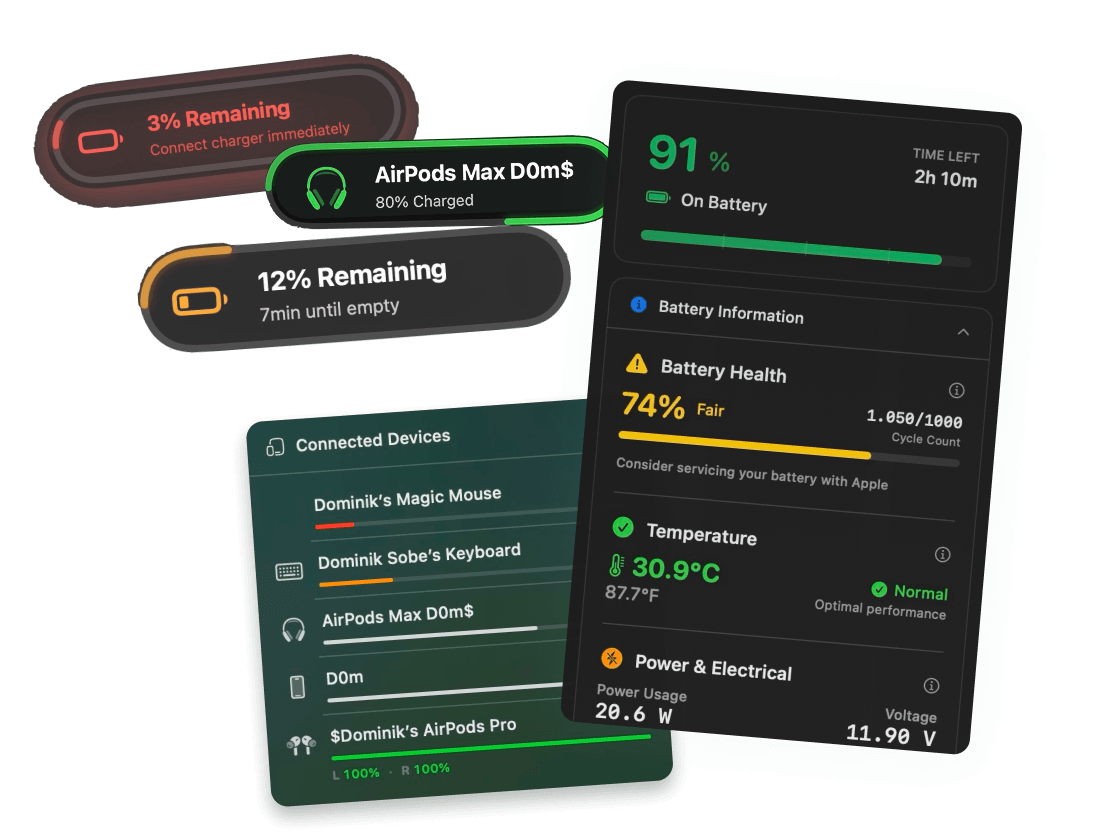
Juicy is a native Mac app that puts every battery metric in your menu bar, including live voltage. Featured by Apple in "Apps We Love" on the Mac App Store, Juicy makes voltage a glance-able reading instead of a buried number.
What Juicy Shows You:
- Live voltage in volts (V), updated continuously
- Normal range indicator so you know when voltage is drifting
- Companion readings: amperage (mA) and power draw (W) so you can see the full electrical picture
- Battery health and cycle count in the same panel, for context
How to Check MacBook Battery Voltage with Juicy
Step 1: Download Juicy
Option A: Go to getjuicy.app and click "Download Juicy for Mac"
Option B: Open the Mac App Store, search for "Juicy", and download it directly.
💡 Tip: Juicy offers a 3 day free trial with full features. No credit card required.
Step 2: Click the Juicy Menu Bar Icon
Once installed, Juicy lives in your menu bar. One click opens the full battery panel.
Step 3: Read Your Battery Voltage
Look for the voltage value. You will see something like:
Juicy updates this reading continuously, so you can watch it respond to charging, discharging, and heavy CPU loads.
What Is a Normal MacBook Battery Voltage?
Most modern MacBook batteries run between 10.5 V and 13.0 V depending on state of charge and load. Here is a rough guide:
State | Typical voltage range |
Fully charged, resting | 12.4 to 13.0 V |
Normal use, partial charge | 11.5 to 12.3 V |
Near empty, under load | 10.5 to 11.4 V |
Critically low | Below 10.5 V |
These ranges vary slightly by MacBook model. What matters more than the absolute numbers is consistency. A healthy battery gives smooth, predictable voltage as it drains and charges. An unhealthy battery gives jumps, dips, and readings that look out of line for the current state of charge.
Juicy does not require you to memorize these ranges. The app flags unusual readings automatically.
Voltage, Amperage, and Wattage: How They Fit Together
Battery voltage is one of three related electrical metrics:
- Voltage (V): the potential difference pushing current through your MacBook. Roughly, how "hard" the battery is pushing electrons.
- Amperage (mA): the rate of current flow, in milliamps. This tells you how much current is moving in or out.
- Wattage (W): voltage multiplied by amperage. The total power being consumed or delivered.
Juicy shows all three side by side so you can see the full picture. A high voltage reading with low amperage usually means you are idle. A normal voltage with high amperage means a workload is hammering your battery. Understanding all three gives you a much clearer picture than any single metric.
Why Not Use Terminal?
You can get a voltage reading from Terminal:
You will get something like:
That is 11.895 V (Terminal reports in millivolts). It works, but:
- Static reading. You have to rerun the command every time.
- No units or context. Just a number. You have to know to divide by 1,000 and compare mentally.
- No history. Terminal cannot show you how voltage has trended over the last hour.
- No notifications. If voltage drifts into an unusual range, Terminal will not tell you.
Juicy reads the same underlying data but displays it formatted, live, and in context.
When Should You Worry About Voltage?
For most users, voltage is a "watch but do not obsess" metric. You should pay attention if you see:
- Voltage below 10.5 V at any state of charge. Something is wrong.
- Voltage under 12 V even right after a full charge. Possible capacity loss.
- Erratic jumps or dips that do not correlate with what you are doing.
- Voltage not recovering after a workload ends. Suggests the battery cannot hold a stable charge.
If any of these happen and your battery health percentage has also dropped (Juicy shows both side by side), it is probably time for a Genius Bar appointment.
FAQ
What is the normal voltage for a MacBook battery?
Most modern MacBook batteries run between 10.5 V and 13.0 V depending on charge and load. Around 12 V is typical during normal use.
Can I check voltage without any third-party app?
Yes, through System Information, Power, Battery Information. But the reading is static, buried, and impossible to monitor live.
Is battery voltage the same as battery capacity?
No. Voltage is the electrical potential your battery is currently delivering. Capacity (measured in mAh) is how much total charge it can hold. Both matter, but they tell you different things.
Why does voltage drop when I run a heavy app?
Under heavy load, your Mac pulls more current from the battery, and voltage drops slightly. This is normal. A healthy battery recovers quickly once the load decreases.
Does Juicy show voltage in millivolts or volts?
Volts, with two decimals (for example, "11.90 V"). Juicy converts the raw millivolt reading from the hardware for you.
Keep an Eye on Your Battery's Health Signals
Voltage is one of the earliest signs that something is drifting with your MacBook battery. Catching it early can save you from a surprise "Service Recommended" warning later. With Juicy, you get:
- Live voltage reading in your menu bar
- Every other battery metric (health, cycles, voltage, wattage) in one panel
- Beautiful battery alerts
- 100% local, no cloud sync, no tracking