How to Make Your Mac Battery Last Longer: 9 Proven Settings
Jul 20, 2026 • 6 min read By Dominik, maker of JuicyTo get more hours from a single charge, turn on Low Power Mode in System Settings, Battery, lower your screen brightness a few notches, quit the energy-hungry apps that show up in Activity Monitor, dim or disable the keyboard backlight, and switch off Bluetooth and Wi-Fi you are not using. Brightness and the browser are usually the biggest wins.
Verified on macOS Tahoe in July 2026. The settings paths are identical back to macOS Ventura.
This is about stretching a single charge, getting from morning to evening without hunting for an outlet. If instead your battery is vanishing abnormally fast, dying at lunch when it used to last all day, that is a fault to diagnose, not a setting to tweak: start with why is my Mac battery draining so fast. For everyone else, here are the levers, roughly in order of payoff.
Low Power Mode: the one-switch win
The fastest single change is Low Power Mode. It trims the display refresh rate, eases back CPU speed, and quiets background activity, and on a demanding day it can add a real chunk of runtime.
- Open System Settings.
- Click Battery.
- Set Low Power Mode to Only on Battery, so it kicks in unplugged and steps aside when charging. If you want to save time, you can also use Juicy's dropdown menu to quickly toggle low battery mode on and off.
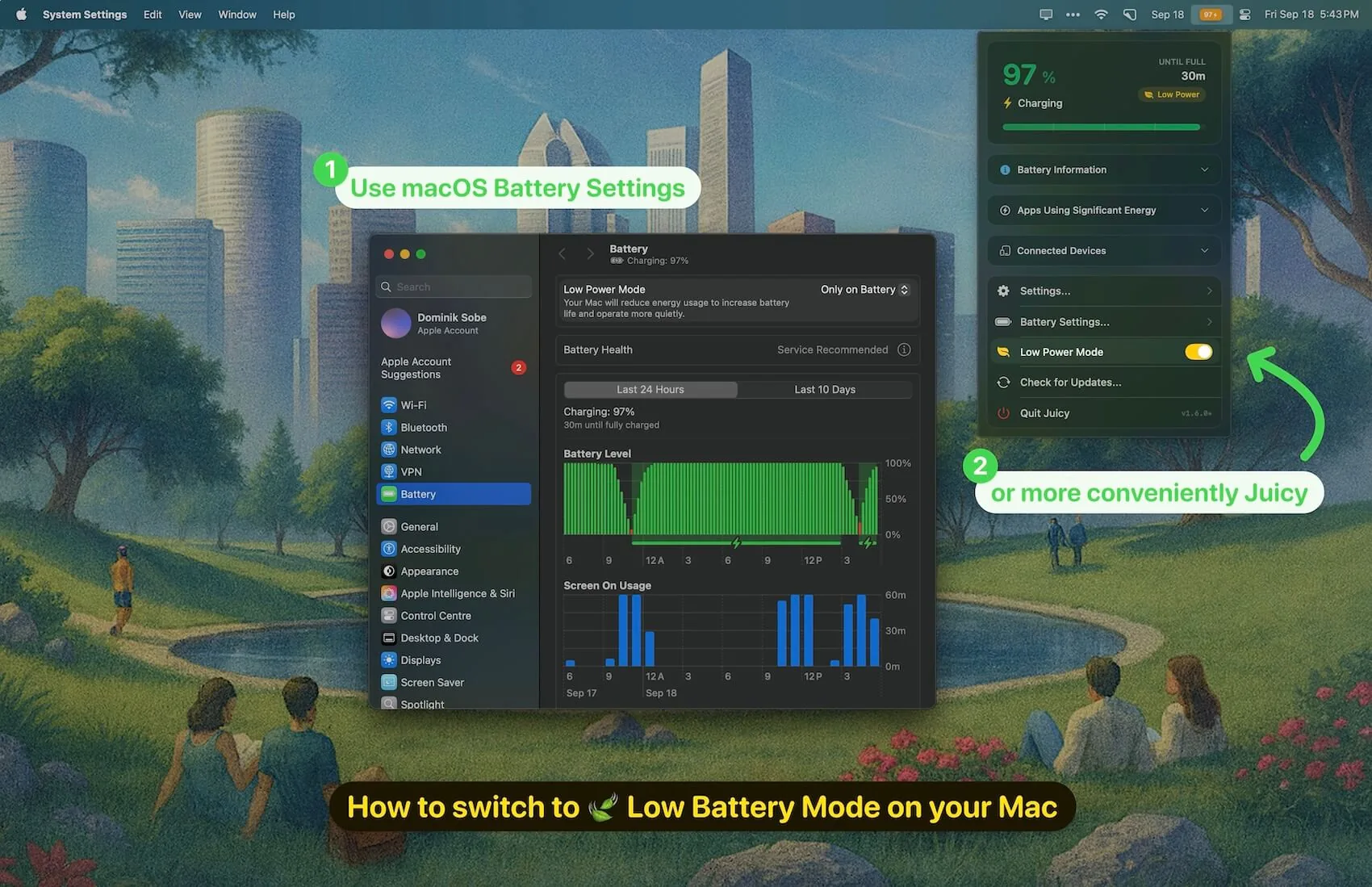
The tradeoff is slightly slower performance, which for web, writing, and email you will not notice. Leave it on power adapter if you want full speed while plugged in.
Brightness, keyboard backlight, and the display
The screen is the biggest constant drain in any laptop, and it is the lever with the most reward for the least effort.
- Screen brightness. Consumption scales almost linearly with brightness, so every notch down is real savings. Dropping from full to about two-thirds can add close to an hour. Turn on auto-brightness so it dims in low light without you thinking about it.
- Keyboard backlight. Pretty, and pointless in a lit room. Turn it down or off in System Settings > Keyboard.
- External displays. Driving a second monitor from the battery can nearly double your total draw. Treat an external display as a plugged-in activity.
Quit the apps that are eating your battery
After the display, the biggest variable is whatever is working your CPU hardest, and it is usually not what you would guess. To find it:
- Open Activity Monitor (press Command-Space, type "Activity Monitor", press Return).
- Click the Energy tab.
- Sort by Energy Impact to see the current worst offenders, or read the 12 hr Power column for the honest average.
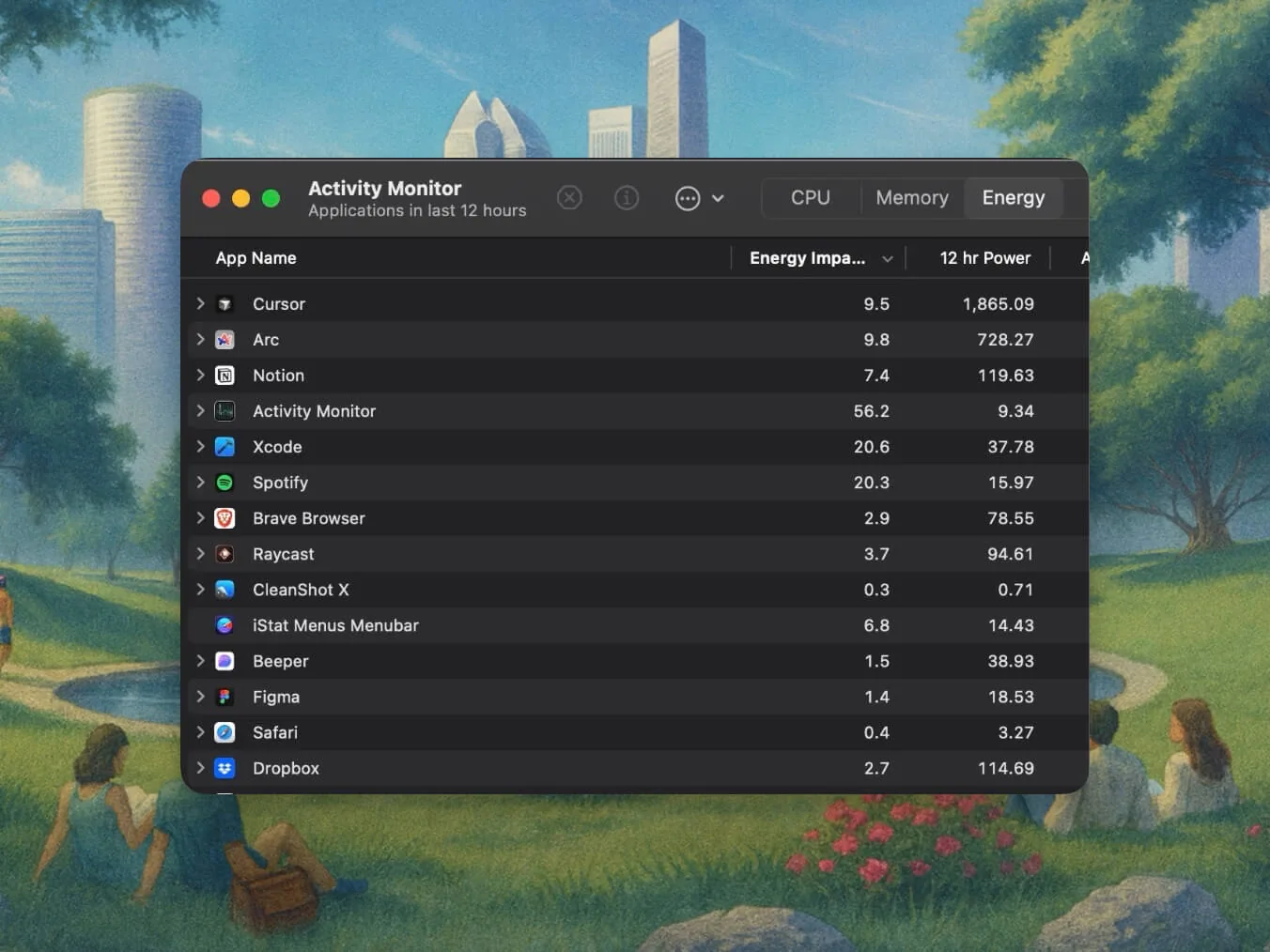
The usual winners are browsers with a pile of tabs (Chrome especially), video calls left running, and cloud sync grinding away. Moving everyday browsing to Safari alone often buys an hour or two. We go deep on hunting drains in why is my Mac battery draining so fast, so this guide will not repeat the whole diagnosis.
Connectivity, widgets, and background tasks
Small stuff, but it adds up on a long day away from power:
- Turn off Bluetooth and Wi-Fi when you are genuinely not using them (on a flight, say). Idle radios still sip power hunting for connections.
- Trim Login Items in System Settings > General > Login Items so fewer apps launch and run in the background.
- Quiet chatty widgets and constant notifications, which wake the display and the CPU.
- Pause large cloud syncs like photo libraries and backups until you are back on a charger.
How much each change is actually worth
Not every tip is equal. Roughly, biggest wins first:
| Change | Approximate payoff | Effort |
|---|---|---|
| Lower screen brightness | Up to about an hour | One keypress |
| Turn on Low Power Mode | A meaningful chunk on heavy days | One toggle |
| Quit the top energy app | Often an hour or more | 30 seconds |
| Switch to Safari from Chrome | Frequently 1 to 2 hours | Ongoing |
| Turn off keyboard backlight | Minutes | One toggle |
| Bluetooth and Wi-Fi off when idle | Minutes | One toggle |
The pattern is clear: brightness and your hungriest app dwarf everything else. Fix those two and you have captured most of the available runtime.
Squeeze out the last drops with Juicy
Every tip above works, but they all share one blind spot: you have to keep re-checking Activity Monitor, and it only shows this instant. The app that quietly drained a third of your battery this morning looks innocent by afternoon.
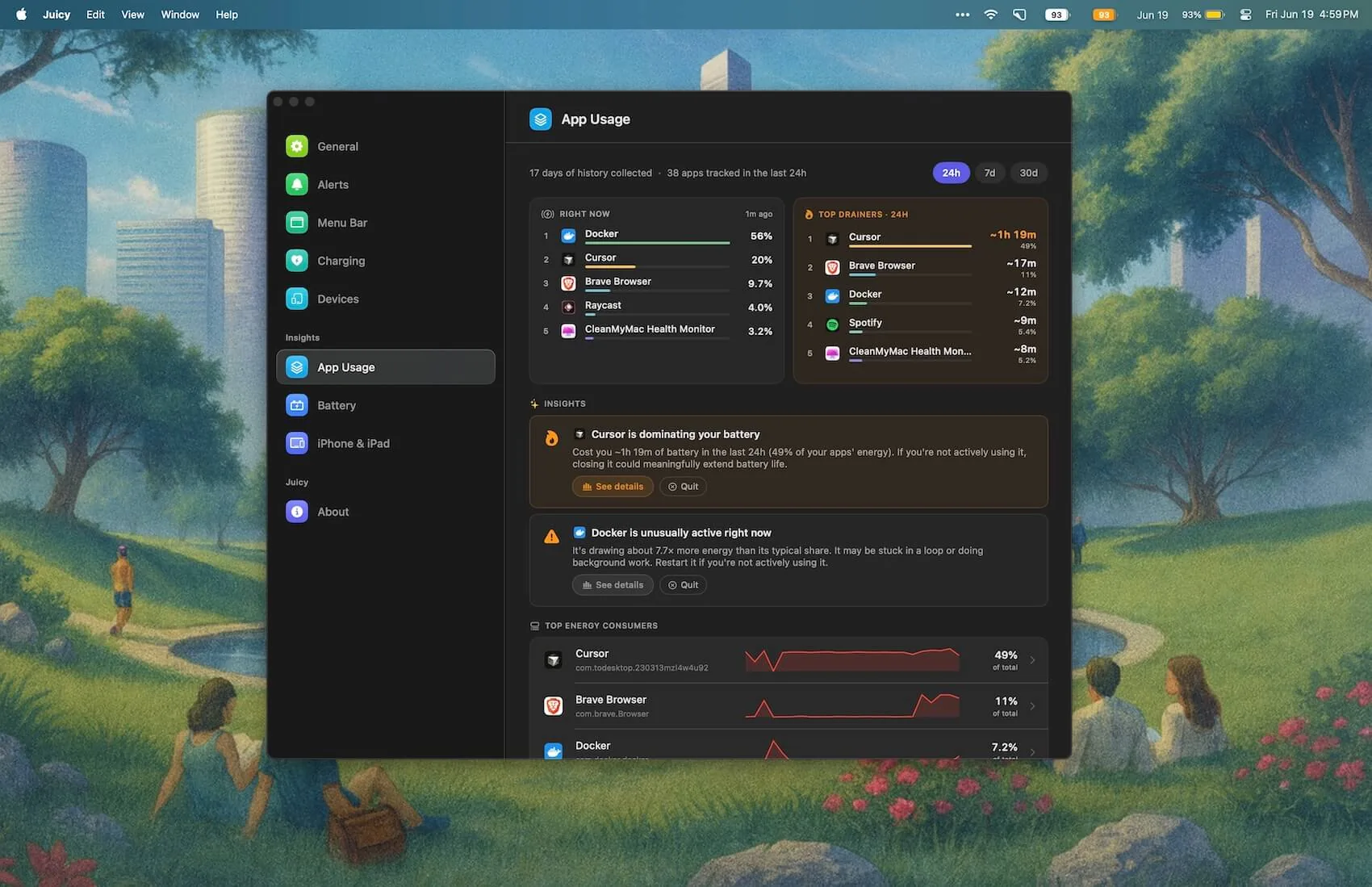
Juicy's per-app energy insights close that gap (in the direct download and Setapp versions): a ranked history of which apps actually drained your battery over the last 24 hours, 7 days, and 30 days, with the repeat offenders flagged. Instead of re-diagnosing the same mystery every week, you fix your single biggest drain once.
Pair that with custom low-battery alerts at, say, 20, 15, and 5 percent, and you plan your last hour on purpose instead of getting ambushed by a shutdown. Want a quick read first? Paste your battery report into the free drain diagnosis tool for a browser-based verdict.
Juicy is featured by Apple, 4.85 stars, and free for 3 days. And once your battery is stretched as far as it will go, the longer game is keeping the battery itself healthy, covered in how to keep your MacBook battery healthy.
Frequently asked questions
Does lowering screen brightness save Mac battery?
Yes, and it is the single biggest lever you control. The display is the largest constant power draw in any laptop, and its consumption scales almost linearly with brightness. Dropping from full to about two-thirds brightness can add roughly an hour of runtime, more if you were running it at maximum.
Do background apps drain Mac battery?
They can, though macOS is fairly good at pausing idle apps. The real drains are apps doing active work in the background: cloud sync, video calls left open, browser tabs with live content, and menu-bar utilities that poll constantly. Activity Monitor's Energy tab shows which ones over the last 12 hours.
Does Low Power Mode help Mac battery?
Yes. Low Power Mode lowers the display refresh rate, eases back CPU speed, and reduces background activity, which can add a meaningful chunk of runtime on a demanding day. The tradeoff is slightly slower performance, so most people keep it set to switch on only when running on battery.
What uses the most battery on a Mac?
In order: the display, then whatever is working the CPU or GPU hardest, which is usually a browser with many tabs, video calls, or exports and renders. External monitors and high brightness push the display draw even higher. Open Activity Monitor's Energy tab to see your own top consumers.