How to Keep Your MacBook Battery Healthy (6 Real Habits)
Jul 20, 2026 • 7 min read By Dominik, maker of JuicyKeep your MacBook battery in the 50 to 80 percent range for daily use, avoid long stints at 100 or 0 percent, keep it out of heat, leave Optimized Battery Charging on, and stay current on macOS updates. The single biggest lever is not sitting at a full charge all day.
Verified on macOS Tahoe in July 2026. The settings paths are identical back to macOS Ventura.
None of this requires an app. Here is what each habit does, and where the free tools stop.
Why the 50 to 80 percent zone keeps your battery healthy
Your MacBook runs on a lithium-ion battery, and two things wear it down faster than anything else: sitting at a very high charge, and sitting at a very low one. Both put the cell under voltage stress, and stress at the extremes is what ages it.
The middle of the range is calm territory. Keeping everyday charging roughly between 50 and 80 percent is the gentlest way to run a lithium battery, which is exactly why electric cars and Apple's own charging features default to holding around 80. You lose a little runtime per charge and gain years of lifespan. For a laptop that lives near a plug most of the day, that is a good trade.
(One nuance: you do not need to obsess over hitting exactly 80. A battery that drifts between 40 and 90 is still living a comfortable life. The zone is a target, not a tightrope.)
Should you drain your MacBook to 0, or keep it plugged in?
Two old habits, both worth unlearning.
Draining to 0 percent before charging is nickel-battery advice from the 1990s. Modern lithium cells hate a full discharge, and there is no "memory effect" to reset. Deep drains just add wear. Plug in whenever it is convenient, and try to top up before you reach single digits.
Leaving it plugged in all the time is not dangerous, since your Mac stops drawing charge into the battery at 100 percent and runs off the adapter. The catch is that months spent sitting full and warm age the cell faster than months spent near 80. So plugging in is fine, but living at 100 percent is not ideal. This is the exact problem a charge limit solves, more on that below.
Heat is the battery's real enemy
If there is one villain in battery lifespan, it is heat. Sustained temperatures above roughly 35 degrees Celsius (95 Fahrenheit) permanently reduce capacity, and unlike a low charge, that damage does not come back.
The practical rules:
- Do not work with the Mac on a duvet, pillow, or lap blanket that blocks the vents and underside.
- Keep it out of direct sun and never leave it in a hot car.
- Charging while running a demanding task (a big export, a game) stacks two heat sources at once. Give it airflow, or plug in before, not during.
- If the fans are roaring and the case is hot, that heat is aging the battery on top of draining it. Worth fixing at the source.
Heat plus charging is the worst combination, which is another reason not to leave it charging to 100 percent inside a hot bag.
Optimized Battery Charging: what it does, and where it stops
Apple's built-in defense is Optimized Battery Charging. It learns your routine and delays charging past 80 percent until just before you usually unplug, so the battery spends less time sitting full. It is on by default, and you should leave it on.
To check or change it:
- Open System Settings.
- Click Battery in the sidebar.
- Click the info icon next to Battery Health.
- You will see the Optimized Battery Charging toggle.
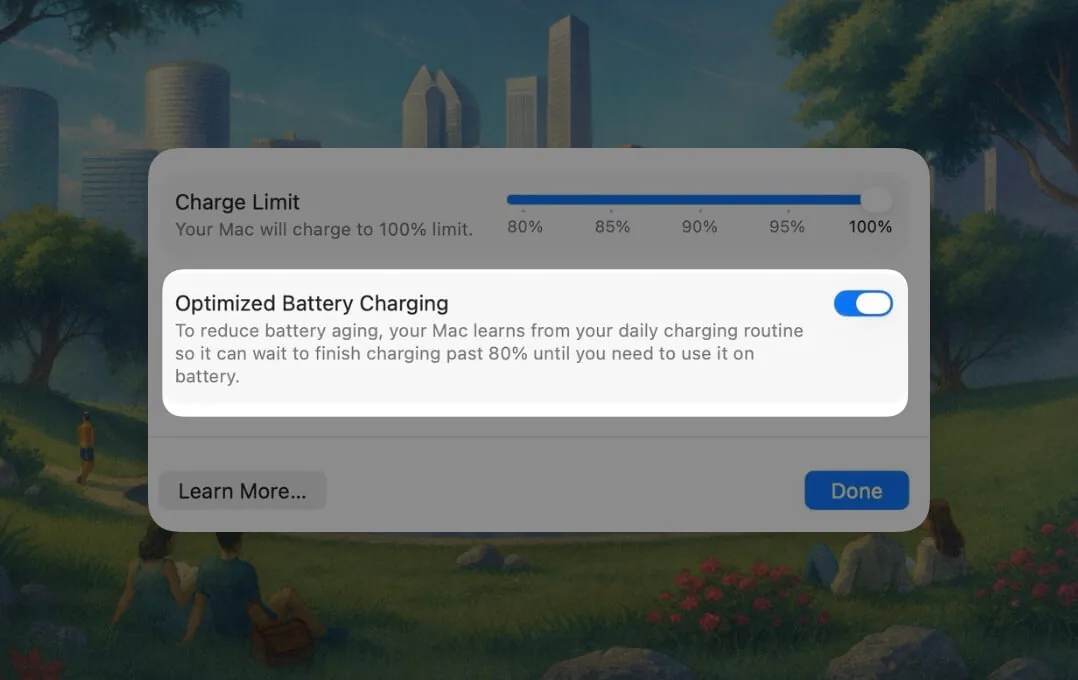
The honest limitation: it is a black box. You cannot set the percentage, you cannot see when it is holding versus charging, and it only kicks in once it has learned a predictable schedule. If your days vary, it often just charges straight to 100. It is better than nothing, but it is not control.
Take manual control with a charge limit
If you want to actually pick the ceiling instead of hoping macOS guesses right, that is where an app earns its place.
Juicy's charge limit lets you cap charging at any percentage you choose, 80 being the popular pick (in the direct download and Setapp versions). It holds the battery there no matter your schedule, with a Sailing Mode that avoids the constant tiny top-ups that would otherwise churn cycles, and a menu-bar readout that actually tells you when you are being held at the limit instead of leaving you guessing.
Not sure the habit is worth it for your usage? Our free charge limit calculator estimates how many extra months or years of battery life an 80 percent cap buys you, based on how you charge. No download, it runs in the browser.
The habits, at a glance
Here is the whole routine in one table, roughly ranked by impact:
| Habit | Why it helps | Effort |
|---|---|---|
| Charge in the 50 to 80 percent zone | Least voltage stress on the cell | Low with a charge limit |
| Avoid full drains to 0 percent | Deep discharge adds wear | Low |
| Do not park at 100 percent for long | Full and warm ages it fastest | Low |
| Keep it cool, below 35 degrees Celsius | Heat causes permanent capacity loss | Low |
| Leave Optimized Battery Charging on | Cuts time spent sitting full | None, on by default |
| Keep macOS updated | Battery management improves in updates | None |
Do these and your battery will comfortably outlast Apple's 1,000-cycle rating in calendar years. To see how it is actually holding up, our guides on checking battery health and reading your cycle count take about two minutes each. And if you are trying to stretch a single charge rather than the battery's whole life, that is a different set of levers, covered in making your Mac battery last longer.
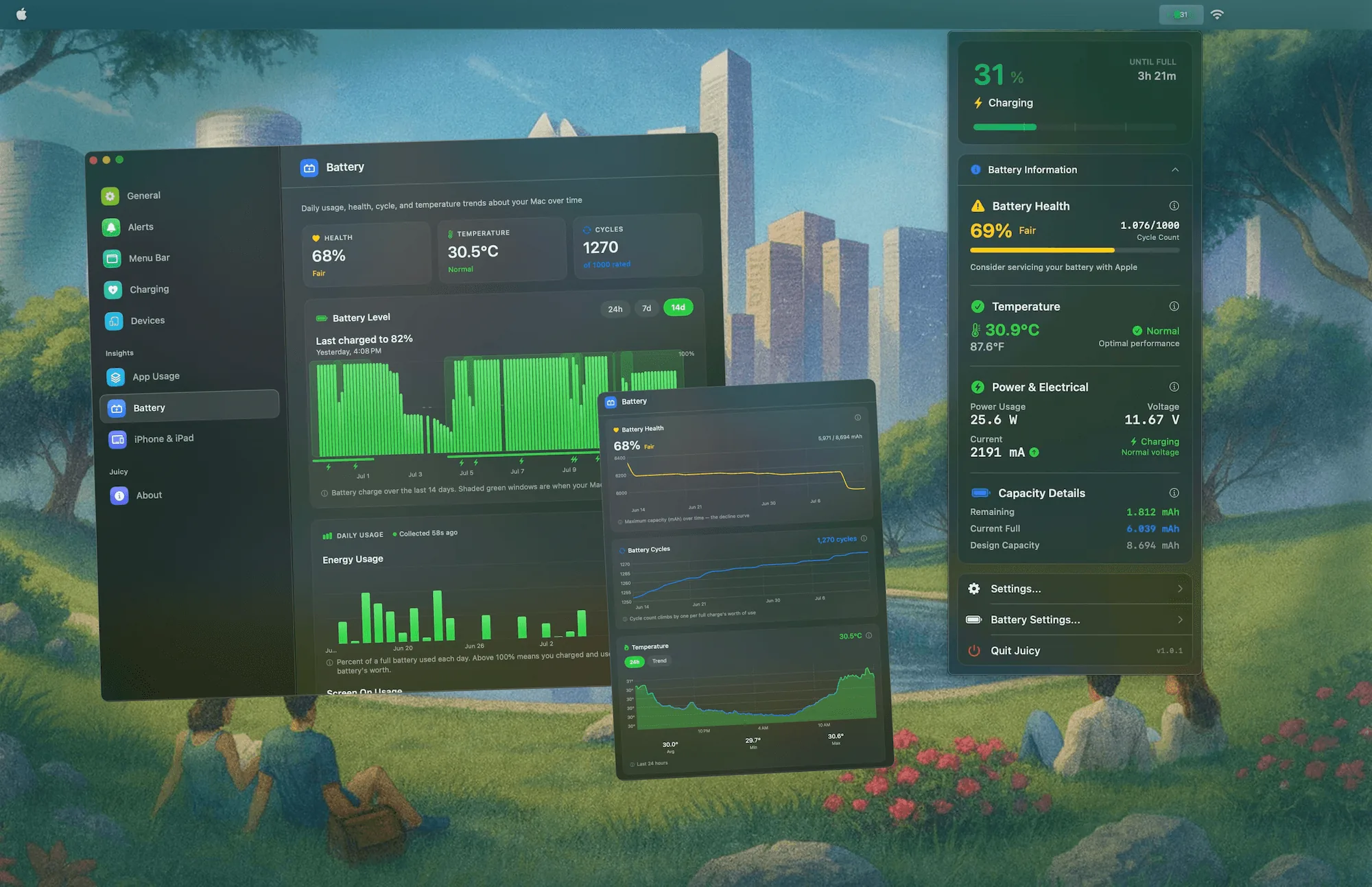
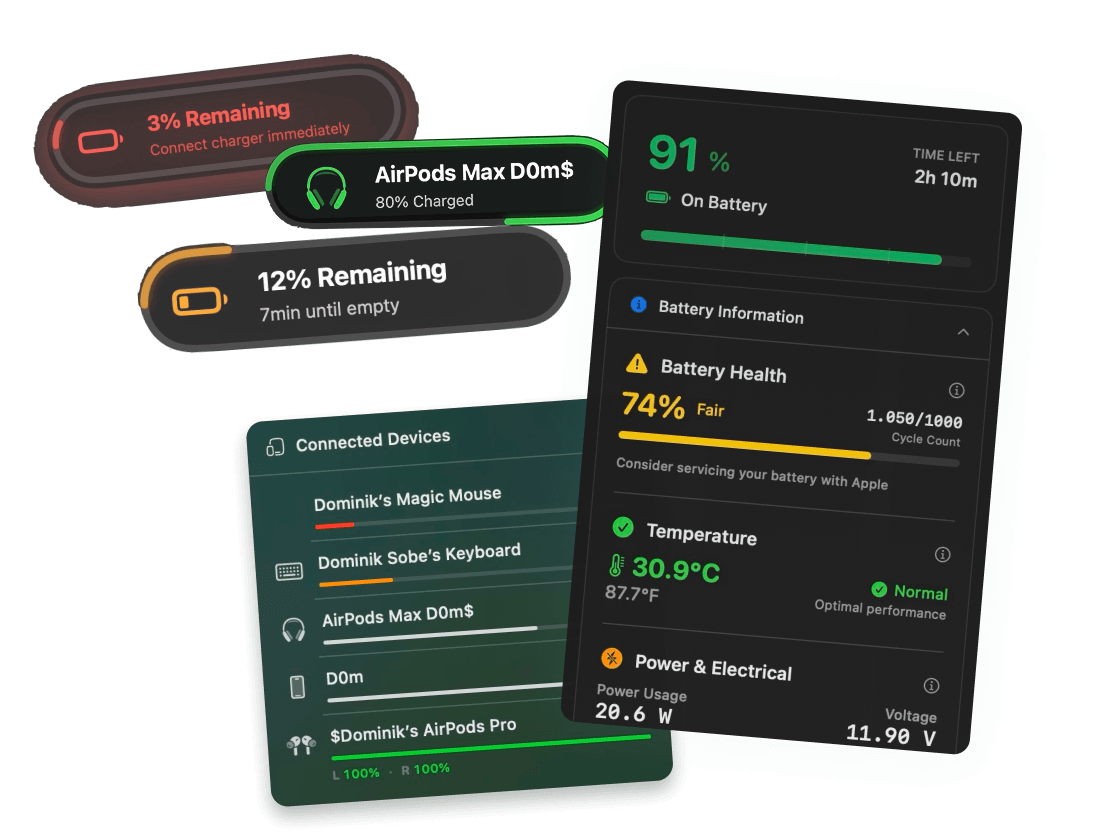
Juicy ties the monitoring and the charge limit together in the menu bar, and flags Apple's Service Recommended warning the moment it appears. Featured by Apple, 4.85 stars, free for 3 days, no credit card.
Frequently asked questions
Should I let my Mac battery die before charging?
No. Fully draining a lithium-ion battery stresses it and does not help calibration on any modern Mac. Charge whenever it is convenient, ideally topping up before you hit single digits. The old drain-it-flat advice applied to nickel batteries from decades ago, not the battery in your MacBook.
Is it bad to keep my MacBook plugged in all the time?
It is not dangerous, your Mac stops charging at 100 percent and runs off the adapter. The catch is that sitting at 100 percent and warm for months does age the battery faster. Optimized Battery Charging softens this, and a charge limit around 80 percent removes the problem entirely.
How do I turn off Optimized Battery Charging on Mac?
Open System Settings, click Battery, click the info icon next to Battery Health, then toggle off Optimized Battery Charging. Most people should leave it on. The main reason to disable it is if you use a dedicated charge-limit app instead, since running both at once can fight over the target.
What percentage should I charge my MacBook to?
For everyday use, keeping it around 80 percent is the sweet spot for longevity. Charge to 100 percent only when you actually need the full runtime, like a long flight, and try not to leave it sitting at 100 afterward. Staying between 50 and 80 percent is gentlest of all.