How to Take Care of Your iPhone Battery (and Measure It)
Jul 20, 2026 • 6 min read By Dominik, maker of JuicyTo take care of your iPhone battery, keep it between 20 and 80 percent when you can, leave Optimized Battery Charging on, avoid heat, and update iOS. On iPhone 15 and later, set the 80 percent charge limit in Settings > Battery > Charging. Track real health from your Mac to confirm it is working.
Verified on iOS 26 in September 2026. The Settings paths below are current, and most apply back to iOS 13.
Battery care is not complicated, but the internet has buried it under rituals that stopped mattering a decade ago. Here is what actually moves the needle, and how to measure whether your habits are working instead of hoping.
The habits that actually protect iPhone battery health
Lithium-ion batteries wear fastest at the extremes: very full, very empty, and very hot. Every good habit is really just a way to keep the battery out of those three states.
- Live in the middle. Sitting at 100 percent or draining to 0 percent stresses the cells more than the charging in between. Roughly 20 to 80 percent is the comfortable zone.
- Leave Optimized Battery Charging on. It is the single easiest win, and it is on by default.
- Keep it cool. Heat is the one factor that does permanent damage quickly.
- Update iOS. Apple ships battery management improvements in point releases, and they are free.
- Use a decent charger. Cheap uncertified bricks run hot and charge messily.
None of this requires babysitting your phone. Do the setup once and forget it.
The 80 percent rule and Optimized Battery Charging
The most useful thing you can turn on lives one screen deep.
- Open Settings.
- Tap Battery.
- Tap Charging (on iPhone 15 and later) or Battery Health & Charging on earlier models.
- Make sure Optimized Battery Charging is on.
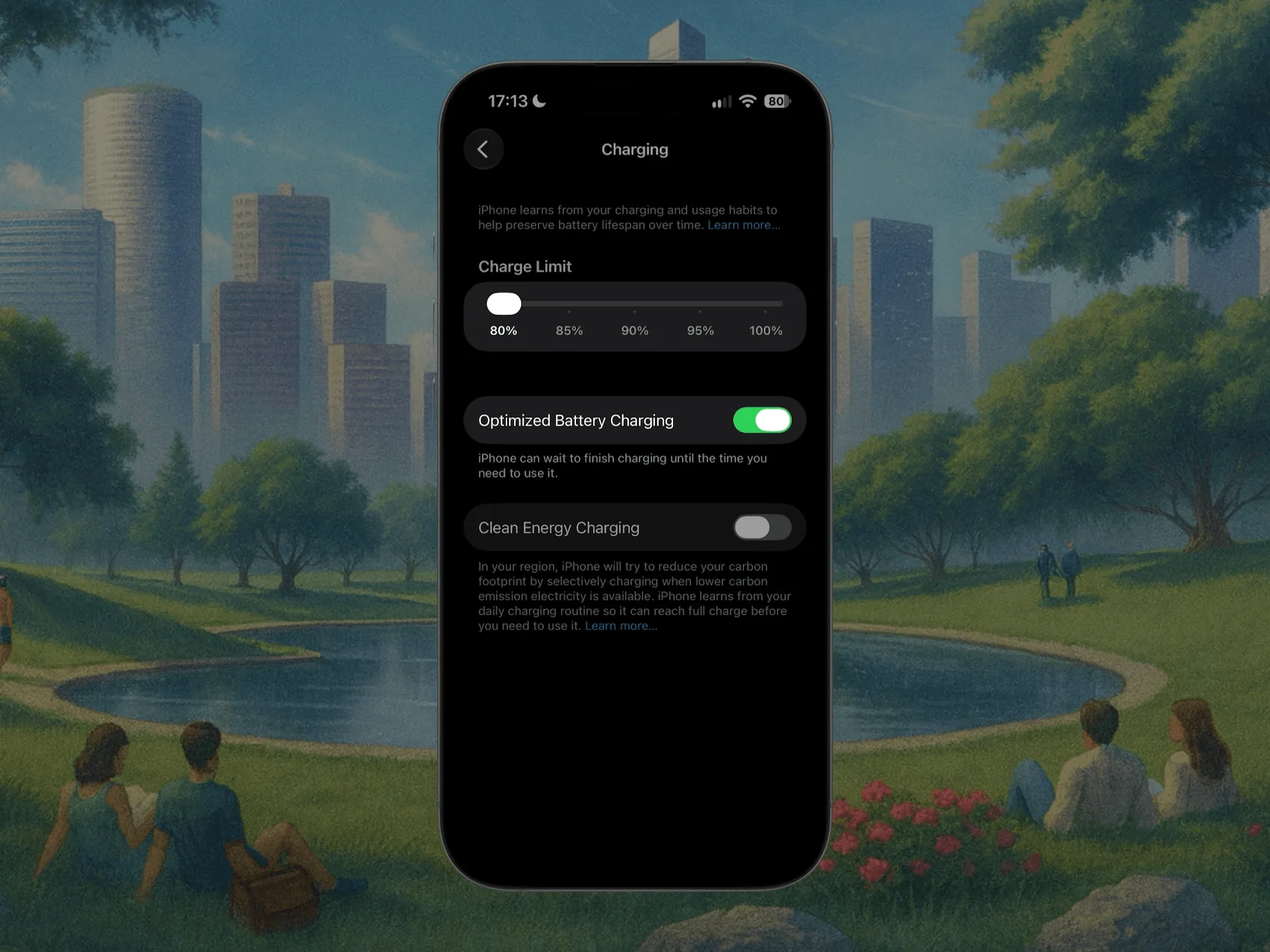
Optimized Charging learns your daily routine and holds the battery at 80 percent overnight, then finishes to 100 percent right before your usual wake time. That means the phone spends hours at 80 instead of a full, stressed 100.
On iPhone 15 and later, Apple added a firmer option: a hard 80 percent charge limit and other cap choices under the same Charging screen. Set it and the phone simply never charges past your chosen ceiling. You trade a bit of daily runtime for slower aging, which is a good deal if you are usually near a charger.
Older iPhones do not get the hard cap, only Optimized Charging. That is fine. Optimized Charging does most of the work on its own.
Heat, fast charging, and overnight charging (what's true)
This is where the myths pile up, so here is the honest version.
Heat is the real enemy. Charging or gaming until the phone is hot to the touch ages the battery faster than almost anything else. If your case traps heat during a fast charge, take it off. Never leave the phone on a car dashboard or windowsill in the sun.
Fast charging is fine. iPhones taper the current automatically and only fast charge to about 80 percent before slowing down. The wattage itself is not the problem; the heat that sometimes comes with it is. A phone charging fast in a cool room is not being harmed.
Overnight charging is fine too, with Optimized Charging on. The old fear of overcharging does not apply to modern iPhones, which stop drawing power once full. The only real overnight cost is the hours spent sitting at 100 percent, and Optimized Charging exists specifically to shrink that window.
So the short list is simple: avoid heat, and stop worrying about the rest.
How to tell if your care is actually working
Good habits are worth nothing if you cannot see the result. The free way to check is built into iOS.
- Open Settings.
- Tap Battery.
- Tap Battery Health & Charging.
- Read Maximum Capacity.
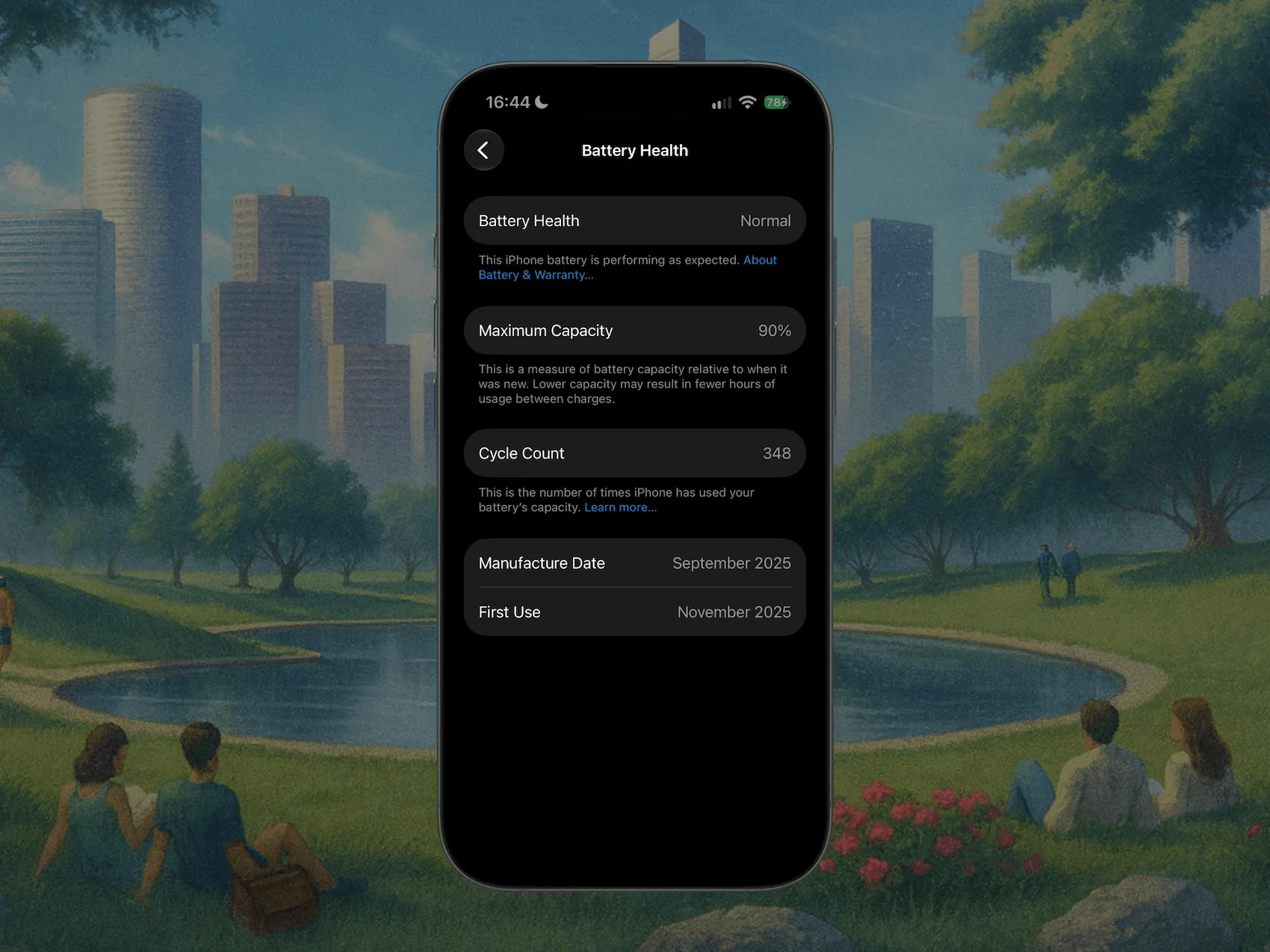
That percentage is your battery's current capacity versus new. A healthy iPhone loses roughly 1 percent a month in its first couple of years. If yours is dropping faster, something in your routine (usually heat or constant 100 percent charging) is the culprit. If you want a deeper walkthrough of that screen, see how to check iPhone battery capacity, and for what the number means in plain terms, iPhone battery capacity explained.
The catch: iOS shows you one number, updated slowly, with no history. On iPhones older than the 15 it will not even show your cycle count. So "is my battery aging normally?" is a question Settings cannot really answer, because there is nothing to compare against over time.
See the hidden stats from your Mac with Juicy
Plug your iPhone into your Mac with a cable, and Juicy's iPhone and iPad diagnostics read the battery data straight off the device: real health percentage, cycle count on any iPhone model, temperature, and capacity in mAh, with nothing to install on the phone itself. (This is in Juicy's direct download and Setapp versions, not the Mac App Store build.)
The same cable trick works for an iPad, which matters more there because iPadOS hides battery health on most models. See how to check iPad battery health.
Because Juicy tracks those numbers over time, you can finally see the trend, which is the only way to know if your care is working. A flat health line means your habits are holding; a steep one means it is time to check the heat and charging.
If you just want a quick read on the numbers you already have, our free iPhone battery health checker grades your capacity and cycle count in the browser and estimates how much life is realistically left.
Juicy is a native menu-bar app, featured by Apple, rated 4.85 stars, with a free 3-day trial and no credit card. It will not extend your battery for you, but it will show you, honestly, whether the effort is paying off.
Related reading: capacity only ever declines, so if you are wondering whether you can get it back, read can you increase iPhone battery capacity before you trust any app that promises a boost.
Frequently asked questions
Should I charge my iPhone to 100 percent?
Occasionally is fine, and topping to 100 before a long day does no real harm. The wear comes from sitting at 100 percent for hours, especially warm. If you charge overnight, leave Optimized Battery Charging on so the phone holds at 80 until just before you wake.
Is Optimized Battery Charging good for iPhone?
Yes, keep it on. It learns your routine and delays charging past 80 percent until right before you unplug, so the battery spends less time at a full, stressful charge. It is one of the few battery settings that helps with zero effort and no downside worth mentioning.
Does fast charging hurt iPhone battery?
Not meaningfully. iPhones taper the speed automatically and only fast charge to about 80 percent, then slow down. The bigger factor is heat, so charging fast inside a hot case or in direct sun does more harm than the wattage itself. Take the case off if it gets warm.
What is the 80 percent charge limit on iPhone?
On iPhone 15 and later, Settings > Battery > Charging lets you cap charging at 80 percent so the battery never tops out. It trades a little daily runtime for slower long-term wear. Older iPhones do not have the hard cap, only Optimized Charging, which delays rather than limits.